
ChatGPT Image Editor
ChatGPT Image Editor
Learn how to use ChatGPT as an image editor: change backgrounds, preserve subjects, retouch product photos, make local edits, and write better prompts.
Quick answer
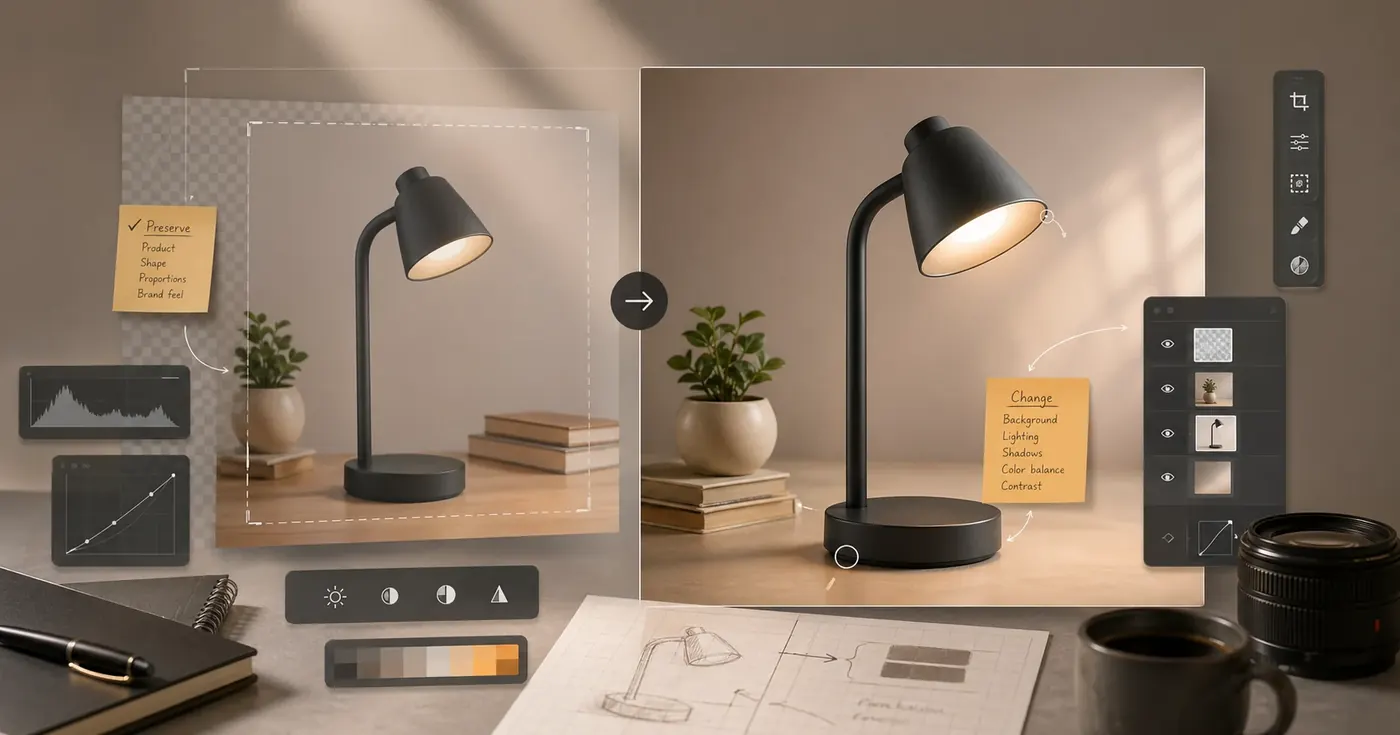
The ChatGPT Image Editor workflow is for changing an existing image while keeping the parts that matter. Instead of asking ChatGPT to create a new image from scratch, you upload or reference an image, define what must stay unchanged, define the exact edit, and review the result against the original.
Use this page when your job is:
- Replace a background while keeping the subject.
- Turn a raw product photo into a cleaner ecommerce image.
- Remove a distracting object or fix a small area.
- Convert a photo into a campaign style without losing identity.
- Create before/after proof for a client, listing, thumbnail, or ad.
If you only remember one rule, remember this: an edit prompt needs a preserve list and a change list. "Make this better" is not an edit direction. "Keep the bottle shape, label placement, and cap color; replace only the background with a warm studio surface" is.
ChatGPTImages is an independent guide, prompt library, and image workflow resource. It is not an OpenAI product. Use it to structure prompts and examples, then run the edit in the image tool you use.
ChatGPT Image Editing vs Image Generation
Image editing and image generation use different thinking. Generation starts with an empty canvas. Editing starts with evidence.
| Question | Image generation | Image editing |
|---|---|---|
| Starting point | A written description | An uploaded or referenced image |
| Main risk | The idea is too vague | Important details drift |
| Best prompt structure | Asset, subject, scene, style, composition | Preserve, change, edit area, constraints, output |
| Review method | Does it match the brief? | Does the after image improve the before image without breaking protected details? |
| Good use cases | Concepts, illustrations, posters, scenes | Product photos, portraits, thumbnails, background swaps, retouching |
This difference matters because many failed edits are really generation prompts in disguise. If you ask for "a premium product image" after uploading a product photo, the model may recreate the product instead of editing it. If you ask for "replace the background, preserve the exact product silhouette, keep the label readable, and do not change proportions," the task is much clearer.
The 6-Step ChatGPT Image Editor Workflow
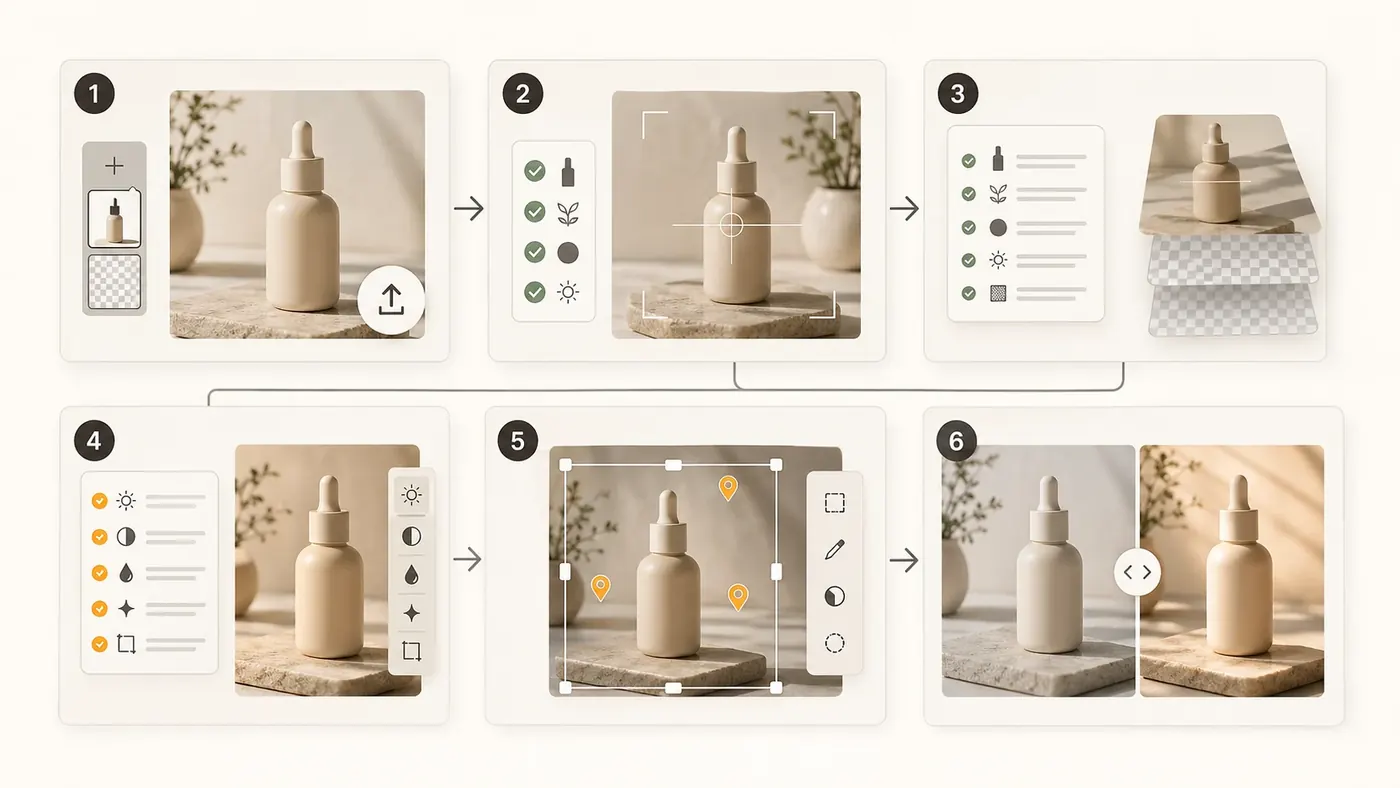
1. Decide what counts as success
Before writing the prompt, choose the commercial purpose of the edited image:
- Product detail page photo
- Amazon or marketplace secondary image
- Instagram carousel visual
- YouTube thumbnail background
- Paid social ad creative
- Blog or newsletter hero
- Portfolio or case study before/after
The same source photo can become several assets. The prompt should name the asset so the edit has a target.
2. Upload the strongest reference image
Use a source image where the important subject is visible, uncropped, and not hidden by clutter. If the subject is a product, the best reference usually has clean edges, visible shape, and enough resolution to preserve texture.
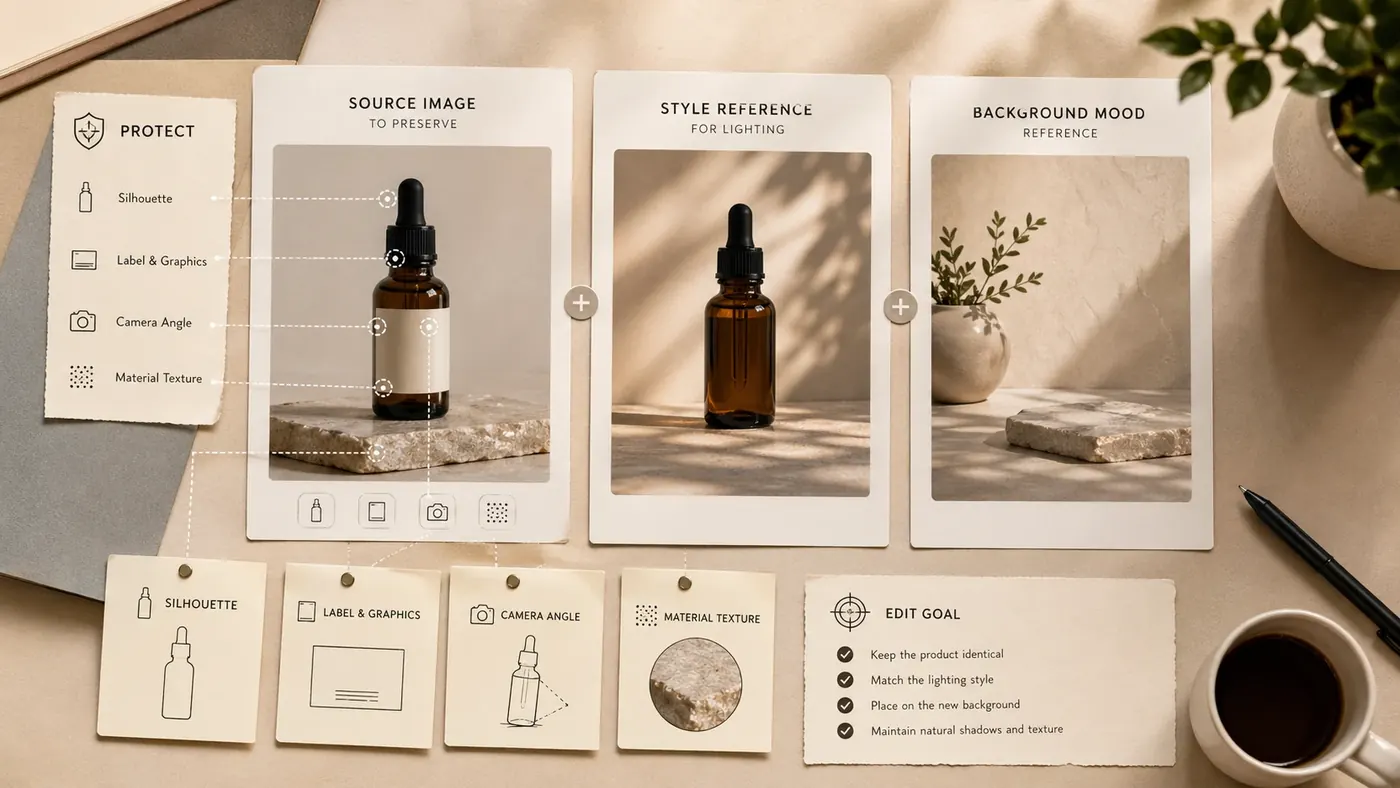
Use multiple references only when each one has a specific role. For example: "Image A is the product to preserve. Image B is the lighting style. Image C is the background mood." Do not upload a pile of inspiration images and expect the editor to guess priorities.
3. Separate Preserve from Change
Most edit prompts should include two explicit lists:
Preserve: subject identity, product shape, logo placement, camera angle, expression, pose, material texture.
Change: background, lighting mood, crop, color grade, distracting objects, surface, campaign style.
This prevents the most common editing failure: the output looks nice, but the product, person, room, or object is no longer the same.
4. Name the edit area
If the edit is local, say where it is:
- "Only edit the background behind the product."
- "Only remove the cable in the lower-left corner."
- "Only clean the dust on the tabletop."
- "Only change the shirt color; keep face, hair, pose, and background unchanged."
Local edit prompts should be narrow. The more you ask ChatGPT to change around the protected subject, the more likely identity or geometry will drift.
5. Ask for one edit at a time
Background replacement, product retouching, text layout, style transfer, and cropping are separate operations. Combine them only after the subject is stable.
Better sequence:
- Replace the background.
- Review subject preservation.
- Retouch small distractions.
- Adjust crop and lighting.
- Add final graphic text outside the image editor if exact wording matters.
6. Compare before and after
Do not judge only the after image. Put it next to the before image and ask:
- Did the protected subject change?
- Did the requested edit happen in the right area?
- Did the edit introduce new artifacts?
- Is the image more useful for the intended channel?
- Is anything harder to trust after the edit?
For ecommerce and client work, this before/after comparison is the evidence. A beautiful result is not useful if the product shape is wrong.
The Edit Prompt Formula
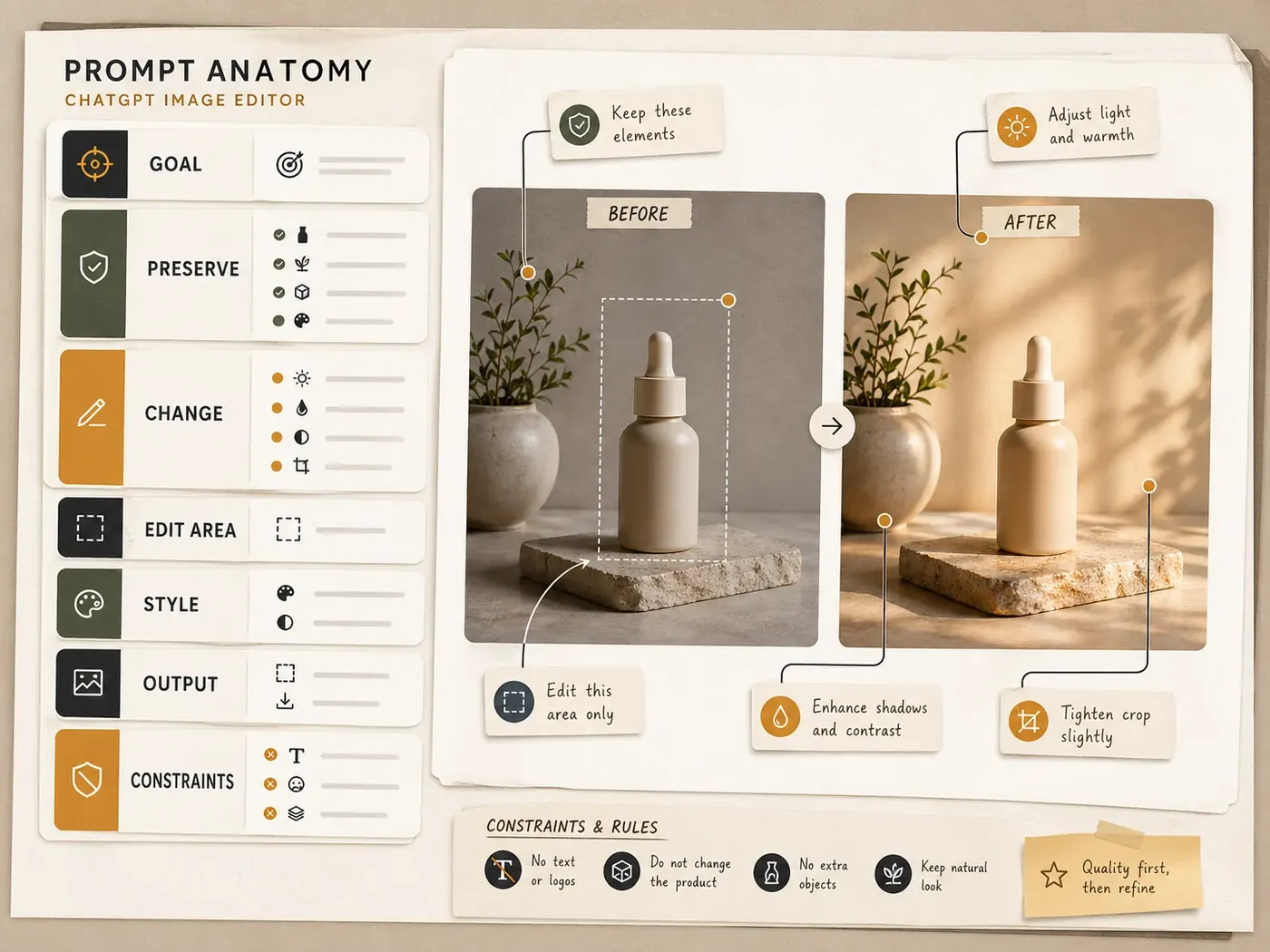
Use this structure for most ChatGPT image editing prompts:
Use the uploaded image as the source.
Goal: [final asset and channel].
Preserve: [details that must not change].
Change: [one primary transformation].
Edit area: [whole image, background only, object only, lower-left corner, etc.].
Style: [photography, lighting, color grade, campaign mood, or visual reference].
Output: [aspect ratio, crop, background, use case].
Constraints: [what to avoid, what not to invent, what must remain realistic].
The formula works because each line maps to a review question. If the subject drifted, strengthen Preserve. If the wrong area changed, narrow Edit area. If the result looks generic, refine Style. If the crop is not usable, rewrite Output.
Example 1: Replace a Background and Keep the Subject
Use this when you have a decent product cutout or casual product photo, but the background is not ready for a store, ad, or landing page.
Before/reference image:
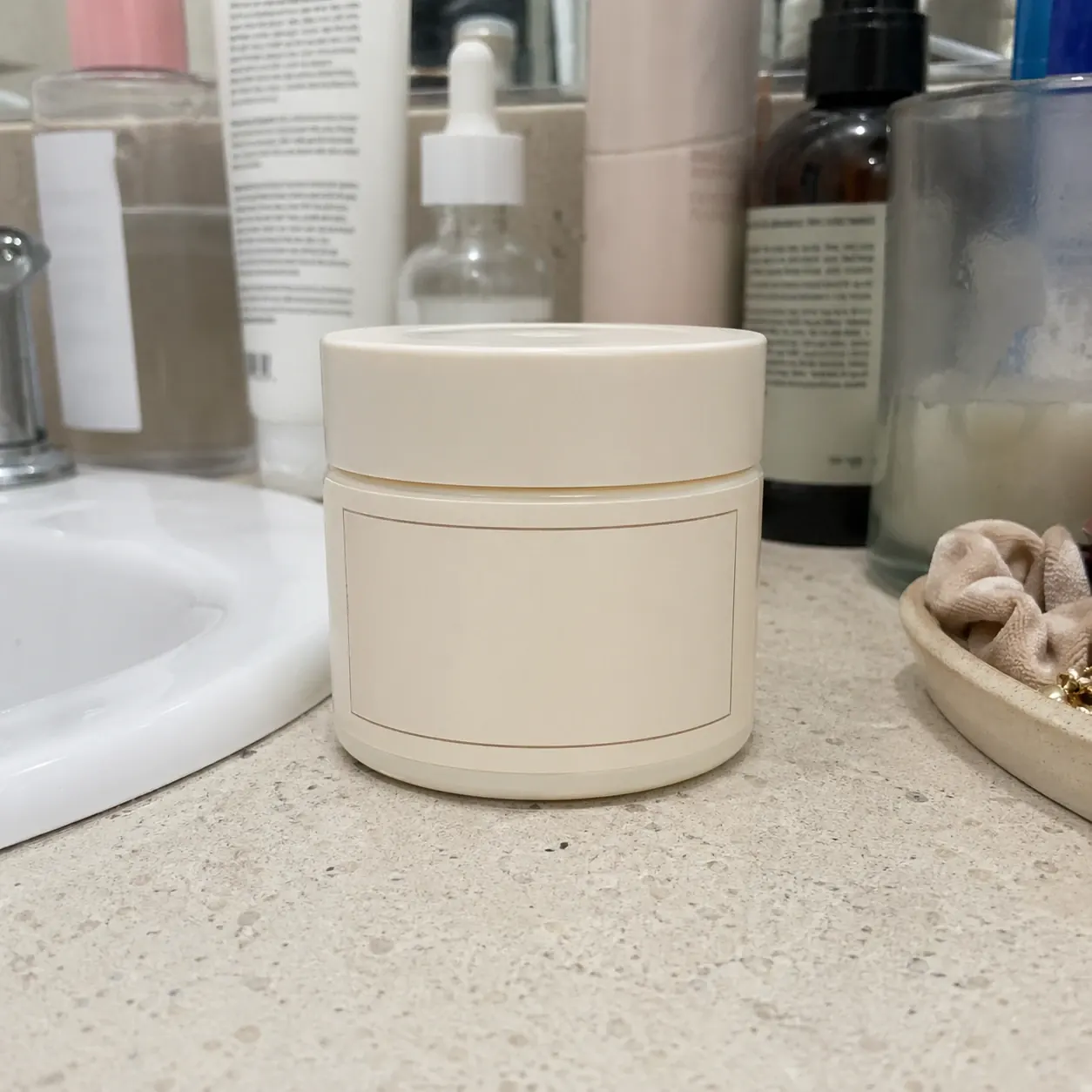
Prompt:
Use the uploaded image as the source.
Goal: create a clean ecommerce hero image for a skincare product page.
Preserve: the exact jar shape, lid proportions, label placement, front-facing angle, and cream color of the packaging.
Change: replace the cluttered bathroom background with a warm beige studio surface and a soft shadow behind the jar.
Edit area: background and surface only; do not redraw the jar.
Style: premium skincare product photography, soft natural light, minimal props, calm neutral palette.
Output: square 1:1 image with the jar centered and enough negative space around it for page layout.
Constraints: do not invent new label text, do not add fake logos, do not warp the lid, do not crop the product.
After/result image:
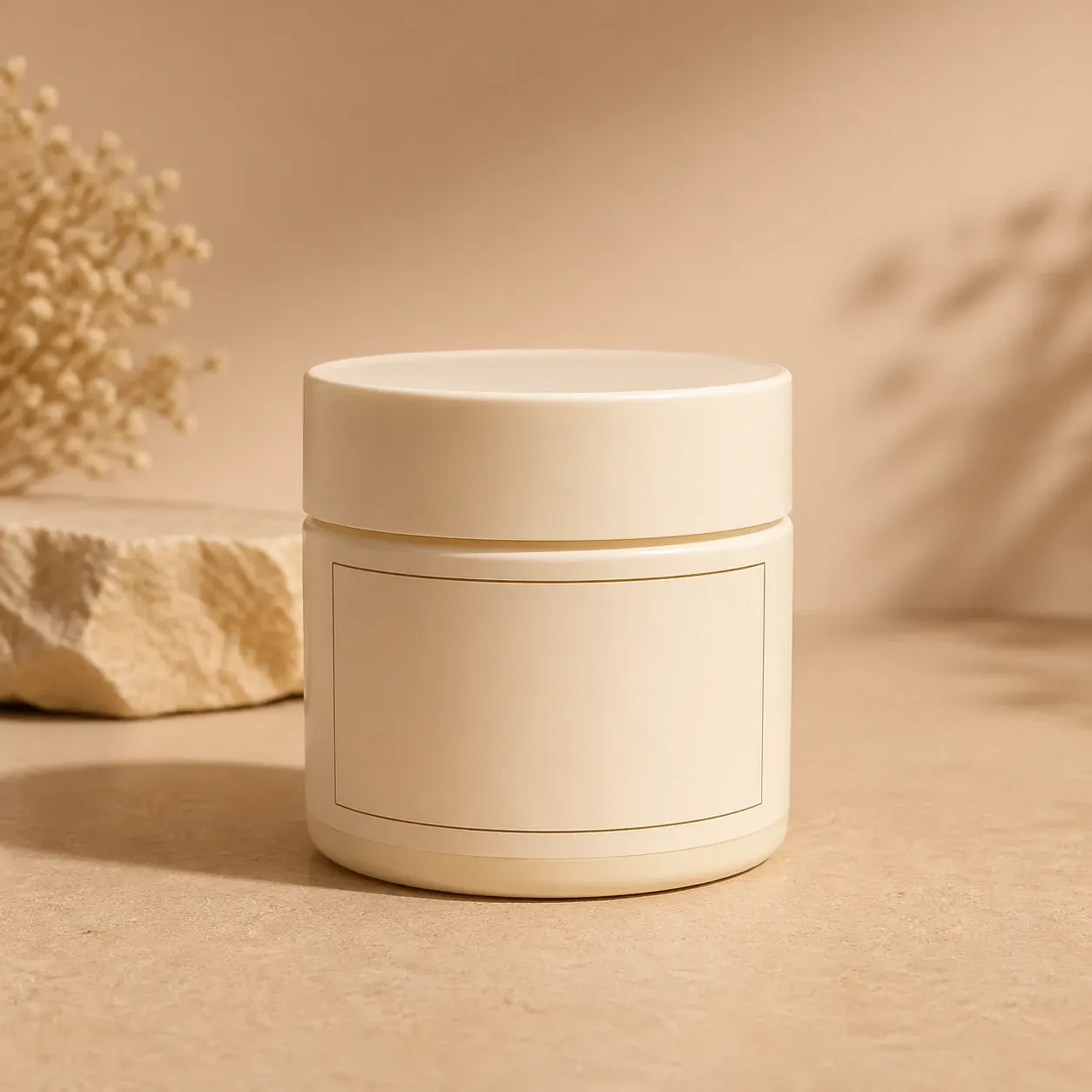
Why it works: the prompt does not say "make it premium" and stop. It defines the product details that must survive, limits the edit area to the background, and gives the final ecommerce use case.
Example 2: Fix a Product Photo With Local Editing
Use this when the source photo is almost usable but has dust, glare, a distracting cable, a dented prop, or another small defect.
Before/reference image:
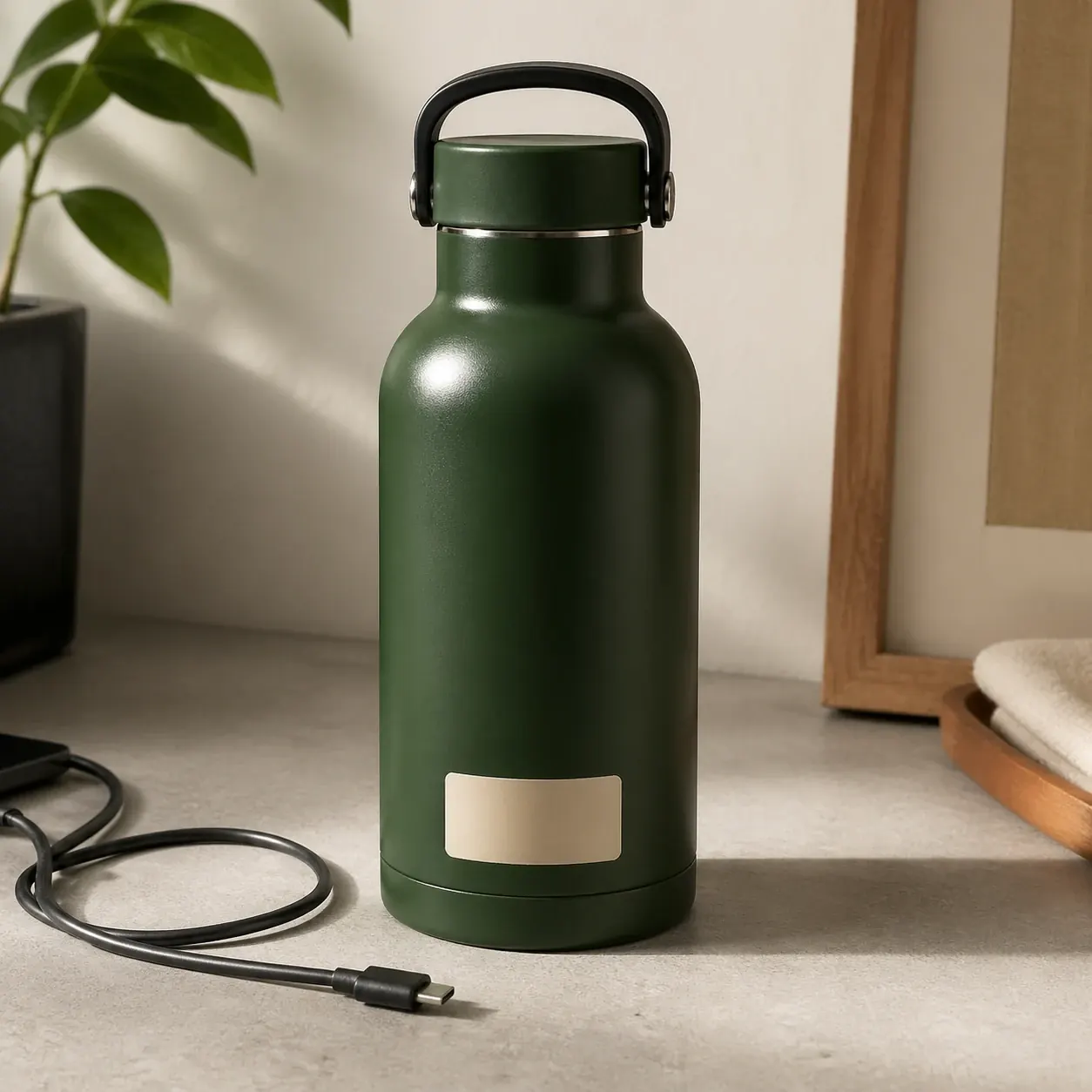
Prompt:
Use the uploaded product photo as the source.
Goal: clean up the image for a marketplace product listing.
Preserve: bottle shape, cap color, label position, camera angle, shadow direction, and realistic metal texture.
Change: remove the cable near the lower edge and reduce the harsh glare on the bottle shoulder.
Edit area: only the cable area and the glare spot; keep the rest of the image unchanged.
Style: realistic product photo retouching, not a new render.
Output: same composition and aspect ratio as the source image.
Constraints: do not smooth away the bottle edges, do not change the label, do not add props, do not make the product look AI-generated.
After/result image:
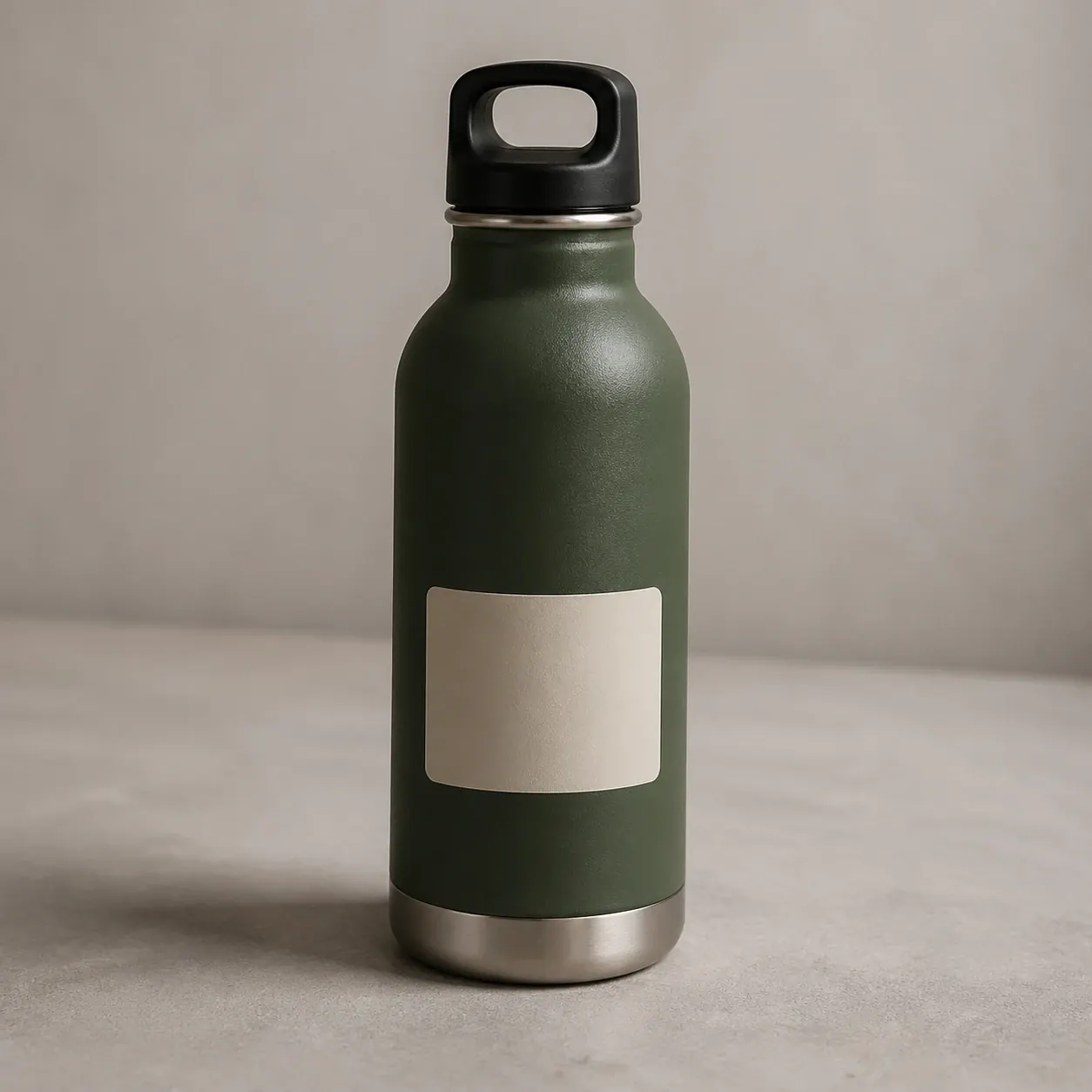
Why it works: local editing is not a request for a new image. The prompt names two defects, protects the rest of the photo, and tells the editor to keep the original composition.
Example 3: Change Style Without Losing Identity
Use this when you want a creator photo, portrait, room, or brand visual to match a campaign mood while remaining recognizably the same subject.
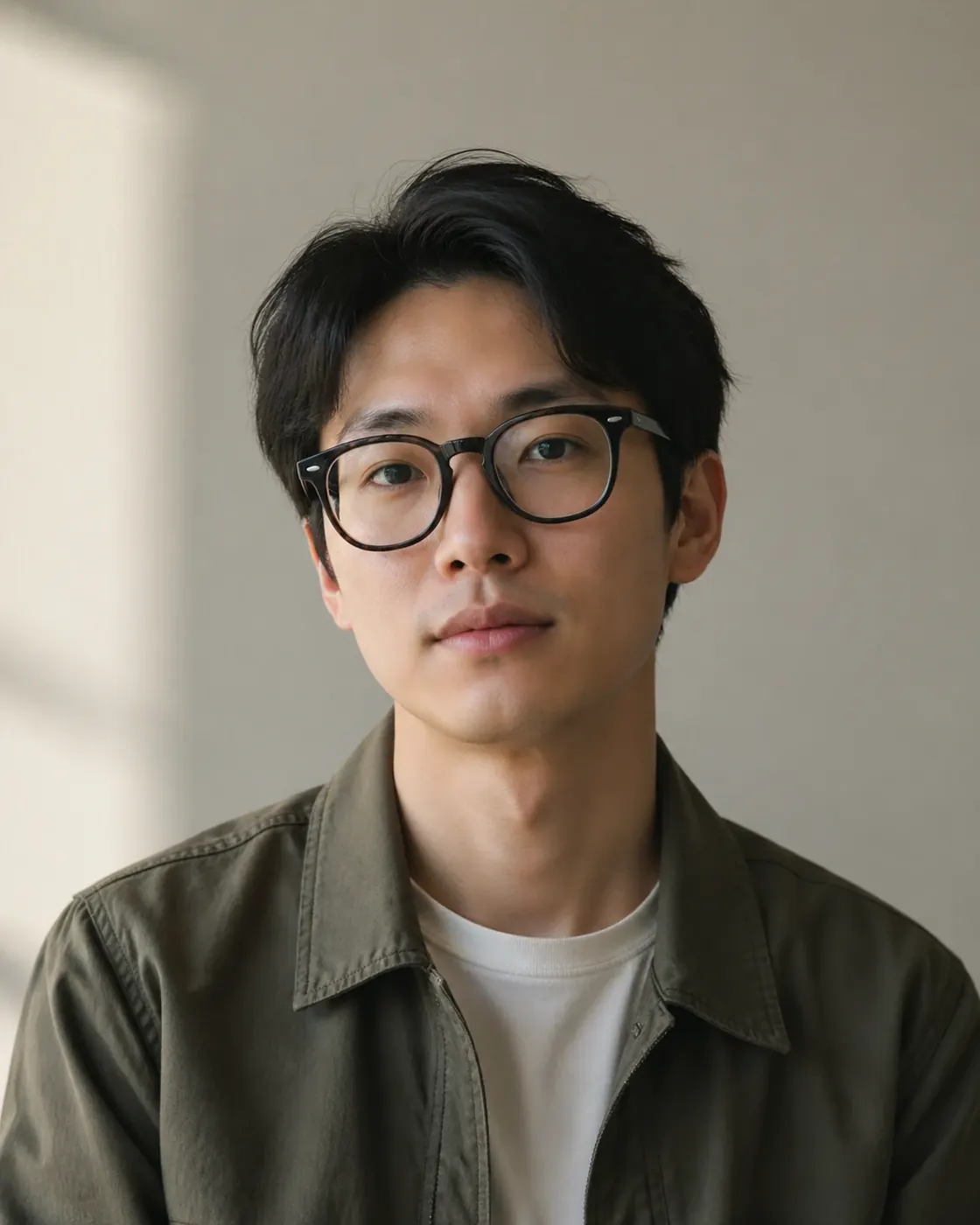
Before/reference image:
Prompt:
Use the uploaded portrait as the source.
Goal: create an editorial social media portrait for a creator announcement post.
Preserve: the person's facial identity, expression, head angle, hair shape, glasses, and overall pose.
Change: apply a polished magazine-style color grade with a muted teal backdrop and softer directional lighting.
Edit area: background, lighting, and color grade only; do not alter facial features.
Style: modern editorial portrait photography, clean but natural, subtle skin texture, not plastic.
Output: vertical 4:5 crop suitable for Instagram feed.
Constraints: do not change age, face shape, eye direction, hairstyle, glasses design, or clothing silhouette.
After/result image:
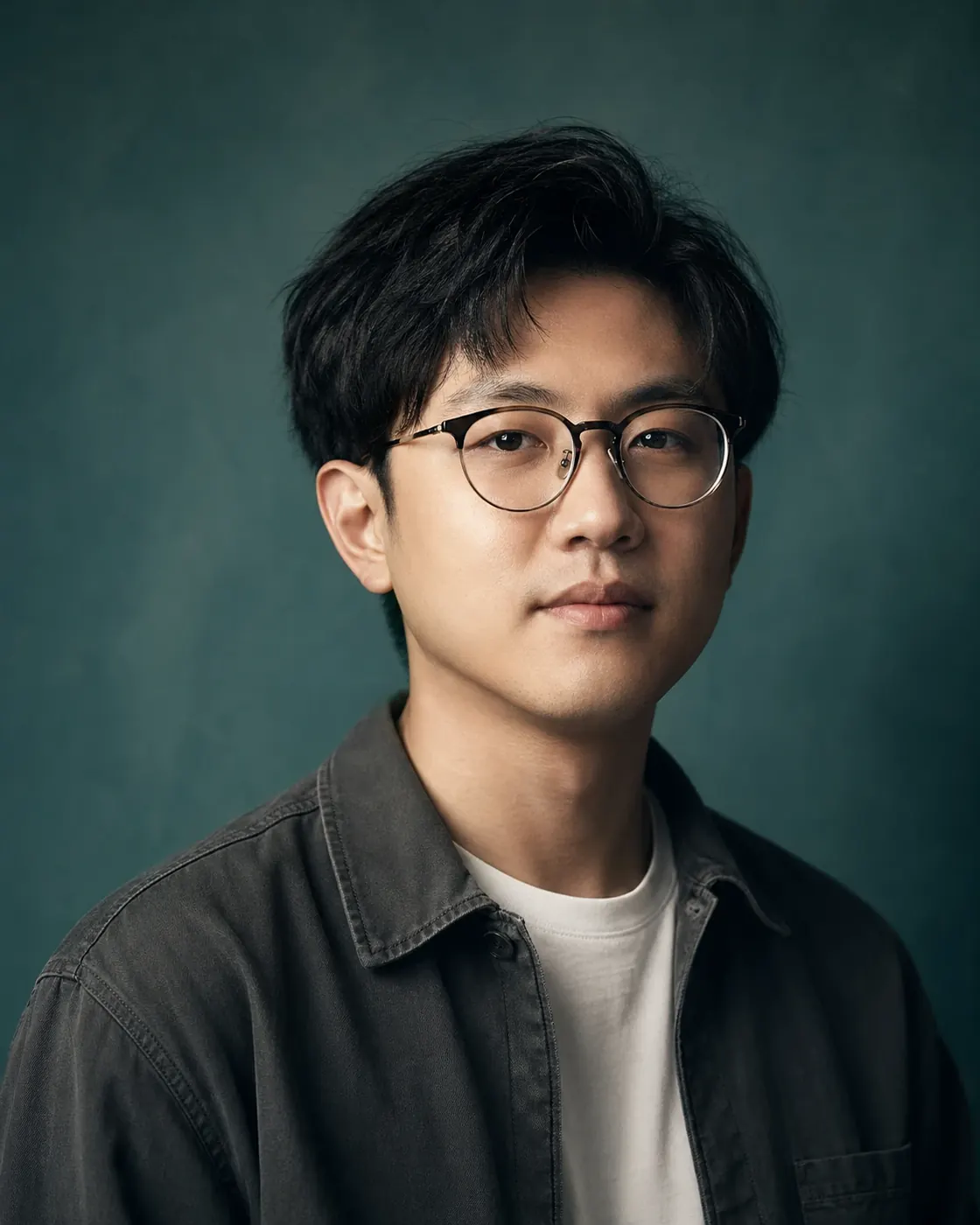
Why it works: style transfer can easily become identity replacement. This prompt protects the details that make the person recognizable before it asks for mood, lighting, or crop.
How To Keep Edited Images Consistent
Consistency depends less on magic keywords and more on controlled references.
| Consistency goal | What to provide | Prompt instruction |
|---|---|---|
| Same product across ads | One clean product reference | "Preserve exact product silhouette, label placement, material, and proportions." |
| Same person across portraits | One clear portrait reference | "Preserve facial identity, age, expression, head angle, and hair shape." |
| Same room across posts | Wide room reference | "Preserve room layout, furniture positions, window placement, and wall color." |
| Same campaign style | Style reference plus output examples | "Apply this lighting and palette, but keep the source subject unchanged." |
| Same marketplace crop | Existing listing image | "Keep the same aspect ratio, product scale, and center alignment." |
If consistency matters, avoid asking for a big creative transformation in the first pass. Preserve identity first, then adjust style.
Common Failure Reasons and Fixes
| Failure | Likely cause | Better revision |
|---|---|---|
| The product shape changed | Preserve list was too weak | "Preserve the exact silhouette, cap height, label position, and product proportions." |
| The background changed but the subject also changed | Edit area was not constrained | "Edit background only. Do not redraw or reinterpret the product." |
| The result looks like a new generated image | Prompt described a vibe instead of an edit | "Use realistic photo retouching. Keep the original composition and camera angle." |
| A logo or label became fake text | Prompt allowed invention | "Do not invent, rewrite, or enhance label text. Keep existing label marks as-is." |
| Local edit affected the whole image | Edit area was too broad | "Only edit the lower-left cable area. Leave all other pixels visually unchanged." |
| The subject is cropped | Output crop was missing | "Keep the full product visible with 8-12% padding on all sides." |
| Portrait no longer looks like the person | Style request overpowered identity | "Preserve facial identity, face shape, age, eye direction, hair, and glasses exactly." |
Practical Editing Templates
Template: Background Replacement
Use the uploaded image as the source.
Goal: [final asset type].
Preserve: [subject identity/product shape/key details].
Change: replace [current background] with [new background].
Edit area: background only.
Style: [lighting, surface, color palette].
Output: [aspect ratio and channel].
Constraints: do not alter [protected details], do not add [unwanted objects], do not crop [subject].
Template: Product Photo Cleanup
Use the uploaded product photo as the source.
Goal: clean product image for [marketplace / landing page / ad].
Preserve: product geometry, color, label placement, texture, shadow direction.
Change: remove [specific defect] and improve [specific issue].
Edit area: only [specific region].
Style: realistic product retouching.
Output: same crop unless requested otherwise.
Constraints: do not redraw the product, do not invent text, do not change proportions.
Template: Style Adaptation
Use the uploaded image as the source.
Goal: adapt this image for [campaign/channel].
Preserve: [identity, product, composition, important details].
Change: apply [style, lighting, palette, mood].
Edit area: [background / lighting / full image color grade].
Output: [aspect ratio].
Constraints: keep [protected details] recognizable and realistic.
Try this workflow
Start with one existing image, write a preserve list, write a change list, and run one edit. If you need a faster starting point, browse the ChatGPTImages prompt library for editor-style templates, then adapt the template to your product photo, portrait, thumbnail, or campaign asset.
Related guides
Official sources
Model names, API behavior, and pricing can change. Verify factual claims against the official sources below before budgeting or publishing.