
how to upload images to ChatGPT
How to Upload Images to ChatGPT: Analyze and Edit
Learn how to upload images to ChatGPT for screenshot analysis, image edits, reference prompts, file preparation, privacy checks, and upload troubleshooting.
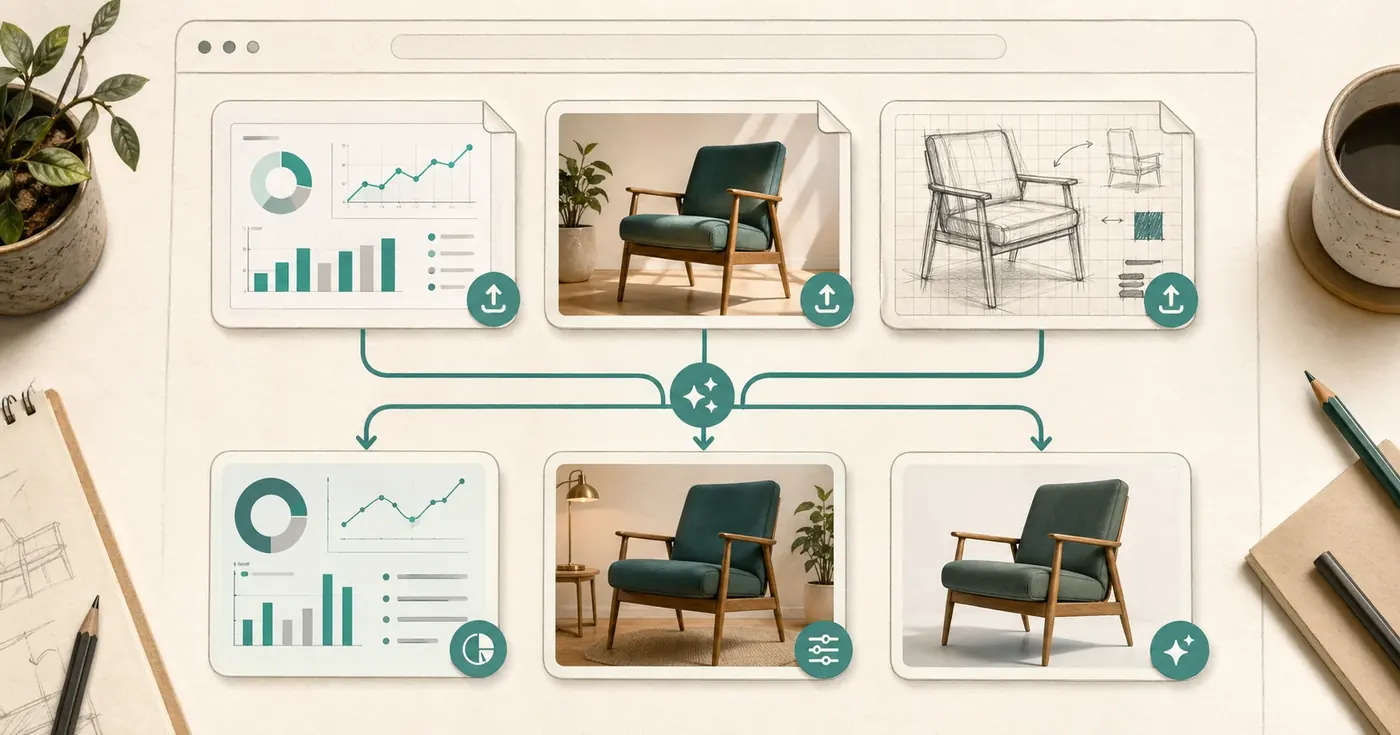
Quick answer
Yes, you can upload images to ChatGPT. In a chat, use the attachment button, drag an image into the message box, or paste an image from your clipboard. Then ask ChatGPT what you want it to do with the image: analyze it, extract information, compare it, explain it, edit it, or use it as a visual reference for a new image.
The key is to write the instruction after the upload as clearly as you would brief a human reviewer:
- "Analyze this screenshot and list the UX issues."
- "Use this product photo, keep the bottle shape, and create a cleaner ecommerce hero image."
- "Use this sketch as a layout reference and turn it into a polished illustration."
This guide focuses on uploading and working with images. If you want a pure text-to-image tutorial, use a generation guide instead.
Who This Guide Is For
This is for people who already have a visual file and want ChatGPT to help with it:
- A screenshot that needs explanation, QA, summarization, or critique.
- A product photo that needs a cleaner background or ad concept.
- A rough sketch that should become a more polished design direction.
- A reference image that should guide style, layout, pose, or composition.
- A chart, receipt, menu, flyer, document screenshot, or UI mockup that needs interpretation.
It is not mainly for people starting from a blank prompt. Upload workflows are different because you must tell ChatGPT what to preserve, what to ignore, and what output you want.
How To Upload an Image to ChatGPT
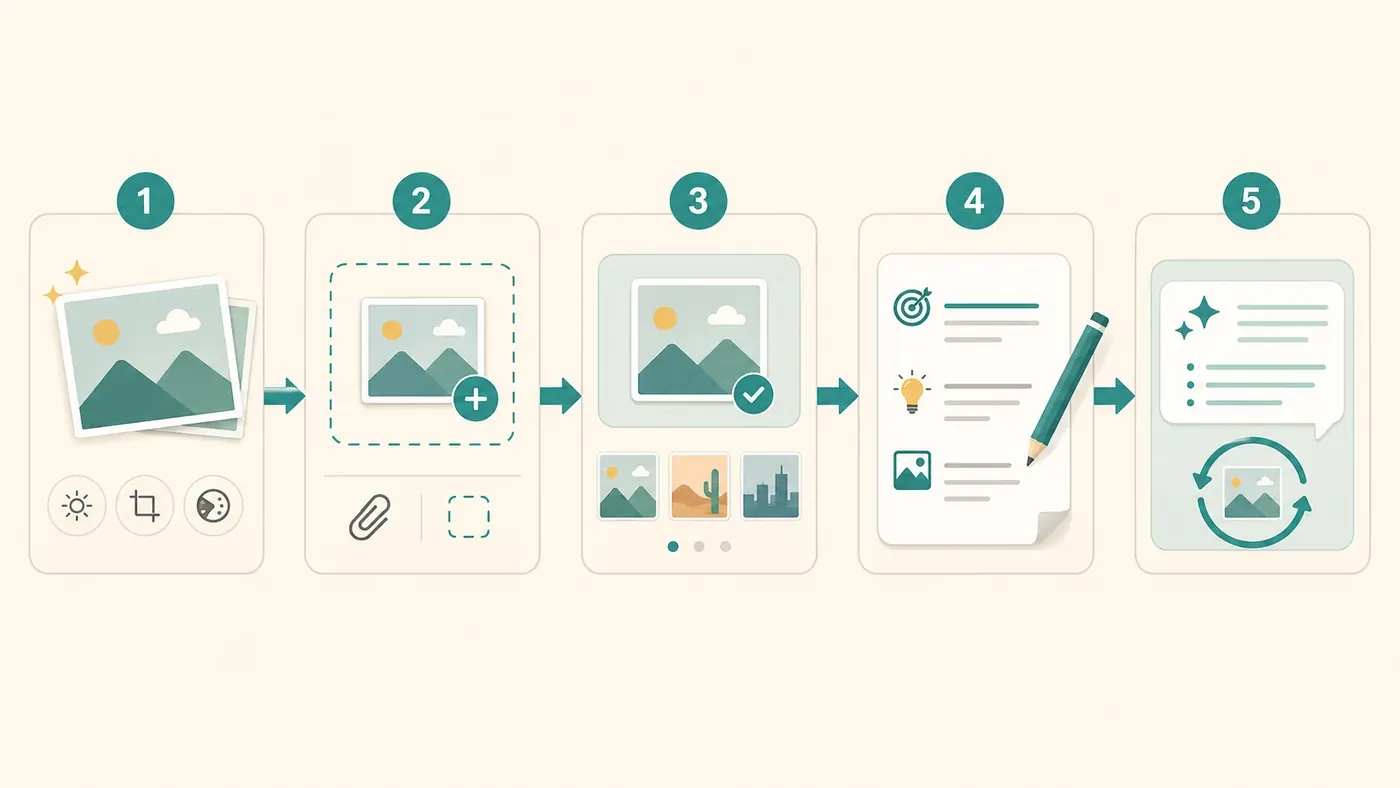
- Open ChatGPT and start a new chat or continue an existing one.
- Select the attachment or
+button in the message area. - Choose
Add photos & files, upload from your device, drag the image into the chat, or paste an image from your clipboard. - Wait until the image appears as an attached file or thumbnail.
- Write a task-specific instruction and send the message.
On mobile, use the same attachment flow to choose from photos/files or take a new photo when the app and device permissions allow it. On desktop, drag-and-drop and clipboard paste are usually the fastest options for screenshots.
Supported Image Types and File Limits
| Item | Practical guidance |
|---|---|
| Common supported image types | PNG, JPEG/JPG, and non-animated GIF are listed by OpenAI Help for image inputs. |
| File size | Keep each image under 20MB. Smaller files upload faster and fail less often. |
| Static images only | Do not upload videos or animated GIFs expecting frame-by-frame video analysis. Use a still frame instead. |
| Multiple images | You can add more than one image, but if upload or analysis fails, reduce the number or size. |
| Screenshots | PNG is usually best for UI text, charts, documents, and screenshots. |
| Photos | JPEG is usually fine for product photos, real-world photos, and camera images. |
If a file is embedded inside a PDF, slide deck, or document, ChatGPT may not treat the embedded image the same way as a direct image upload. For visual analysis, upload the image itself or export the relevant page as a clear PNG/JPEG.
Prepare the Image Before Uploading
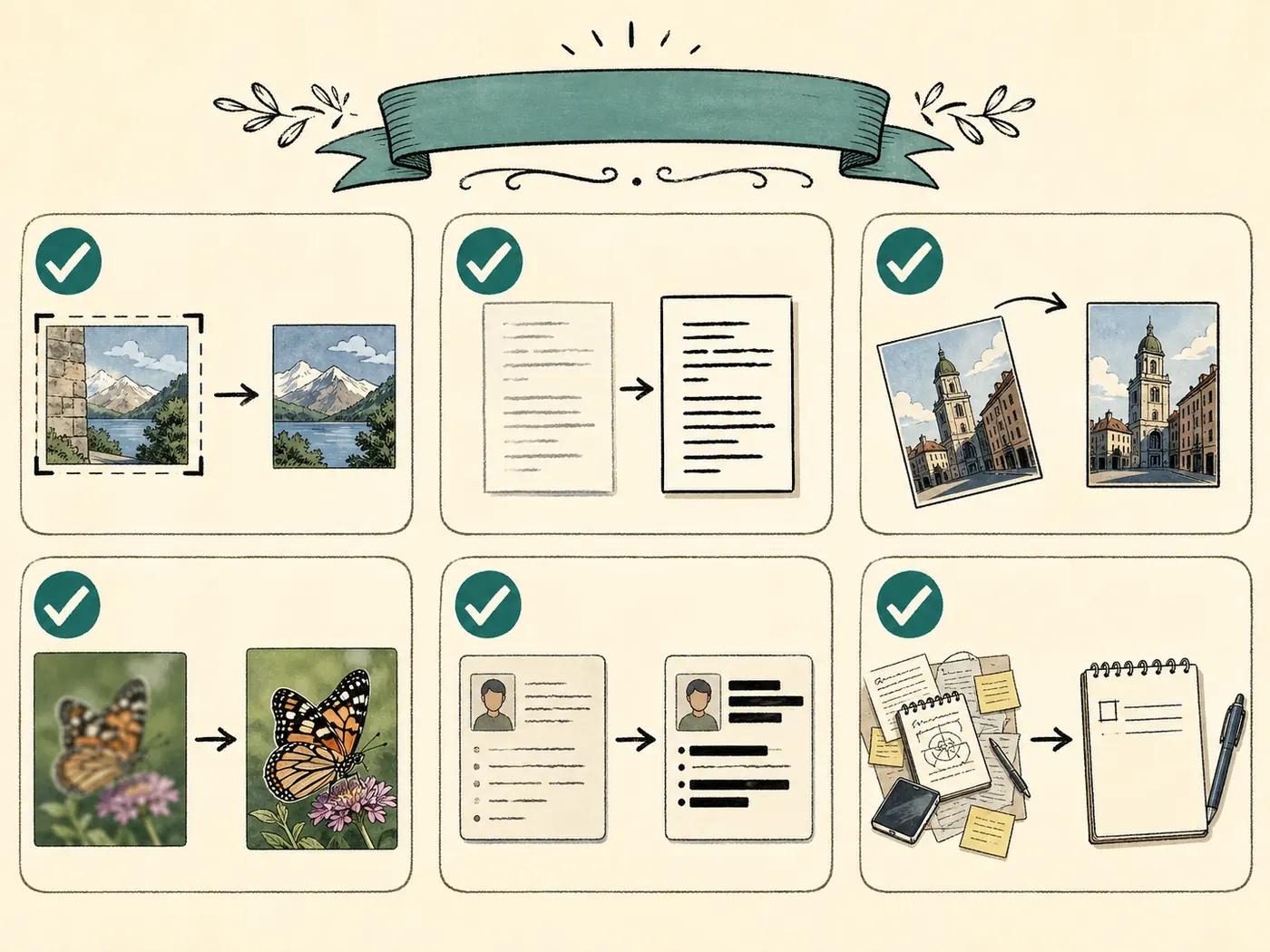
Better uploads produce better answers. Before attaching the image:
- Crop out irrelevant borders, browser chrome, and empty space.
- Keep important text large enough to read.
- Rotate the file so text and objects are upright.
- Use a sharp image rather than a compressed screenshot from a messaging app.
- Mark the relevant area with an arrow or box if you want analysis of one detail.
- Redact private information before upload, including names, addresses, emails, API keys, payment details, internal dashboards, and customer data.
- If the task depends on exact color, upload the least-compressed version you have.
Do not over-crop. ChatGPT often needs surrounding context to understand a UI, product, document, or scene.
What You Can Do After Uploading
| Goal | Ask ChatGPT to... | Best for |
|---|---|---|
| Analyze | Describe, explain, critique, summarize, compare, extract, or classify what is visible. | Screenshots, charts, documents, UI mockups, photos. |
| Edit | Change the uploaded image while preserving selected details. | Product photos, portraits, backgrounds, ads, visual cleanup. |
| Use as reference | Create a new image based on the uploaded image's style, layout, pose, object, or composition. | Sketches, moodboards, product references, character references. |
| Troubleshoot | Identify why an upload, UI, chart, or photo is confusing. | Bug screenshots, design QA, support tickets. |
| Extract text or structure | Pull out labels, visible fields, tables, or checklist items. | Receipts, menus, forms, slides, document screenshots. |
The same uploaded image can support multiple turns. Start with analysis, then ask for an edit or a new prompt once you know what matters.
Analysis vs Editing vs Reference Generation
These three workflows are often confused.
| Workflow | What happens | Example instruction |
|---|---|---|
| Image analysis | ChatGPT looks at the uploaded image and answers in text. | "Review this checkout screenshot and list the top 5 conversion issues." |
| Image editing | ChatGPT changes the uploaded image or a selected region. | "Keep the product unchanged, remove the cluttered background, and make it a clean studio ecommerce image." |
| Reference generation | ChatGPT uses the uploaded image as guidance for a new image. | "Use this rough sketch as the layout reference and create a polished editorial illustration." |
Use analysis when you need understanding. Use editing when the original image itself should be transformed. Use reference generation when the uploaded file is a starting point but the result can be a new image.
The Upload Prompt Formula
After uploading an image, use this structure:
| Field | What to write |
|---|---|
| Task | Analyze, edit, compare, extract, redesign, explain, or generate from reference. |
| Focus | The exact object, region, screen, product, or decision you care about. |
| Preserve | Details that must stay unchanged, especially for edits. |
| Change | What should be improved, removed, added, or transformed. |
| Output format | Bullets, table, JSON, revised image, prompt, checklist, or design brief. |
| Constraints | Privacy limits, no invented text, no brand changes, no diagnosis, no assumptions. |
Example 1: Upload a Screenshot for Analysis
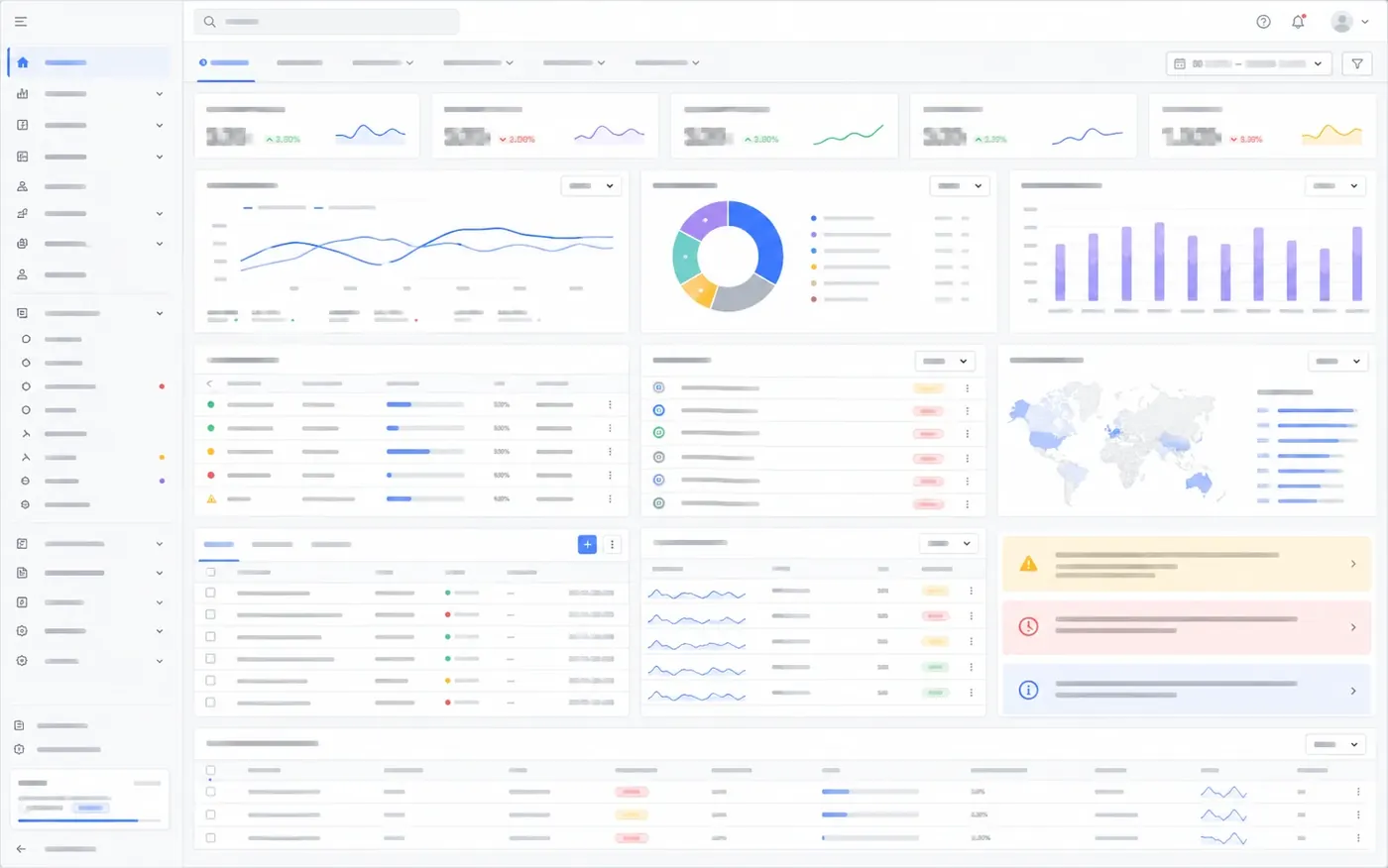
Input image:
Prompt:
Analyze this dashboard screenshot as a product UX reviewer.
Focus on: information hierarchy, confusing labels, visual clutter, missing states, and accessibility risks.
Output: a prioritized table with issue, evidence from the screenshot, impact, and suggested fix.
Constraints: do not guess hidden product behavior; only reference what is visible in the screenshot.
Result image:
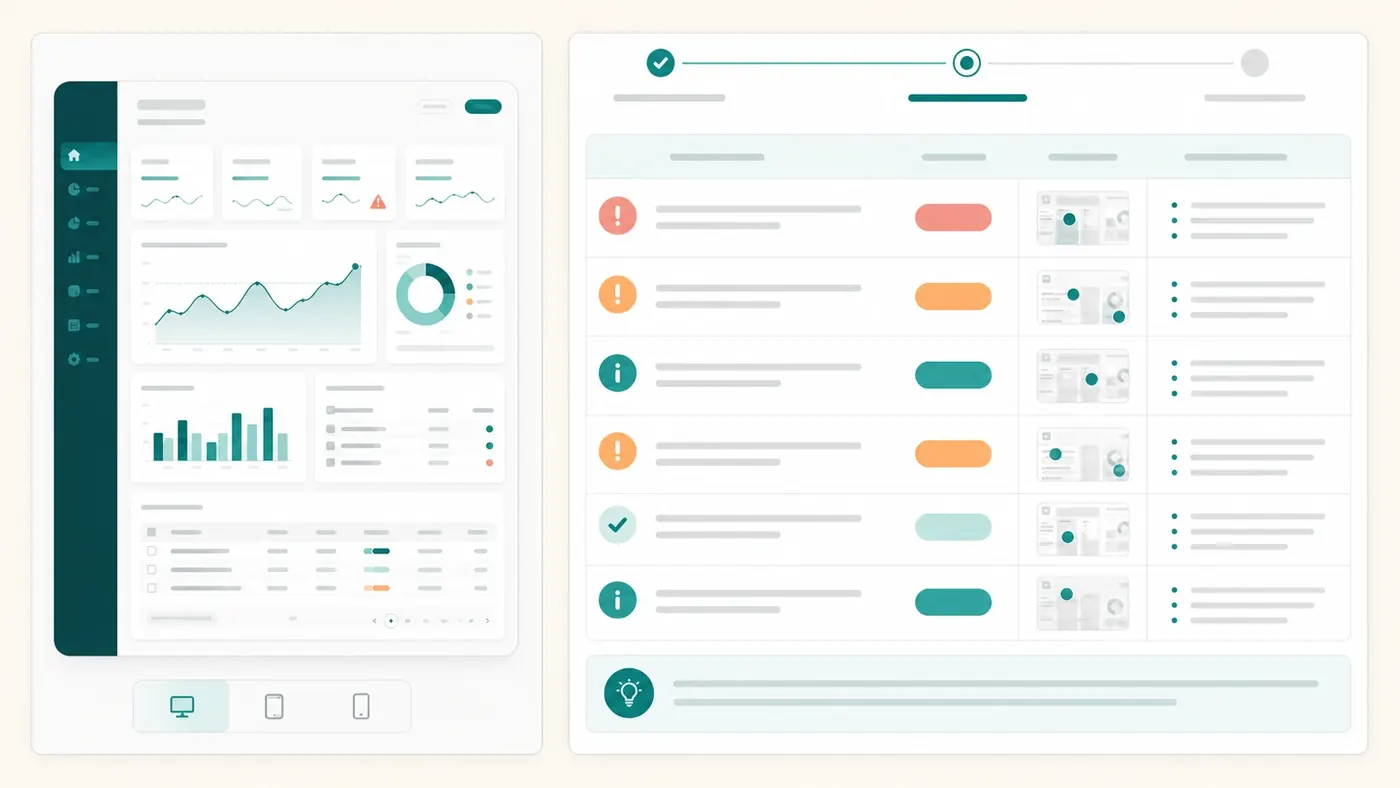
Why it works: the prompt names the reviewer role, limits the evidence to visible details, and asks for a structured output instead of a vague opinion.
Example 2: Upload a Product Photo for Editing
Input image:
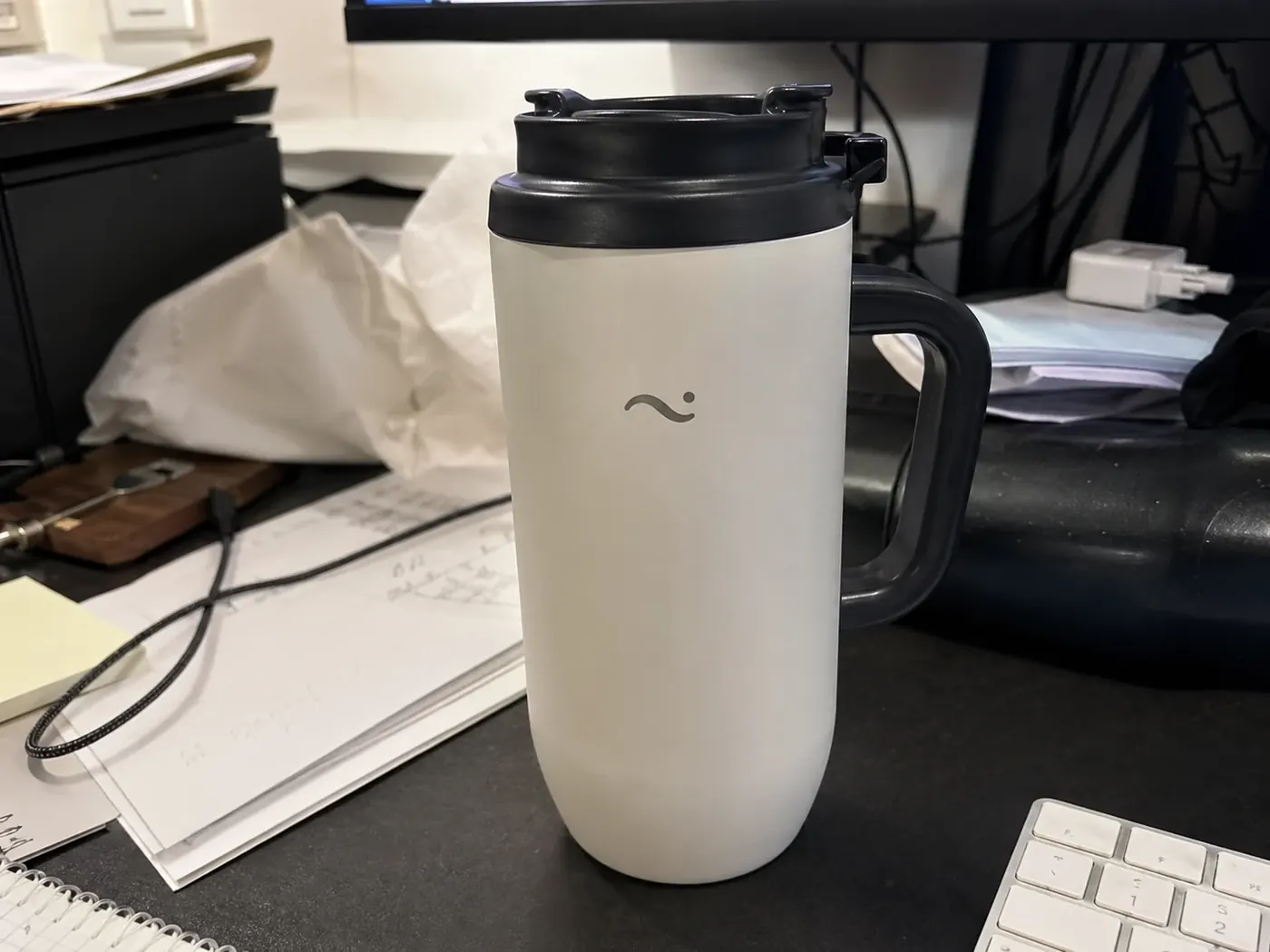
Prompt:
Edit the uploaded product photo into a clean ecommerce hero image.
Preserve: mug shape, lid color, logo position, handle angle, and realistic material texture.
Change: remove the cluttered desk, replace it with a warm neutral studio background, add soft shadows, and center the product.
Output: square ecommerce image with no text.
Constraints: do not change the logo, do not invent new label text, do not crop the product, and do not add hands or extra props.
Result image:
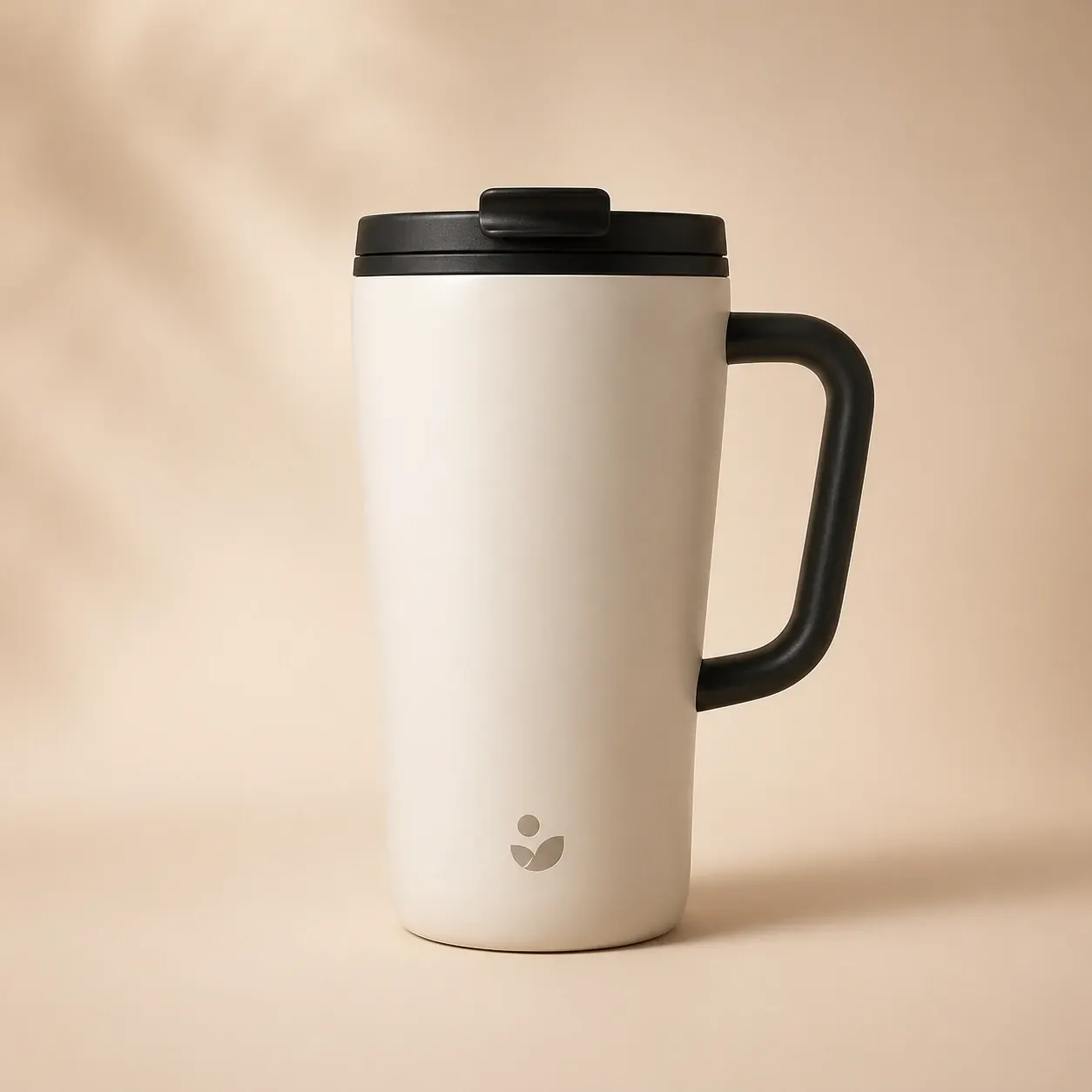
Why it works: it separates Preserve from Change. That is the most important pattern for editing uploaded product images.
Example 3: Upload a Sketch or Reference Image for a New Image
Reference image:
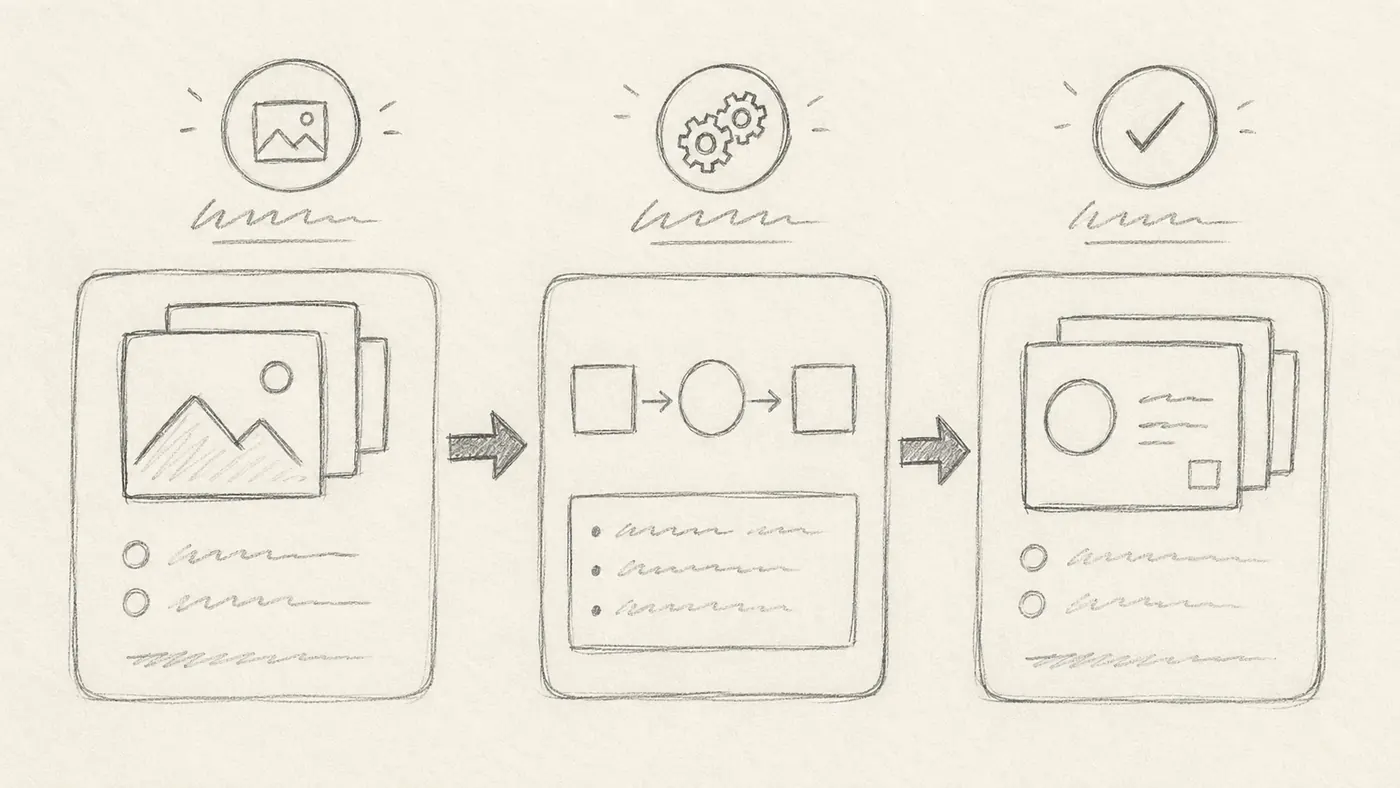
Prompt:
Use the uploaded sketch as a composition reference, not as final artwork.
Create a polished editorial illustration for a guide about uploading images to ChatGPT.
Preserve: the three-panel flow, left-to-right movement, and the idea of input image cards becoming result cards.
Change: replace rough pencil marks with clean vector-like shapes, warm documentation colors, and clear visual hierarchy.
Output: 16:9 web illustration with no readable interface text.
Constraints: do not copy any real brand UI; do not include logos; keep the result simple enough for an article header.
Result image:
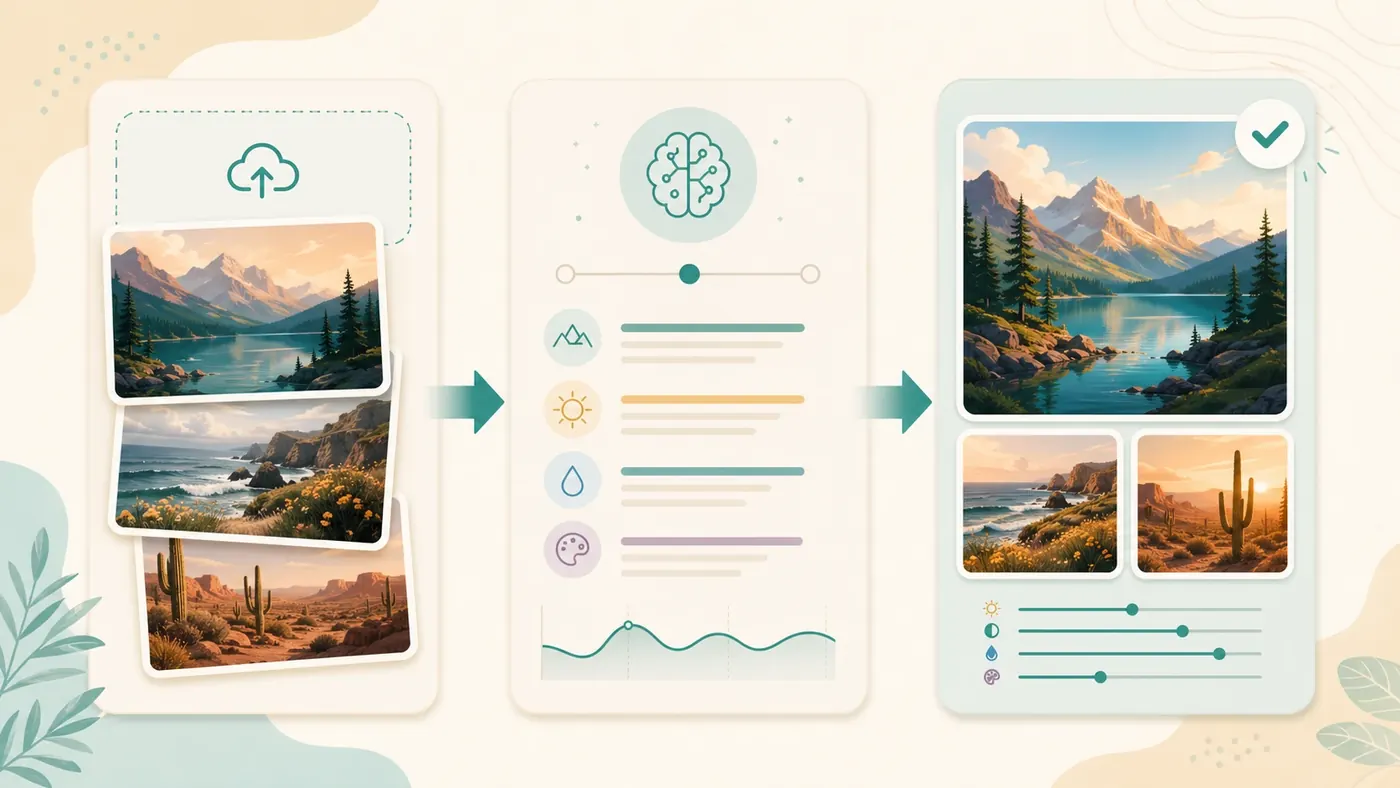
Why it works: it tells ChatGPT that the sketch controls composition, not visual finish. This prevents the result from looking like a cleaned-up pencil sketch when you actually want a new illustration.
Privacy and Safety Notes Before Uploading Images
Treat uploaded images like files you are sending to a cloud service.
- Redact sensitive details before upload when possible.
- Avoid uploading private IDs, medical images, payment cards, addresses, legal documents, or confidential workplace data unless your account, plan, and policy allow it.
- Check ChatGPT data controls if you do not want eligible personal-account content used to improve models.
- Business and enterprise contexts can have different data-use terms than personal accounts.
- Temporary chats and Library behavior can differ by feature and plan, so do not assume every uploaded file is saved or deleted the same way.
- Delete uploaded files or chats when you no longer need them, and use Library controls where available.
For medical, legal, financial, or safety-critical images, use ChatGPT for general explanation or preparation only. Do not treat visual analysis as a professional diagnosis or final decision.
File Quality Guidelines
| Upload type | Best preparation | Avoid |
|---|---|---|
| UI screenshot | Full relevant screen, readable text, visible browser/app state. | Tiny screenshots, cropped error messages without context. |
| Product photo | Sharp image, clean angle, original color, no filters. | Heavy compression, reflections, extreme perspective, busy background. |
| Document image | Flat, upright, well-lit, high contrast. | Skewed scans, shadows, folded pages, tiny text. |
| Chart or graph | Include axis labels, legend, title, and surrounding notes. | Cropping off units or legend colors. |
| Sketch | Include enough layout context and label what each rough shape means. | Expecting ChatGPT to infer intent from ambiguous scribbles. |
Troubleshooting Failed Uploads
| Problem | Likely cause | Fix |
|---|---|---|
| Upload button is missing | App, plan, model, or workspace limitation. | Update the app, try web, start a new chat, or check account availability. |
| Upload stalls | File too large, weak network, browser issue, or service incident. | Compress under 20MB, refresh, try a different browser, or check service status. |
| ChatGPT misreads text | Text is too small, rotated, blurred, or low contrast. | Upload a sharper crop, enlarge the text, or paste the text separately. |
| Result ignores the important area | The image has too much context or no focus marker. | Add an arrow/box before upload or specify the region in the prompt. |
| Edit changes the wrong details | Preserve instructions were missing or vague. | Add a Preserve list and a Change list. |
| Product or logo changes | The prompt allowed too much creative freedom. | Say "keep logo, proportions, label placement, and product shape unchanged." |
| Too many images confuse the answer | The task spans too much visual information. | Upload fewer images or label them: Image A, Image B, Image C. |
Try this workflow
If you are not sure what to ask after uploading an image, start with a template instead of a blank prompt. ChatGPTImages is an independent prompt and workflow library where you can adapt screenshot analysis prompts, product-edit prompts, and reference-image prompts before trying them in ChatGPT. Use the examples above as starting briefs, then replace the subject, preserve list, and desired output format with your own image details.
Related guides
Official sources
Model names, API behavior, and pricing can change. Verify factual claims against the official sources below before budgeting or publishing.