
ChatGPT image text rendering prompts
ChatGPT Image Text Rendering Prompts: How to Get Clearer Words in AI Images
Learn prompt patterns for clearer text in ChatGPT images, including short headlines, poster layouts, product signs, thumbnails, and UI cards.
Quick answer
ChatGPT image tools can render short text inside images, but the best results come from treating text as a design element, not as a paragraph. Use short copy, specify exact placement, ask for simple typography, leave enough whitespace, and verify the result before publishing.
The most reliable prompt pattern is:
Create a [format] with one short text element: "[exact words]".
Place the text [location]. Use large, clean, high-contrast lettering.
Keep all other areas free of text. Do not add extra words, logos, watermarks, or small captions.
If the text must be legally exact, brand-critical, or longer than a few words, generate the image without text first, then add the final copy in a design tool or in your website/app UI.
Why Text Rendering Needs Different Prompting
Text inside an image is harder than objects, lighting, or style because the model has to solve two jobs at once: create the visual scene and draw exact letter shapes. A beautiful poster can still be unusable if the headline has one wrong character.
The goal is not to force the model to write everything. The goal is to decide which text belongs in the generated image and which text should be added later.
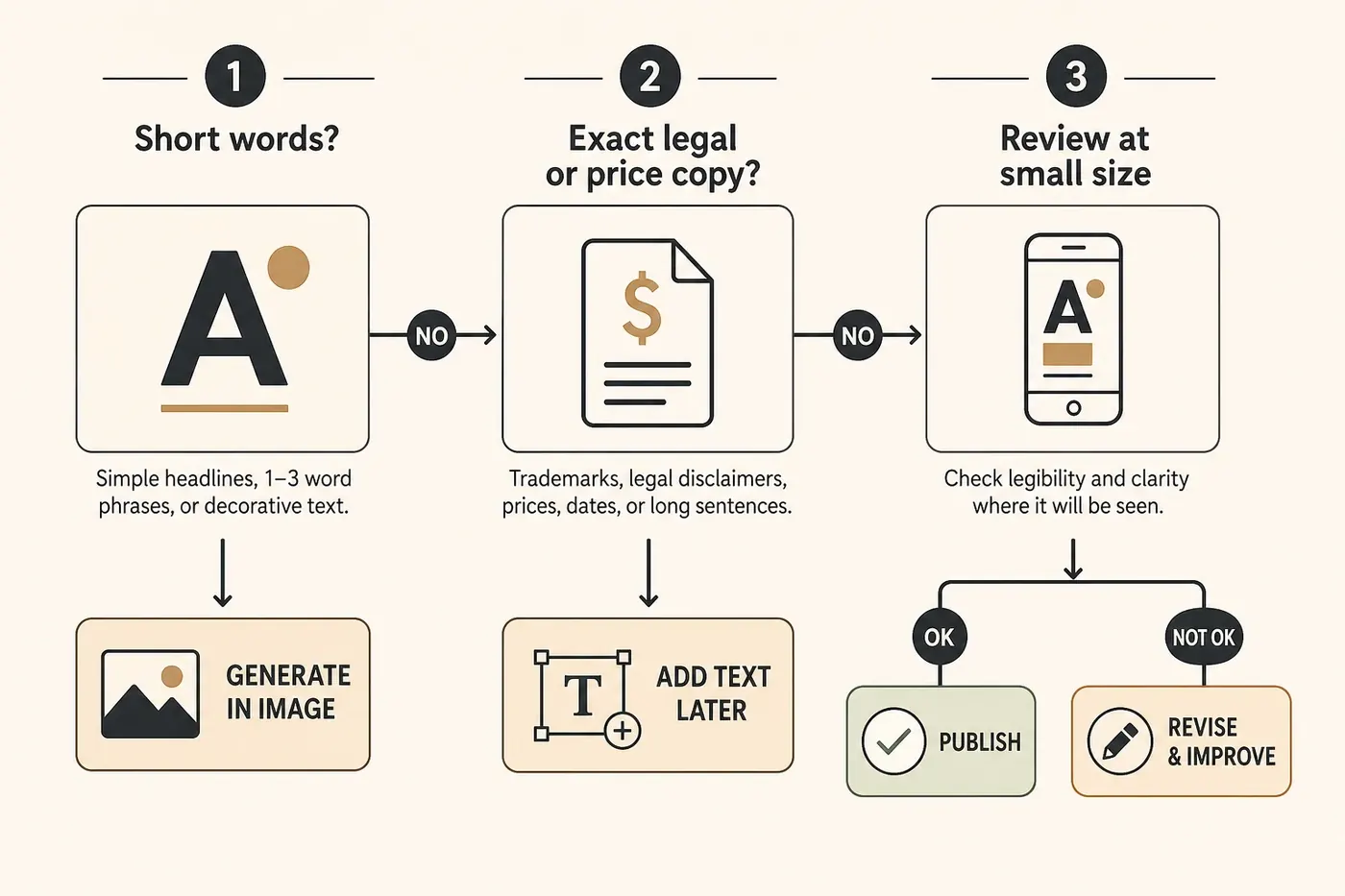
Use generated text when:
- The words are short.
- The text is decorative or headline-like.
- You can manually inspect and reject bad outputs.
- The image is for concepting, social tests, or drafts.
Add text later when:
- The copy is long.
- The words must be exact.
- The image is a legal, pricing, medical, or compliance asset.
- The text needs to stay editable after generation.
The 5-Part Prompt Formula
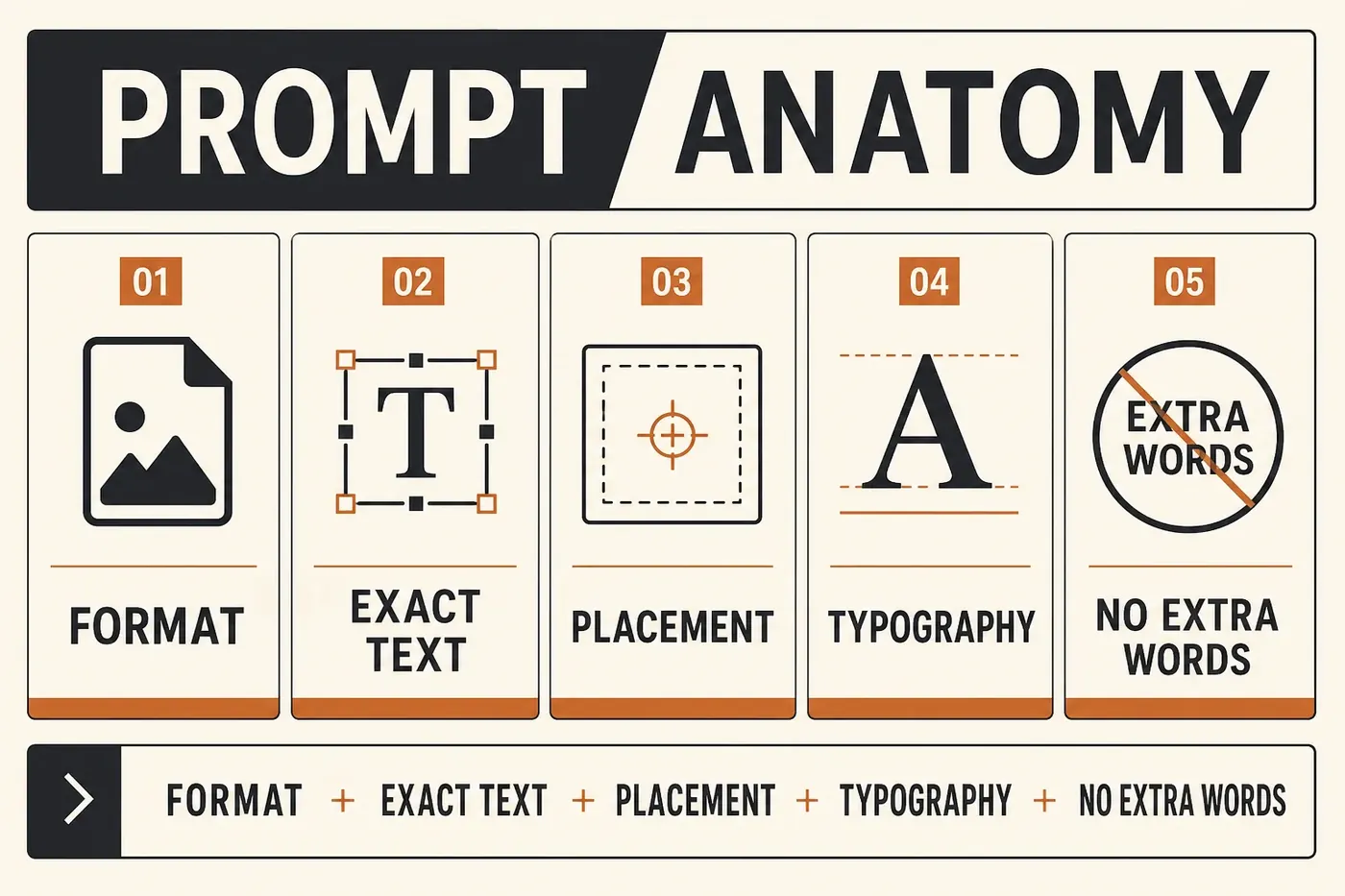
For text-heavy image requests, include these five parts.
| Prompt part | What to specify | Why it matters |
|---|---|---|
| Format | Poster, thumbnail, product sign, UI card | Sets layout expectations |
| Exact text | Put the words in quotes | Reduces unwanted substitutions |
| Placement | Top center, lower third, right badge | Gives the model a clear text zone |
| Typography | Large, bold, clean, high contrast | Improves readability |
| Negative rules | No extra words, no small captions | Prevents random filler text |
Example 1: Short Title Poster
This pattern works best when the headline is two to four words and the image has a clear empty area.
Prompt
Create a square editorial poster for a creative workshop.
Text (exact): "MAKE IDEAS VISIBLE"
Place the text in the upper third, centered.
Use large off-white uppercase lettering with generous spacing.
Background: a warm studio desk with sketch paper, soft morning light, and a few simple pencils.
Keep the lower half mostly clean and uncluttered.
Do not add any other words, logos, signatures, or watermarks.
Generated example
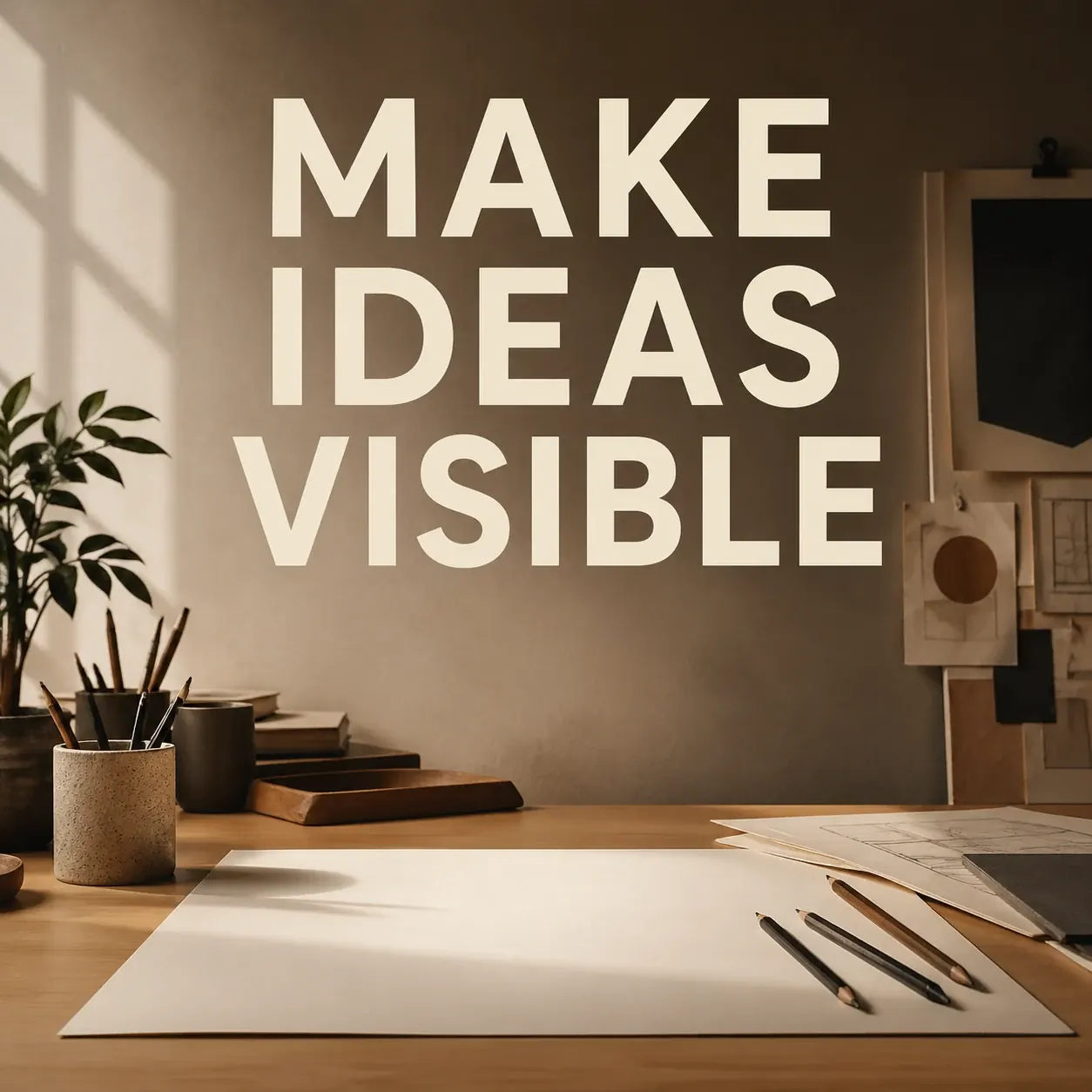
Why it works: the text is short, the placement is explicit, and the prompt forbids extra copy.
Example 2: Product Promotion Sign
For ecommerce and retail images, keep the in-image text to a short offer or shelf sign. Do not ask the model to render a full product description.
Prompt
Create a clean product promotion image for a skincare bundle.
Show three minimal cream jars on a pale stone counter with soft daylight.
Add one small standing sign next to the products.
Text on the sign (exact): "SPRING SET"
Use simple dark green uppercase letters, centered on the sign.
No other text anywhere in the image. No brand logos. No price.
Generated example
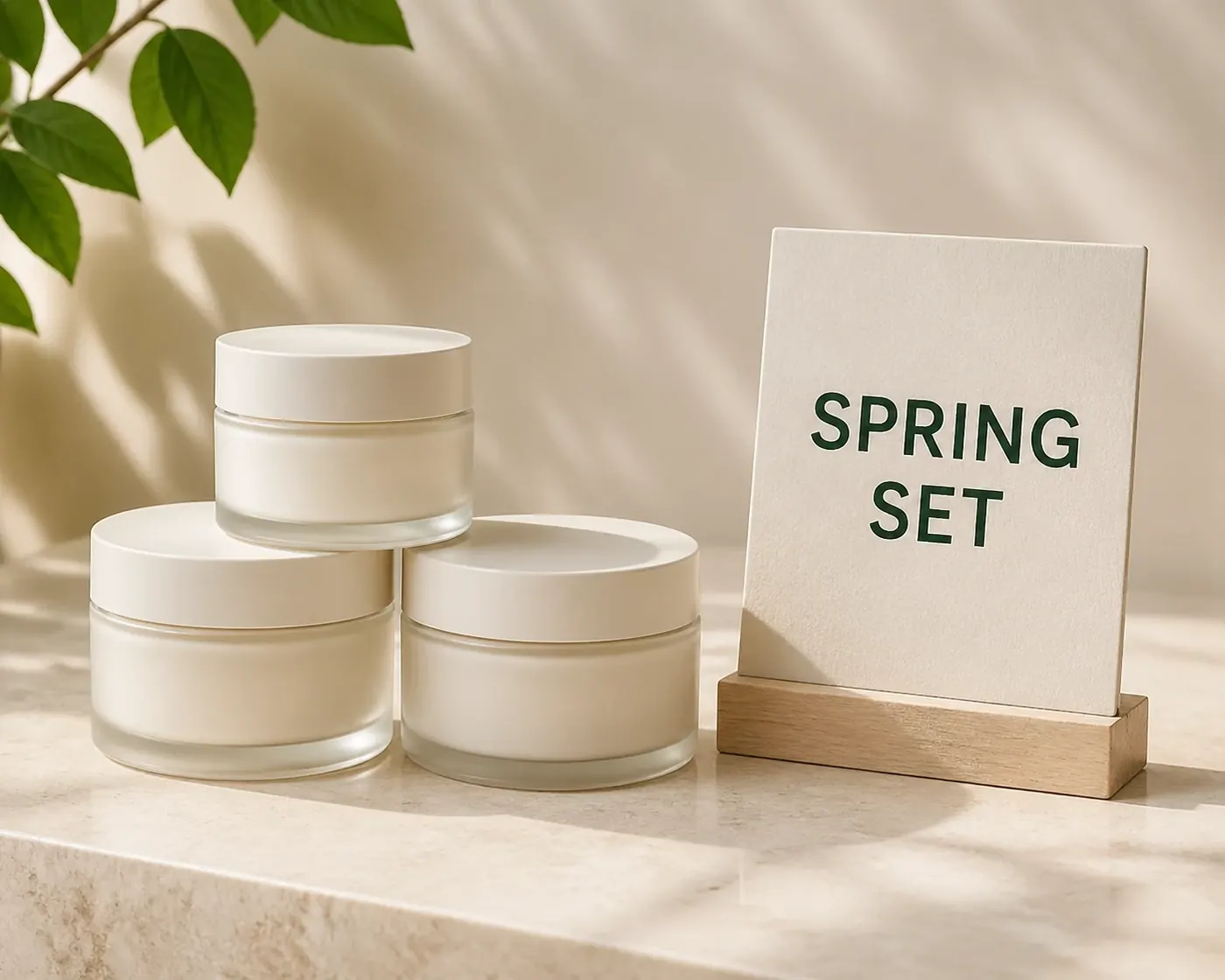
Why it works: the words are placed on a physical object, and the sign has a defined purpose.
Example 3: Social Thumbnail
Thumbnails need fast scanning. The text should be big enough to read on mobile and should not compete with the subject.
Prompt
Create a 16:9 social video thumbnail about planning a calm workday.
Main visual: a laptop, notebook, coffee cup, and soft sunlight on a tidy desk.
Text (exact): "PLAN BETTER"
Place the text on the left side in a bold clean sans-serif style.
Make the right side show the desk scene.
Use strong contrast and keep the text very large.
No other words, captions, UI labels, logos, or watermarks.
Generated example
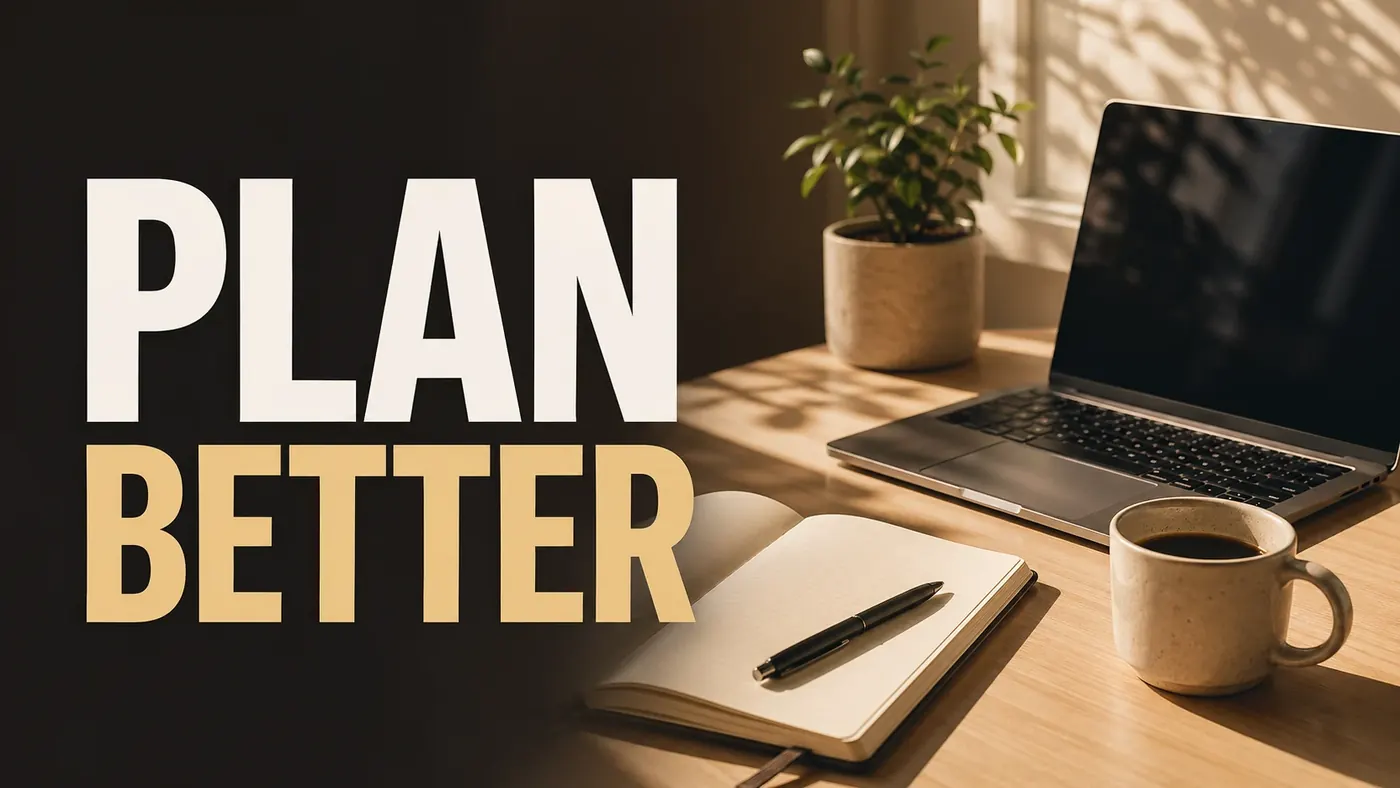
Why it works: the image has a left text zone and a right visual zone, so the model is not guessing where the headline should go.
Example 4: UI-Style Information Card
AI image tools are not a replacement for editable interface design, but they can create concept cards and visual mockups when the text is minimal.
Prompt
Create a clean UI-style information card on a soft beige background.
The card should have one headline and three simple icon rows.
Headline text (exact): "IMAGE CHECKLIST"
Icon row labels (exact): "Prompt", "Preview", "Export"
Use large readable dark text, lots of spacing, and simple rounded card design.
Do not add any other interface labels, numbers, paragraphs, fake menus, or watermarks.
Generated example
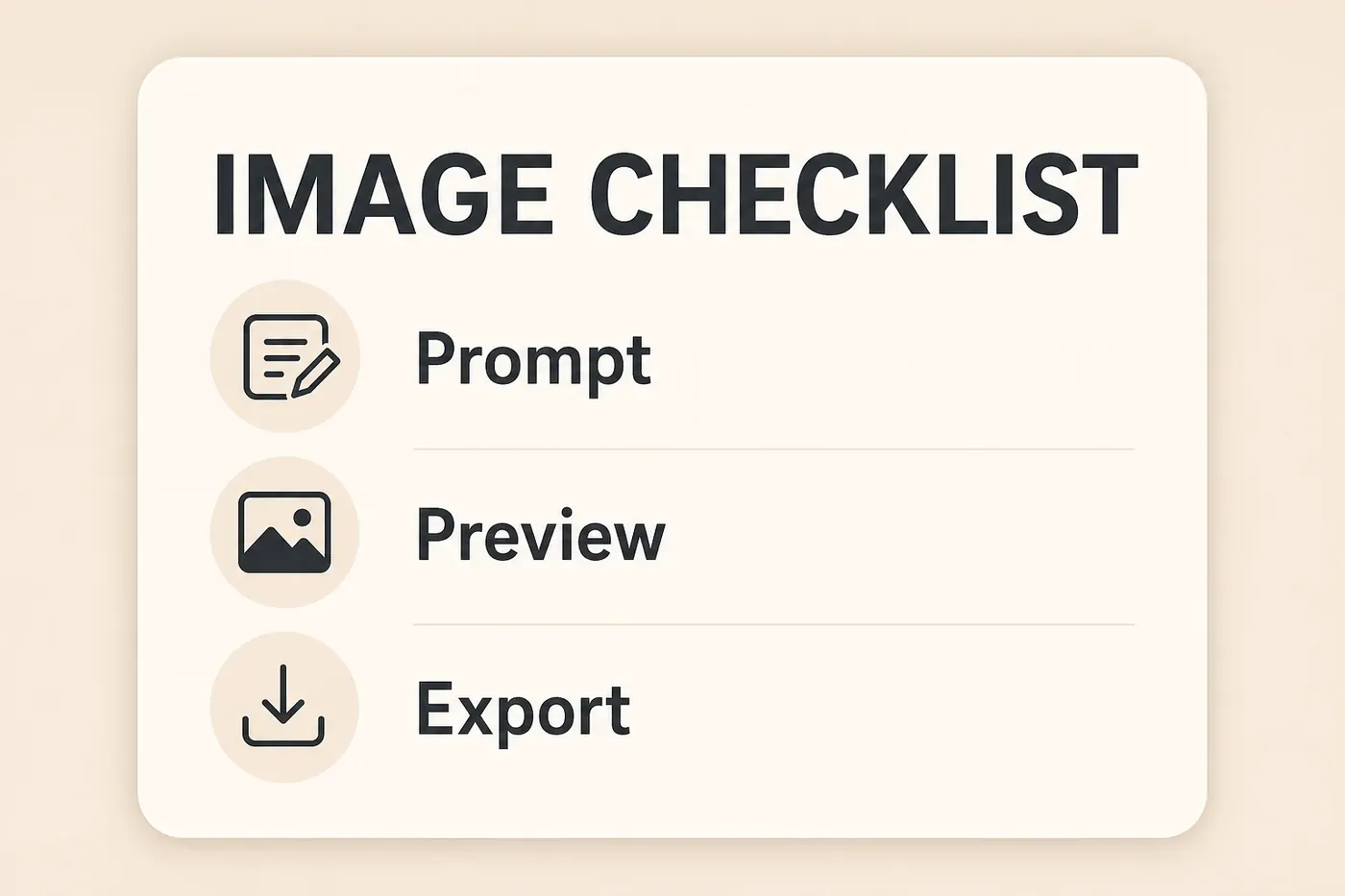
Why it works: each text string is short, and the prompt limits the interface to a small number of labels.
Good vs Bad Text Prompts
| Weak prompt | Better prompt |
|---|---|
Make a cool sale poster with some text. | Create a square sale poster with the exact text "SUMMER DROP" in large white letters at the top center. No other words. |
Add details about the event. | Use only this text: "OPEN STUDIO". Put it on one sign above the doorway. |
Make a landing page mockup with copy. | Create a UI concept card with one headline: "START FAST". Do not render paragraphs or menus. |
The better prompts do not just ask for text. They constrain the text.
What To Do When the Text Is Wrong
Do not try to fix every bad output with more adjectives. Use a practical recovery path:
- Shorten the text.
- Move the text to a cleaner area.
- Ask for only one text element.
- Remove small captions or secondary labels.
- Generate the image without text and add the text manually.
If the same word keeps failing, do not keep burning generations. Change the workflow: make the visual asset first, then add text outside the model.
When You Should Not Use In-Image Text
Avoid generated text for:
- Prices.
- Legal disclaimers.
- Coupon codes.
- Product specs.
- Phone numbers.
- Medical, financial, or safety instructions.
- Long multilingual text.
- Brand slogans that must be exact.
For these cases, a no-text image plus editable overlay is safer.
A Reusable Prompt Template
Create a [format] for [use case].
Main visual: [subject and setting].
Text (exact): "[short text]".
Text placement: [specific location].
Typography: large, clean, high-contrast, readable at small size.
Composition: leave clear empty space around the text.
Rules: no extra words, no random letters, no logos, no watermarks, no small captions.
How ChatGPTImages Fits the Workflow
Use ChatGPTImages when you want to test several text-and-layout directions quickly. A practical workflow is:
- Generate the same concept with no text.
- Generate a short-text version.
- Compare readability at small size.
- Keep the best visual.
- Add final production copy manually if exact text matters.
This gives you the creative speed of AI images without depending on the model for every letter.
Related guides
Official sources
Model names, API behavior, and pricing can change. Verify factual claims against the official sources below before budgeting or publishing.