
how to make images with ChatGPT
How to Make Images with ChatGPT: Beginner Workflow
Learn how to make images with ChatGPT using a beginner workflow for prompts, styles, composition, revisions, examples, safety, and image text.
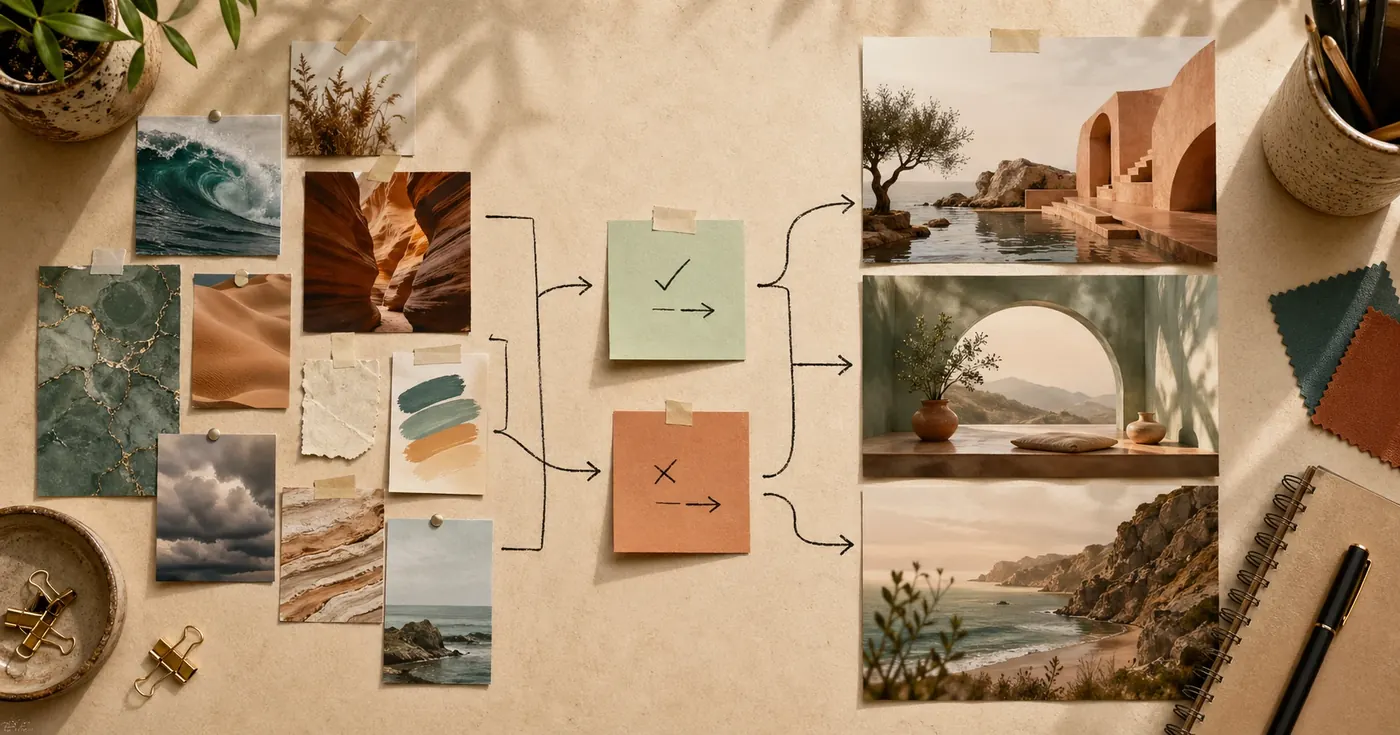
Quick answer
To make images with ChatGPT, start by describing the finished image you need, not just the idea in your head. Tell ChatGPT the use case, subject, style, composition, aspect ratio, text requirements, and anything to avoid. Generate one draft, review what is visibly wrong, then ask for one focused change at a time.
The beginner workflow is:
- Define the job for the image.
- Write a short creative brief.
- Choose a style that fits the audience.
- Control the composition and image size.
- Generate a first draft.
- Iterate with specific revision instructions.
For example, instead of writing make a nice image for my blog, write:
Create a landscape editorial illustration for a beginner blog post about planning a weekly study schedule.
Subject: a student arranging colorful study blocks on a desk calendar.
Style: warm modern editorial illustration, friendly and clear.
Composition: 16:9 landscape, calendar in the center, simple background, enough empty space at the top-left for a headline.
Text: no text inside the image.
Avoid: real school logos, clutter, tiny unreadable labels, photorealistic faces.
That prompt gives ChatGPT a real asset to create. It is also easy to fix because each line controls one part of the result.
What ChatGPT Can Help You Create
ChatGPT can help create new images from a written prompt and, on supported surfaces, edit existing images by using a selection tool or a conversational edit request. Availability, exact buttons, and limits can vary by plan, app, and product surface, so treat the workflow below as the durable method rather than a button-by-button UI guide.
Common beginner projects include:
- Blog illustrations
- Social media post images
- Product listing and ecommerce hero images
- Lesson visuals and classroom diagrams
- Story, mood, or concept art
- Simple thumbnails and cover images
- Event flyers or announcement backgrounds
- Visual brainstorms for campaigns, presentations, and mood boards
The key is to ask for a useful finished asset, not a generic picture.
The Idea-To-Image Workflow
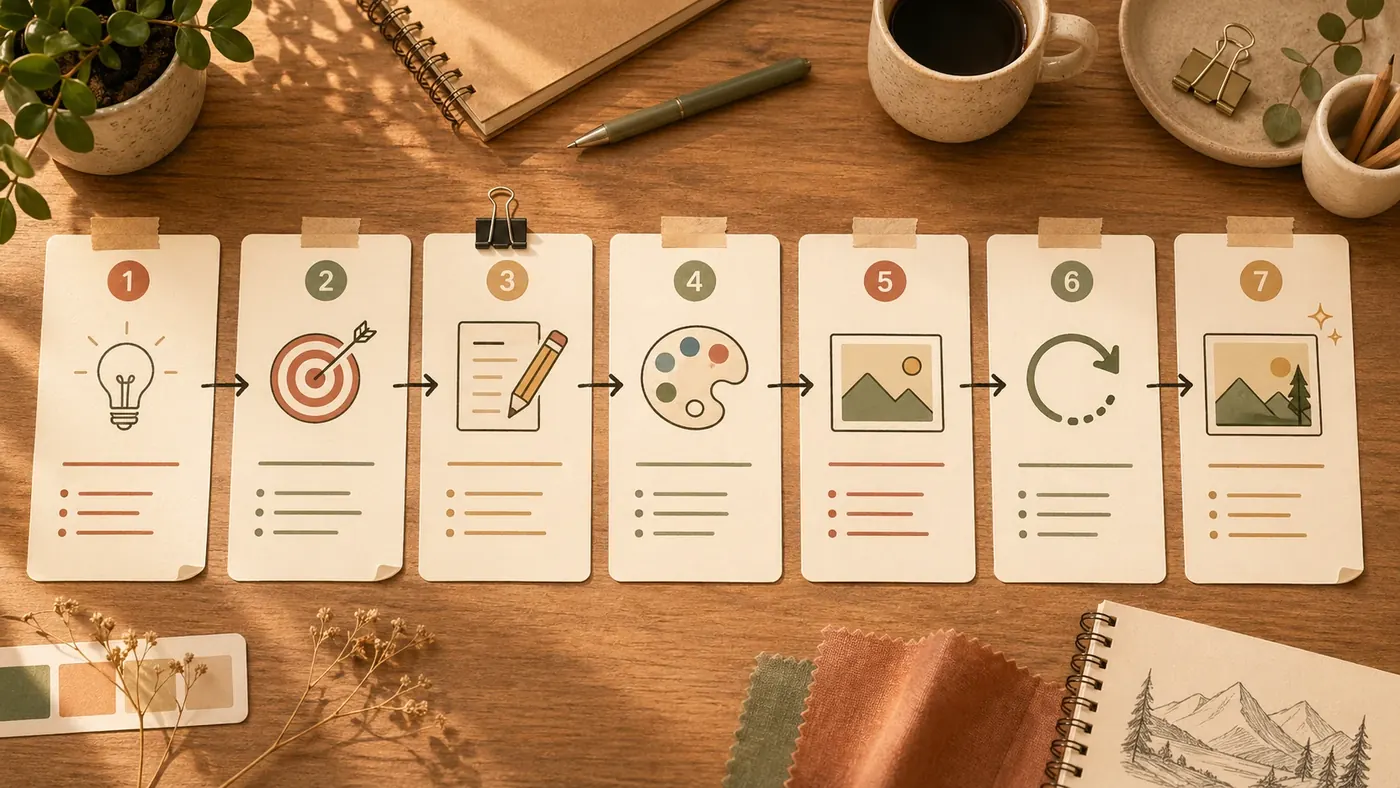
1. Name the purpose
Start with where the image will be used:
| Purpose | Better image request |
|---|---|
| Instagram post | Square or vertical visual with room for a short caption overlay |
| Blog post | Landscape editorial illustration that supports the article topic |
| Product page | Clean product hero with realistic lighting and copy space |
| Lesson | Clear diagram or simple illustration that explains one concept |
| Story | Mood-rich scene that introduces a character, place, or conflict |
This decision affects everything else: aspect ratio, detail level, style, text, and composition.
2. Describe the subject
Tell ChatGPT what must be visible. Use nouns before adjectives.
Weak:
Make something inspiring about productivity.Stronger:
Show a tidy desk with a planner, a timer, a laptop, and three completed sticky notes.3. Pick a style
Style should match the audience and channel. A children's science worksheet, a premium product listing, and a founder announcement on LinkedIn should not look the same.
| Style direction | Use it when |
|---|---|
| Clean commercial photography | Product images, ecommerce, landing pages |
| Warm editorial illustration | Blogs, newsletters, social explainers |
| Simple vector diagram | Teaching, process explanations, classroom visuals |
| Cinematic concept art | Stories, games, campaigns, mood boards |
| Handmade collage | Creator brands, personal essays, playful posts |
| Minimal 3D render | App concepts, icons, abstract product visuals |
Avoid stacking too many style labels. watercolor, 3D, cinematic, editorial, cyberpunk, minimal gives the model conflicting directions. Pick one dominant style and one mood.
4. Control the frame
Composition tells ChatGPT how to arrange the image. This is where beginners get the biggest quality jump.
Useful composition phrases:
square 1:1 layoutvertical 9:16 layout for a story postlandscape 16:9 blog headercentered subjectthree-quarter product angletop-down flat layclose-up with shallow depth of fieldlarge empty space on the left for a headlinesimple background with no clutter
If you plan to add text later in Canva, Figma, PowerPoint, or your website, ask for negative space and no text inside the image.
5. Generate one draft
Your first image is a diagnostic draft. It tells you whether ChatGPT understood:
- The asset type
- The subject
- The style
- The layout
- The amount of detail
- The text instruction
- The safety or brand constraints
Do not overreact to the first draft. Most good image work is prompt plus revision.
6. Revise one visible problem
Use concrete revision language:
| If the image has this problem | Ask for this |
|---|---|
| Too cluttered | Simplify the background and remove extra props. |
| Wrong crop | Zoom out so the full object is visible with margin on all sides. |
| Not enough room for text | Move the subject to the lower-right and leave clean empty space in the upper-left. |
| Wrong style | Keep the same composition, but change the style to warm editorial illustration. |
| Product changed | Preserve the product shape, color, label placement, and proportions. |
| Text looks wrong | Remove all text from the image; I will add the headline separately. |
One precise edit is more effective than make it better.
The Beginner Prompt Formula
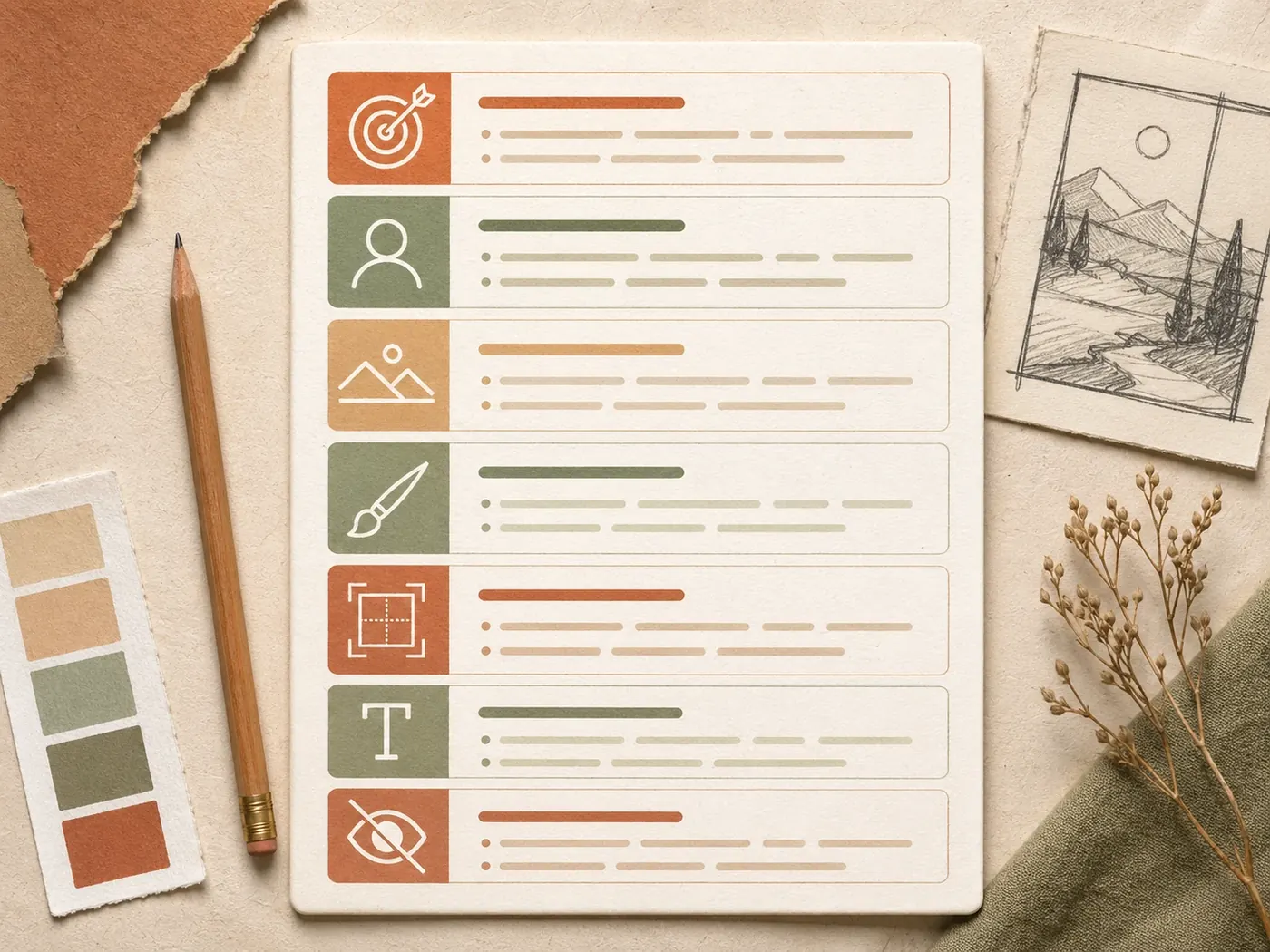
Use this formula for most ChatGPT image prompts:
Create [image type] for [audience/channel/use case].
Subject: [main person, object, product, scene, or idea].
Scene: [place, background, time of day, props, mood].
Style: [one visual style] with [one mood or quality].
Composition: [aspect ratio, camera angle, framing, negative space].
Text: [exact short text, or "no text inside the image"].
Avoid: [logos, brand names, celebrity likenesses, clutter, extra fingers, unreadable text, sensitive details].
Why this works:
- It starts with the job the image must do.
- It separates subject, style, and layout.
- It makes iteration easier because each line can be edited.
- It includes a safety line for copyright, brand, and quality problems.
Four Example Prompts You Can Reuse
Each example below includes a complete prompt, a planned generated image, and a short note explaining what the prompt demonstrates.
Example 1: Social Media Image
Use this when you need a visual for Instagram, LinkedIn, TikTok cover art, Pinterest, or a campaign announcement.
Create a square social media image for a small bakery announcing a weekend pastry box.
Subject: a warm tabletop scene with croissants, berry tarts, a kraft pastry box, and a small bouquet of wildflowers.
Scene: morning window light on a cozy cafe table, soft shadows, inviting but not crowded.
Style: warm editorial food photography, natural colors, handmade small-business feeling.
Composition: 1:1 square, pastries arranged in the lower two-thirds, clean empty space in the upper-left for a headline.
Text: no text inside the image.
Avoid: real bakery logos, fake brand labels, messy crumbs, hands, plastic packaging, oversaturated colors.
Generated example:
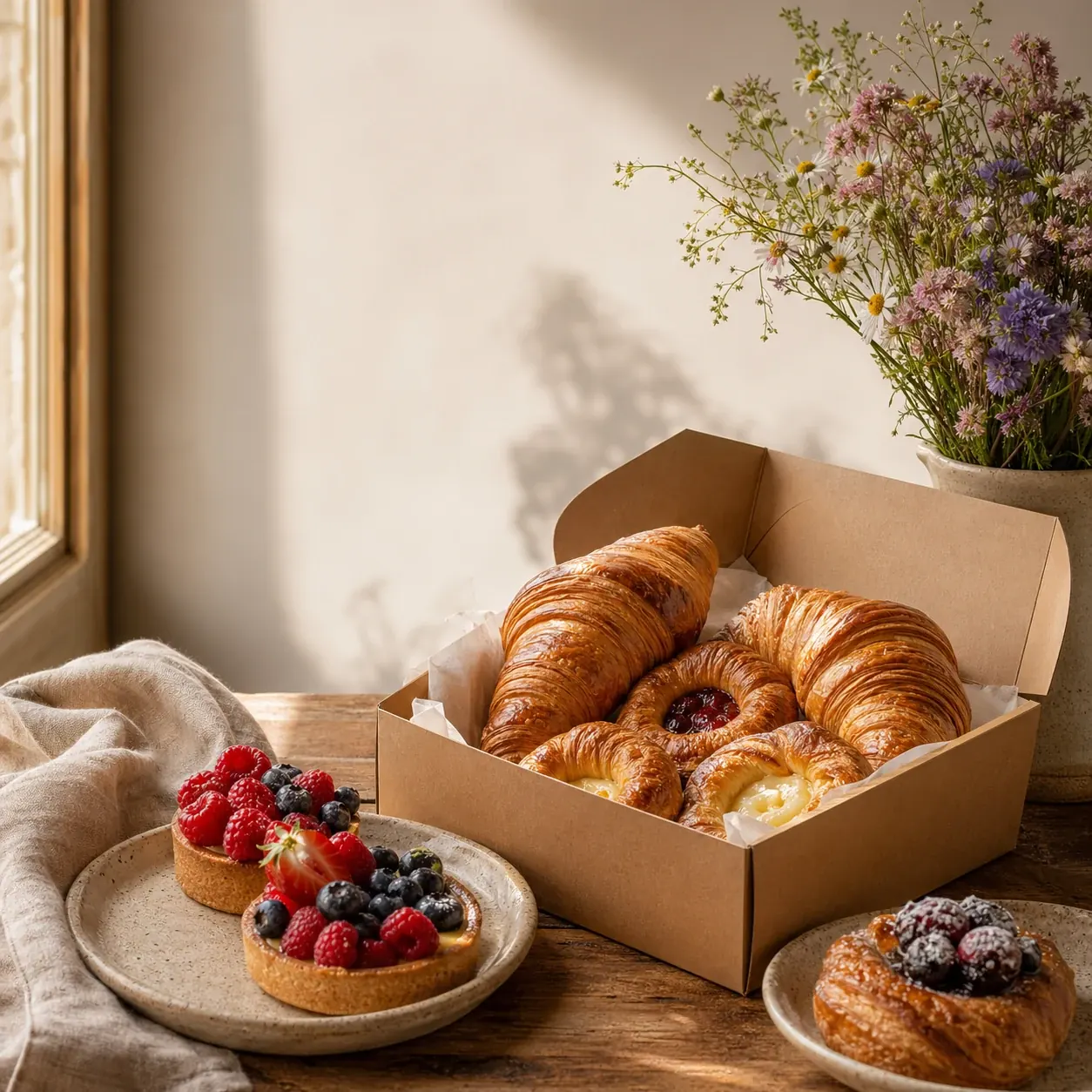
Why it works: the prompt defines the platform, mood, props, layout, and no-text rule. It gives a designer clean space to add the final caption later.
Example 2: Product Image
Use this when a small shop needs a clean product visual but does not have studio photography.
Create a square ecommerce product image for a handmade ceramic mug.
Subject: one speckled cream ceramic mug with a rounded handle and subtle handmade texture.
Scene: neutral stone surface with a linen napkin and soft morning light.
Style: clean commercial product photography, calm, premium, realistic.
Composition: 1:1 square, mug centered at a slight three-quarter angle, soft shadow beneath it, simple background, no other objects touching the mug.
Text: no text inside the image.
Avoid: logos, brand names, unrealistic reflections, extra handles, warped shape, busy props, hands.
Generated example:
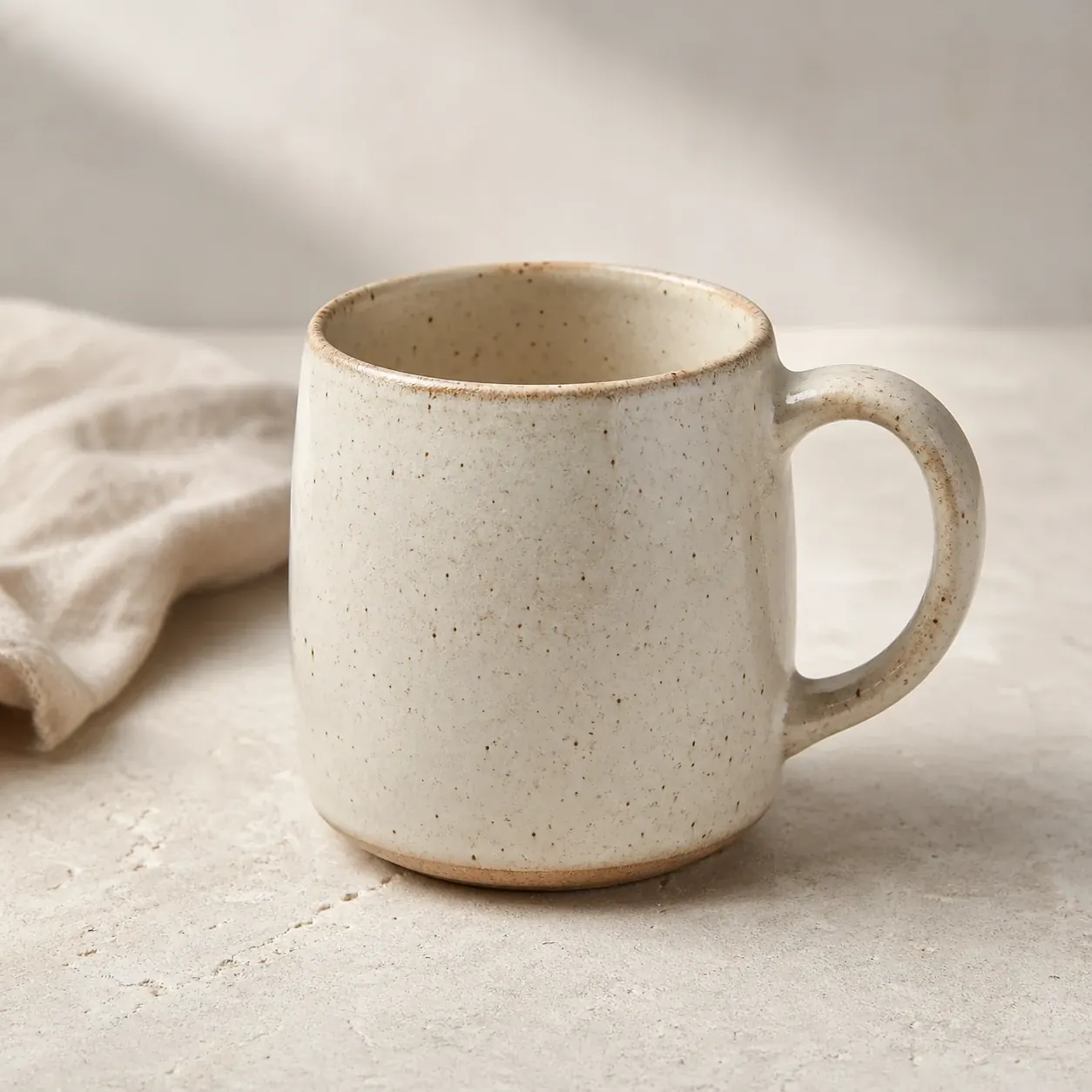
Why it works: the prompt protects the product shape and keeps the scene commercially useful. The Avoid line prevents common product-image mistakes.
Example 3: Teaching Illustration
Use this for blog explainers, classroom slides, worksheets, onboarding documents, and student presentations.
Create a landscape teaching illustration for explaining the water cycle to middle school students.
Subject: a simple landscape showing ocean water evaporating, clouds forming, rain falling on mountains, and water flowing back to the ocean.
Scene: friendly outdoor environment with ocean, sun, clouds, mountains, river, and trees.
Style: clean educational vector illustration, bright but soft colors, simple shapes.
Composition: 16:9 landscape, left-to-right circular flow, clear arrows showing movement, large uncluttered areas.
Text: no text inside the image.
Avoid: tiny labels, complex scientific diagrams, realistic storm danger, brand logos, crowded details.
Generated example:
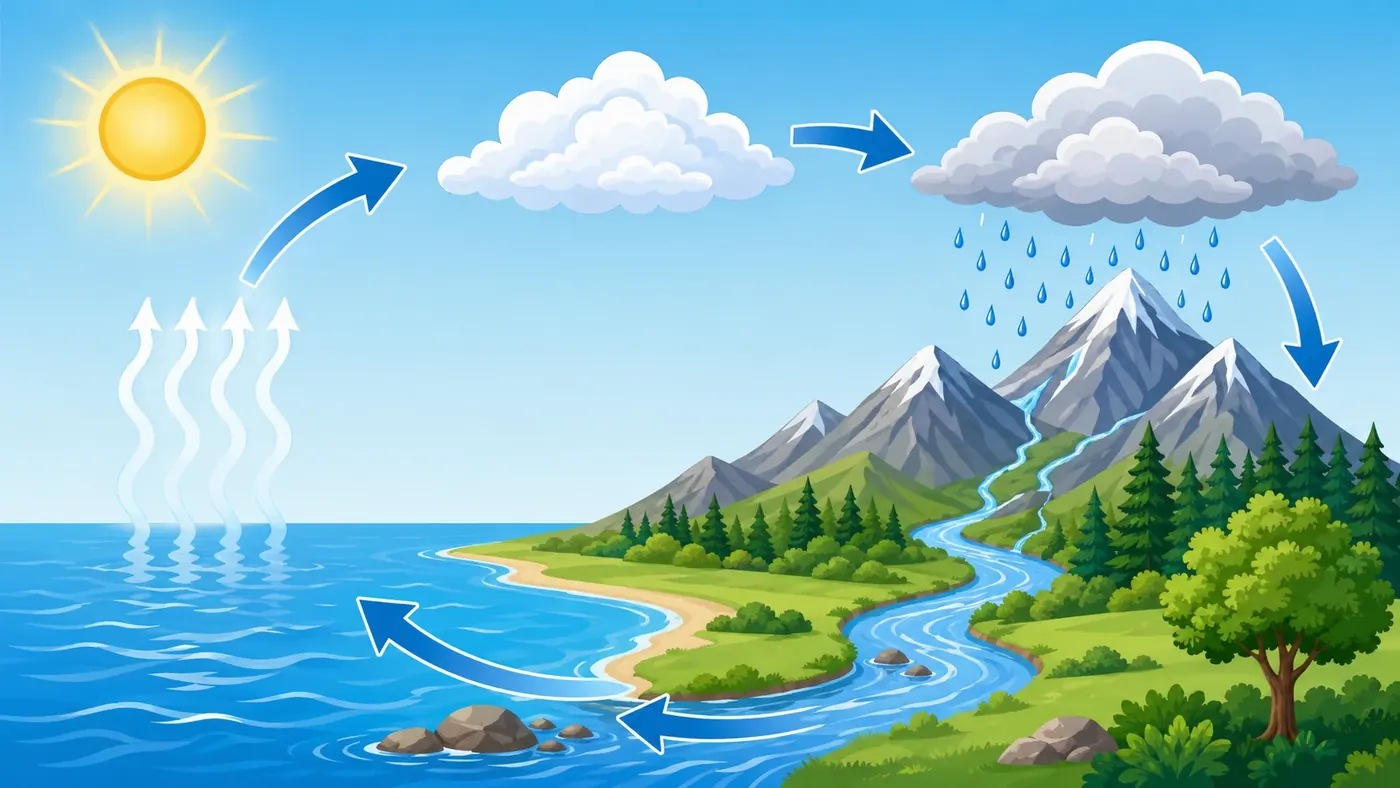
Why it works: the prompt uses a clear teaching goal and asks for arrows but not labels. This keeps the image readable even before a teacher adds their own text.
Example 4: Story Or Concept Image
Use this when you need a mood image for a short story, game idea, campaign theme, or presentation opener.
Create a cinematic concept illustration for a children's adventure story.
Subject: a curious young inventor standing at the entrance of a glowing greenhouse full of unusual plants and tiny mechanical fireflies.
Scene: early evening, warm light from inside the greenhouse, misty garden path, gentle sense of mystery.
Style: painterly storybook concept art, magical but not scary.
Composition: vertical 4:5 frame, character in the lower center, greenhouse doorway as the bright focal point, layered plants framing the scene.
Text: no text inside the image.
Avoid: copying any existing movie or game style, celebrity likenesses, logos, weapons, frightening faces, overly dark colors.
Generated example:
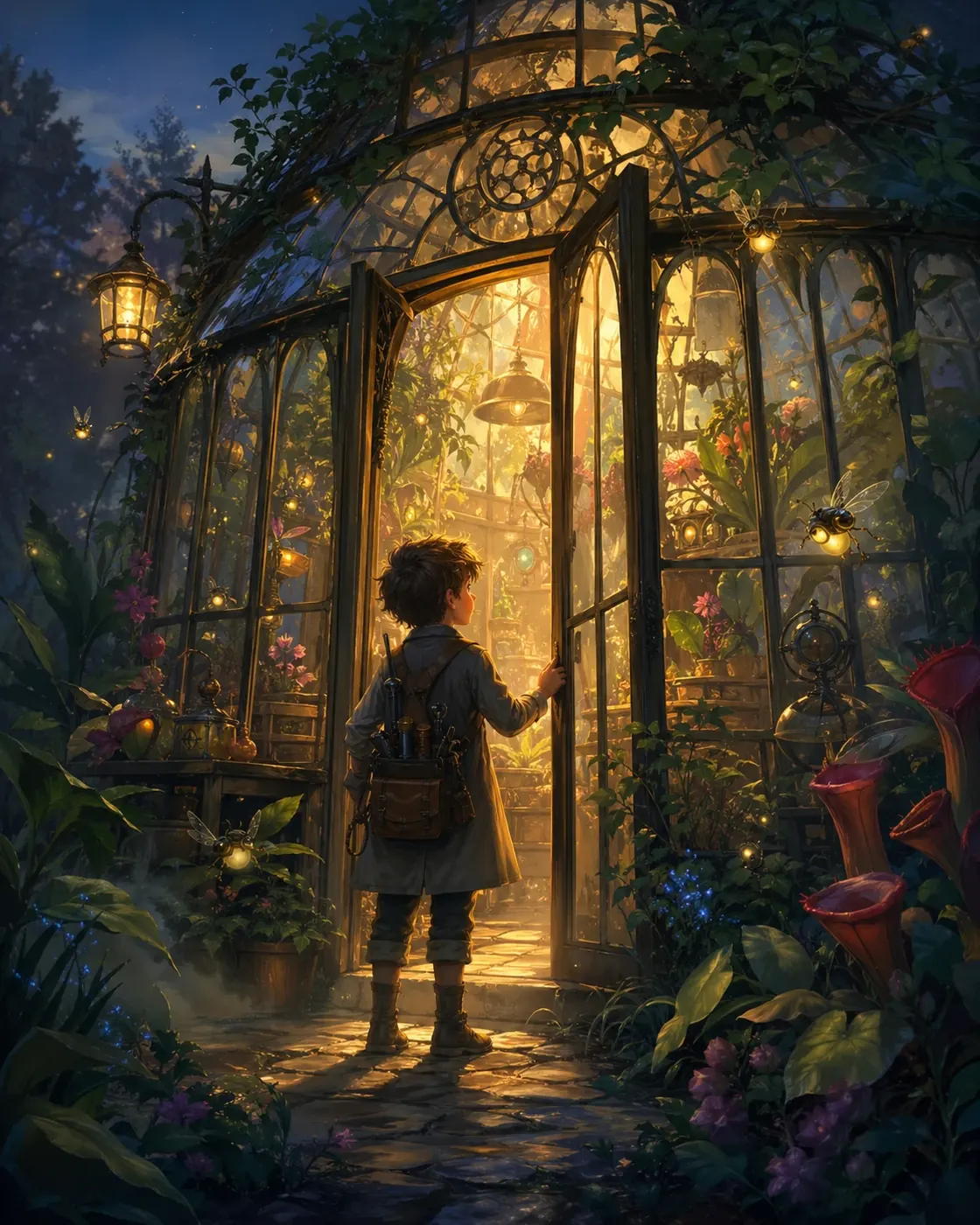
Why it works: the prompt communicates story, mood, focal point, and safety boundaries without naming an existing franchise or artist.
How To Choose A Style Without Copying Someone
You can ask for broad styles such as editorial illustration, commercial photography, storybook watercolor, or minimal vector diagram. Be careful with prompts that request a living artist's exact style, a known movie franchise look, a brand campaign style, or a celebrity likeness.
Safer style language:
warm editorial illustrationclean commercial product photographypainterly storybook concept artminimal vector diagramhandmade paper collagesoft natural-light photography
Riskier style language:
in the exact style of [living artist]make it look like [current brand]'s campaigndraw [celebrity] using my productcopy the poster for [movie/game/show]use the logo of [brand I do not own]
If the image is for a business, school, client, or public campaign, write prompts that describe the look you want without borrowing protected identity.
Text In Images: When To Use It
ChatGPT can follow text instructions better than older image tools, but beginners should still be selective.
Use in-image text when:
- The text is very short.
- The spelling is easy to verify.
- The image is a draft, mockup, or playful post.
- Minor placement differences are acceptable.
Avoid in-image text when:
- The exact wording is legally or commercially important.
- You need multilingual copy.
- The image is an ad with strict brand guidelines.
- The text must remain editable.
Practical rule: generate the image without text, leave clean space, then add final typography in your design tool.
Common Beginner Mistakes
Mistake 1: Starting with a vibe instead of an asset
make something beautiful and futuristic is hard to evaluate. create a 16:9 website hero illustration for a budgeting app gives ChatGPT a job.
Mistake 2: Forgetting the channel
A blog header, Etsy listing, Instagram story, and classroom slide need different shapes. Include the channel or aspect ratio early.
Mistake 3: Asking for too much text
Long slogans, tiny labels, and dense UI copy often create errors. Keep image text short or remove it entirely.
Mistake 4: Copying brands or artists
Do not ask for protected logos, franchise characters, celebrity likenesses, or the exact style of a living artist unless you have rights and a clear policy basis to use them.
Mistake 5: Revising too broadly
make it more professional is vague. Name the visible issue: cleaner background, more negative space, softer lighting, simpler props, preserved product shape.
Copyright, Brand, And Safety Checklist
Before using a generated image publicly, check:
- Do I have the right to use every logo, product mark, character, or likeness in the image?
- Did I ask ChatGPT to copy a living artist, brand campaign, movie poster, or franchise style?
- Does the image imply endorsement by a real person or company?
- Is the image misleading in a commercial, medical, financial, political, or educational context?
- Does the product image accurately represent what I sell?
- Is any generated text spelled correctly and legally safe?
- Would a viewer understand if the image is illustrative rather than documentary?
For low-risk beginner work, avoid real brands and public figures, generate original scenes, and keep final text editable outside the image.
Natural CTA
If you want a faster starting point, use ChatGPTImages as a prompt library before opening a generator. Pick the closest template, replace the subject, channel, and style lines with your real project, then generate one draft and revise only the visible failure. This is faster than starting from a blank prompt box.
Try this workflow
If you want a faster starting point, use ChatGPTImages as a prompt library before opening a generator. Pick the closest template, replace the subject, channel, and style lines with your real project, then generate one draft and revise only the visible failure. This is faster than starting from a blank prompt box.
Related guides
Official sources
Model names, API behavior, and pricing can change. Verify factual claims against the official sources below before budgeting or publishing.