
how to use GPT Image 2
How to Use GPT Image 2
Learn how to use GPT Image 2 for prompts, image edits, reference images, quality settings, and a practical first workflow with examples.
Quick answer
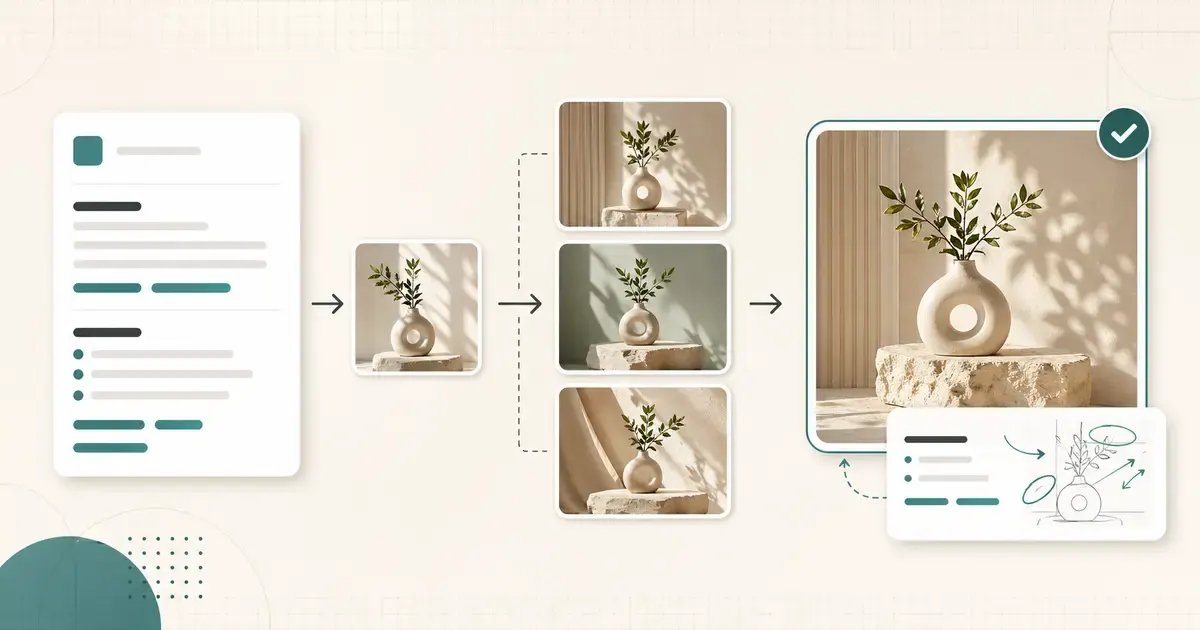
GPT Image 2 is OpenAI's state-of-the-art image generation model for fast, high-quality image generation and editing. To use it well, start with a real deliverable, choose whether you need text-to-image generation or an image edit/reference workflow, write a structured prompt, generate one draft, inspect the visible failure, and revise one instruction at a time.
If you only remember one rule, remember this: GPT Image 2 performs better when your prompt describes a finished asset, not a vague idea. "Make a cool product image" is weak. "Create a square product hero image for a landing page, with the bottle centered, warm studio lighting, and no text" is much easier to evaluate and improve.
ChatGPT Images is an independent guide and prompt library. It is not an OpenAI product. For model availability, API behavior, pricing, and limits, use OpenAI's official documentation as the source of truth.
Official GPT Image 2 Facts To Know First
Before writing prompts, make sure you understand what the model is designed to do.
| Topic | Current official fact |
|---|---|
| Model name | gpt-image-2 |
| Input modalities | Text and image |
| Output modality | Image |
| Primary use | Fast, high-quality image generation and editing |
| Generation endpoint | v1/images/generations |
| Edit endpoint | v1/images/edits |
| Image input fidelity | For gpt-image-2, image inputs are processed at high fidelity automatically in edit/reference workflows |
| Size controls | Supports flexible image sizes within OpenAI's documented constraints |
| Quality controls | low, medium, high, and auto |
| Output formats | Default png; jpeg and webp are also available |
| Transparent background | Not currently supported by gpt-image-2 |
This matters because many weak tutorials mix together ChatGPT product access, OpenAI API behavior, and third-party generator behavior. Those are different surfaces. A workflow can fail in one surface even when the model itself supports the capability.
The 5-Step GPT Image 2 Workflow
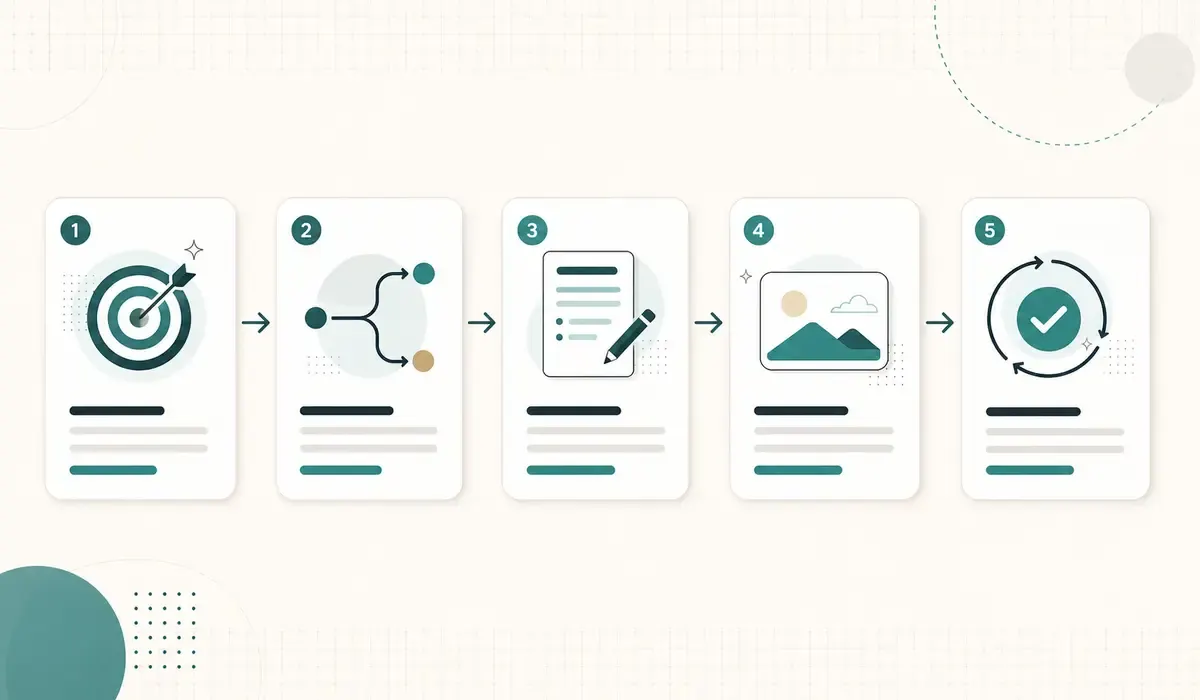
1. Choose the deliverable
Start with the asset you actually need:
- A square profile avatar
- A product hero image
- A vertical social ad
- A blog illustration
- A diagram or educational visual
- A storyboard frame
- An edited product photo
- A reference-based character image
Do not start with style words. Start with the output. A "cinematic neon image" is a vibe. A "vertical launch ad with a product centered and space for a headline" is a deliverable.
2. Select the right workflow
Use text-to-image when you want a new image from a written description. Use image edits or reference images when the result must preserve something from an uploaded image, such as a product shape, face angle, room layout, logo placement, or existing composition.
| Goal | Better workflow |
|---|---|
| Create a new poster from scratch | Text-to-image |
| Turn a product photo into an ad | Image edit/reference |
| Keep a character consistent | Reference image prompt |
| Add a new background to an existing image | Image edit |
| Create a diagram or illustration | Text-to-image |
| Preserve exact packaging shape | Reference image prompt |
3. Write the prompt brief
A good GPT Image 2 prompt reads like a concise creative brief. It tells the model what the asset is, what should be visible, how it should look, where important elements belong, and what must not happen.
4. Generate one draft
Do not generate ten variations before you know whether the prompt is pointed in the right direction. Generate one draft first. The first output tells you whether the model understood the subject, composition, text, and constraints.
5. Revise one visible failure
Look at the generated image and name the failure:
- Wrong subject
- Weak composition
- Bad text
- Too much clutter
- Product shape changed
- Face or character drifted
- Wrong aspect ratio
- Missing negative space
Then change one instruction. If you change five things, you will not know what improved the image.
The Prompt Formula
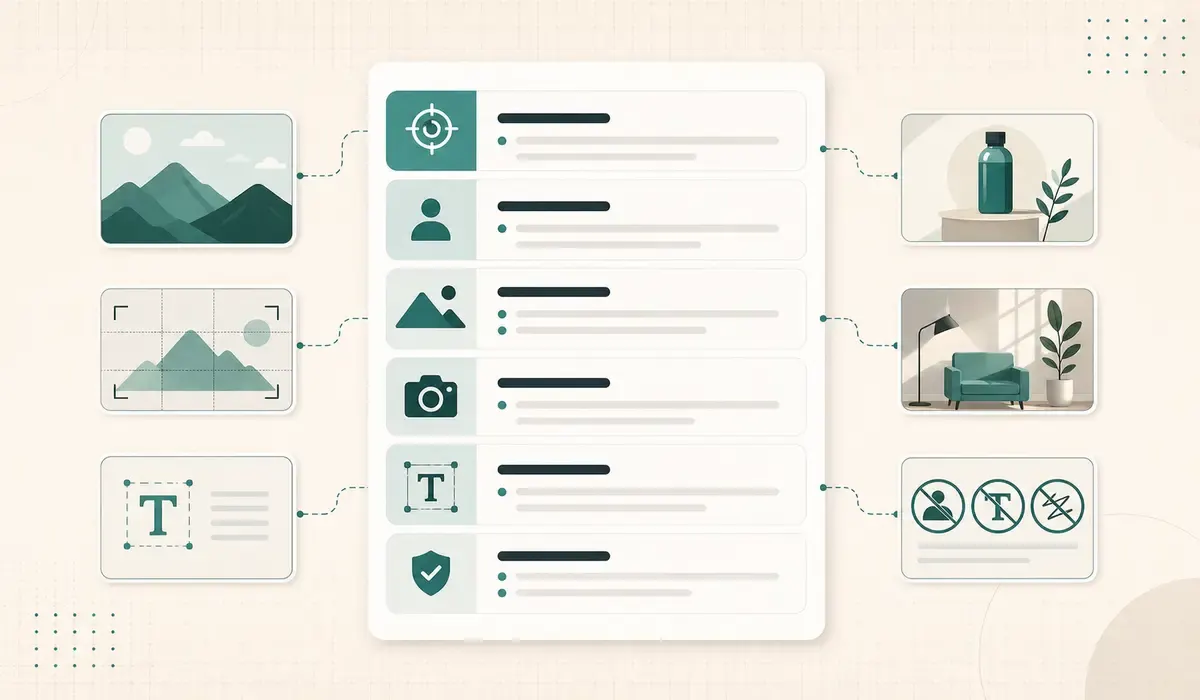
Use this structure for most GPT Image 2 prompts:
Create [asset type] for [use case].
Subject: [main person, object, product, scene, or character].
Scene: [environment, background, and context].
Style: [photography, illustration, 3D, cinematic, editorial, etc.].
Composition: [camera angle, framing, layout, aspect ratio, negative space].
Text: [exact short words and placement, or "no text"].
Constraints: [what must stay unchanged, what to avoid, what should not appear].
The order matters because it keeps the prompt editable. If the result is too busy, revise the composition line. If the text is wrong, revise the text line. If the product changed, revise the constraints line.
Example 1: Turn a Vague Idea Into a Usable Prompt
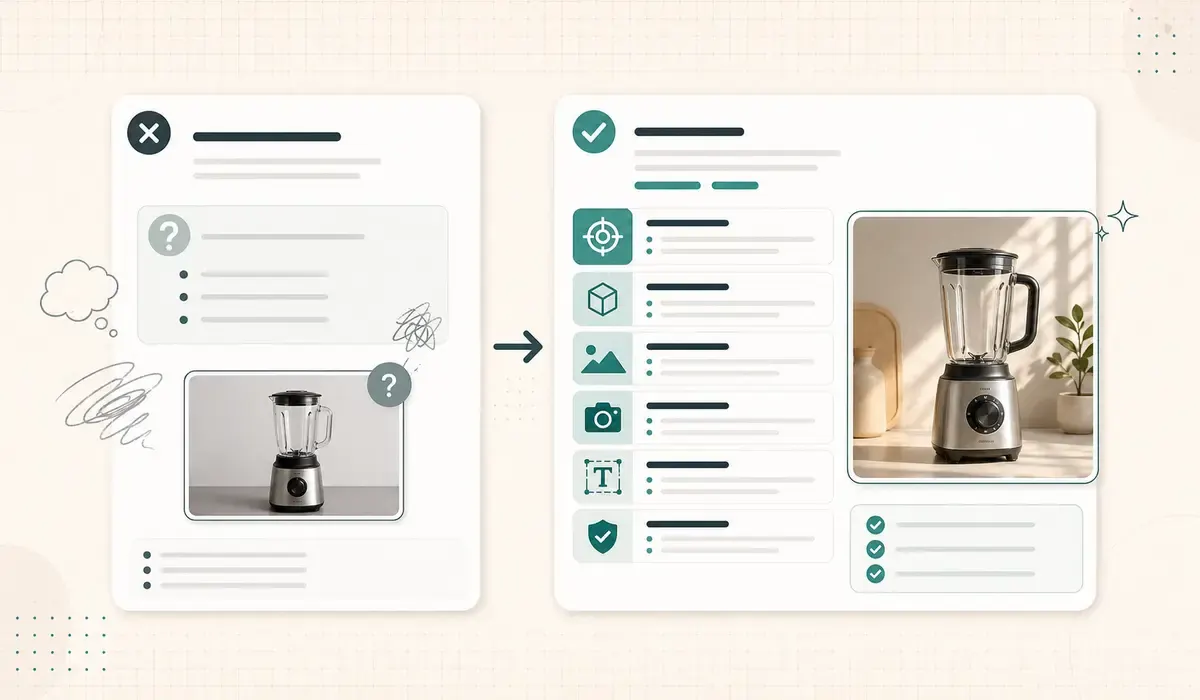
Weak prompt:
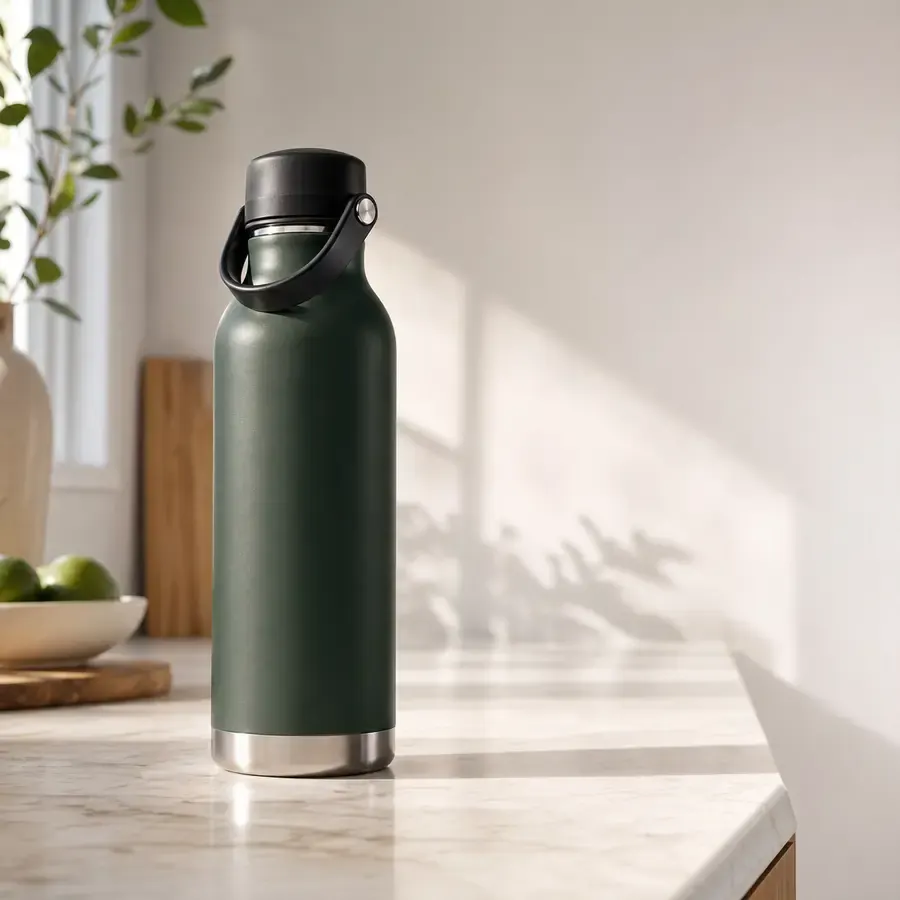
Make a professional product image for my water bottle.Improved GPT Image 2 prompt:
Create a square product hero image for a landing page.
Subject: a reusable stainless steel water bottle with a matte forest-green finish.
Scene: a bright kitchen counter with morning light and soft natural shadows.
Style: clean commercial product photography, premium but approachable.
Composition: the bottle is centered at a slight three-quarter angle with generous negative space on the right for a headline.
Text: no text inside the image.
Constraints: keep the bottle shape realistic, avoid fake logos, avoid hands, avoid cluttered props, avoid changing the cap color.
Why this works:
- It names the asset: square product hero.
- It defines the use case: landing page.
- It controls the layout: centered bottle, negative space.
- It blocks common failures: fake logos, hands, clutter, cap color drift.
- It leaves text out of the image, which is safer when the final headline can be added in HTML or a design tool.
Generated example output:
Example 2: Use GPT Image 2 With a Reference Image
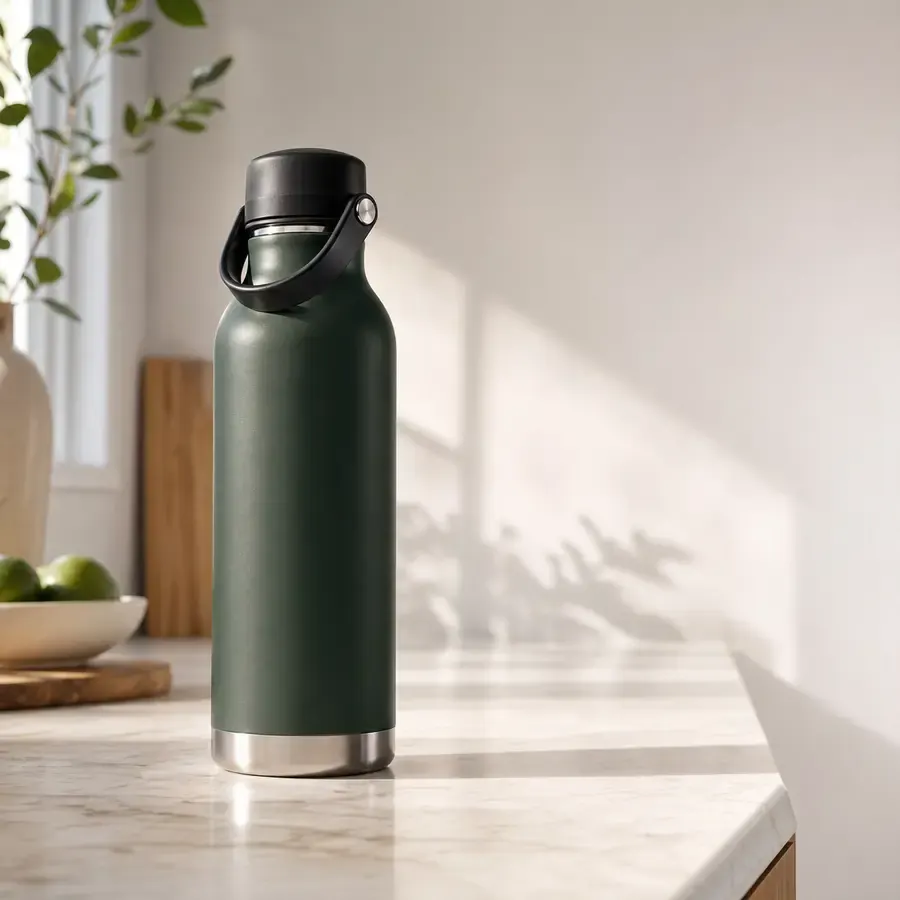
Use a reference image when text alone cannot describe the important details. Product shape, exact pose, existing layout, character identity, and brand materials are good reasons to upload an image.
Reference-image prompt:
Use the uploaded product photo as the reference.
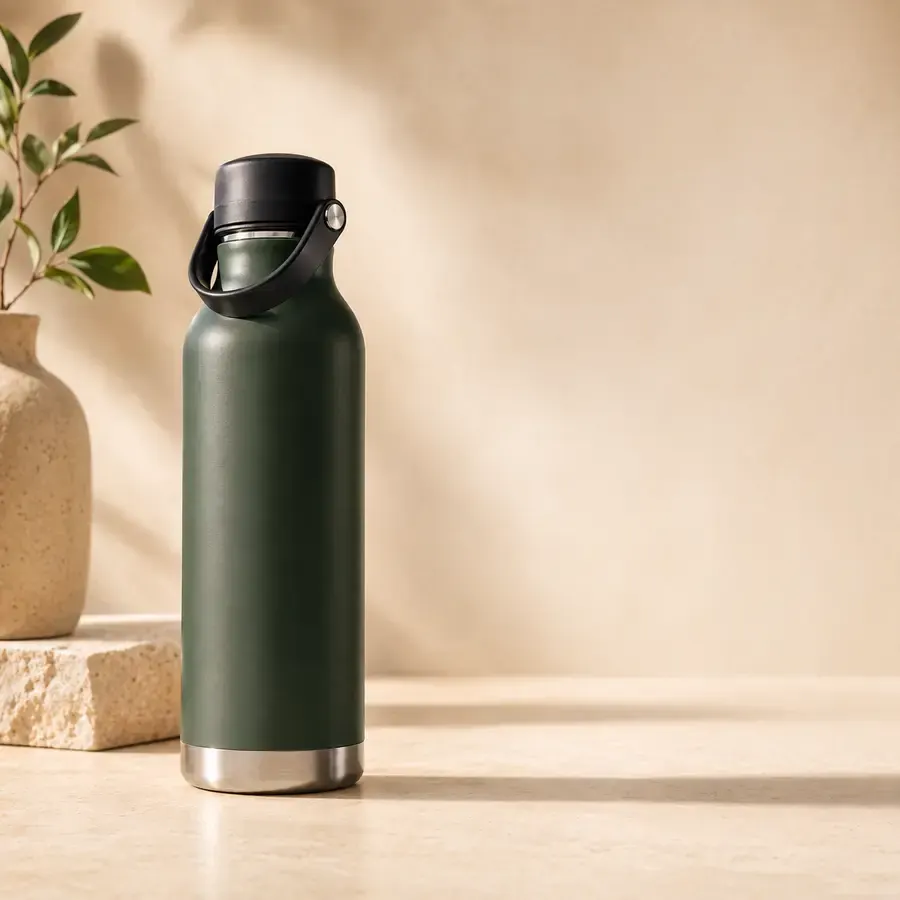
Preserve: product shape, front label placement, cap color, camera angle, and material texture.
Change: replace the background with a clean warm studio scene using beige surfaces and soft shadows.
Output: an ecommerce hero image suitable for a product detail page.
Constraints: do not alter the logo, do not invent new label text, do not change product proportions, do not crop the product.
The most important part is the separation between Preserve and Change. Without that separation, the model has to guess which details matter.
Reference image:
Generated edit:
Example 3: Prompt For A Social Media Ad
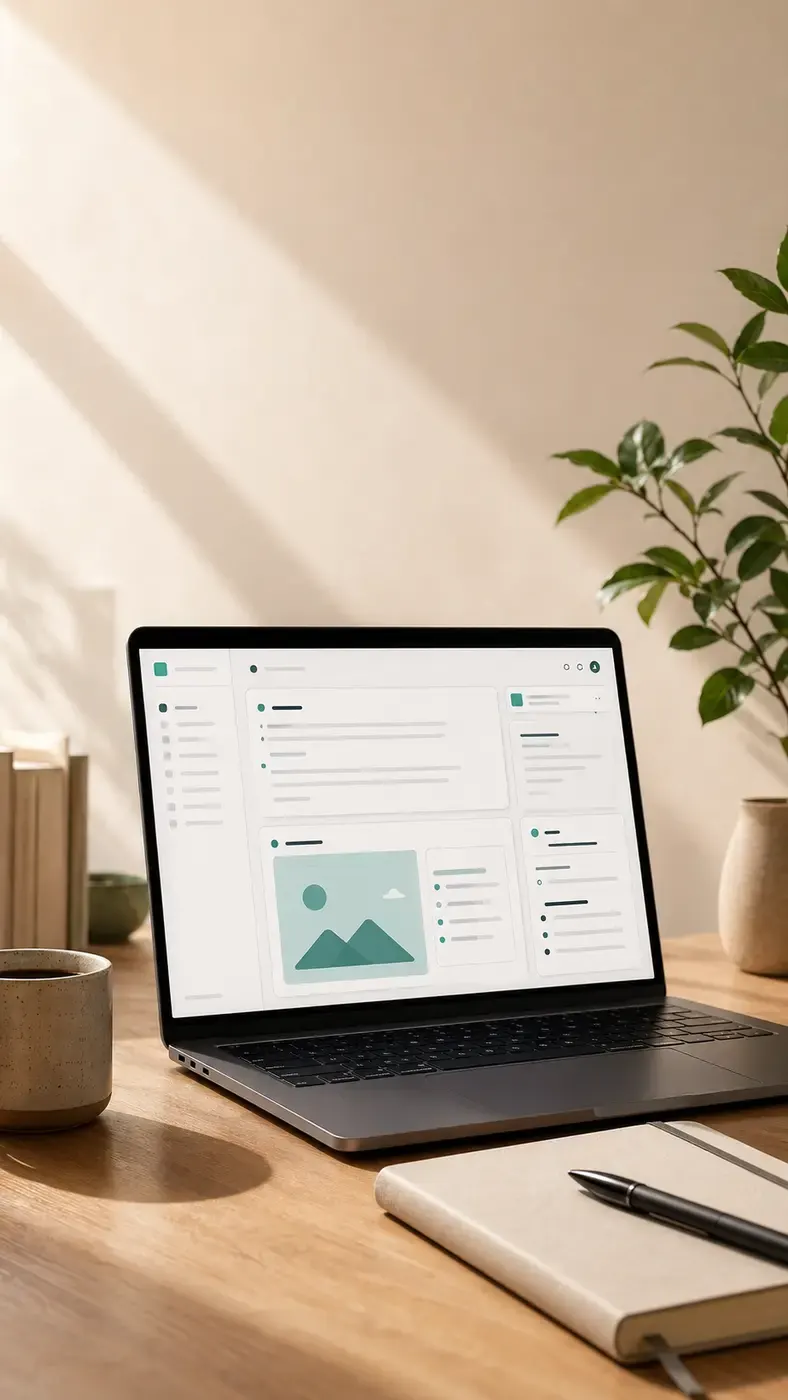
Create a vertical social media ad concept for a new AI note-taking app.
Subject: a laptop screen showing an abstract notes interface, with a notebook and coffee beside it.
Scene: modern desk setup in soft morning light.
Style: editorial tech photography with clean shadows and warm neutral colors.
Composition: vertical 9:16 layout, laptop in the lower half, empty space in the upper third for a headline.
Text: no text inside the image.
Constraints: avoid readable UI text, avoid real app logos, avoid extra hands, keep the workspace minimal.
This prompt deliberately says "no text inside the image." That gives the designer or page builder full control over the final headline. For ads and landing pages, this is often better than asking the image model to render exact marketing copy.
Generated example output:
Size, Quality, And Format Choices
GPT Image 2 supports flexible image sizes within documented constraints. Common choices include square, portrait, landscape, 2K, and 4K-style dimensions. Square images are typically fastest to generate.
| Setting | When to use it |
|---|---|
quality: "low" | Fast drafts, thumbnails, first prompt tests, quick iterations |
quality: "medium" | Usable working assets and better review drafts |
quality: "high" | Final assets when detail and polish matter |
size: "1024x1024" | Square prompt tests, avatars, product concepts |
size: "1024x1536" | Portrait images, posters, vertical assets |
size: "1536x1024" | Landscape visuals, blog images, hero concepts |
format: "jpeg" | Lower latency and smaller files when transparency is not needed |
format: "webp" | Web delivery and compressed assets |
format: "png" | Default, lossless-friendly image output |
For production work, draft in low quality first. Once the prompt is stable, move the same prompt to medium or high. This avoids spending final-quality generations on a prompt that still has basic composition problems.
How To Judge The First Output
Use this review table after the first generation:
| Review question | If the answer is no, revise this |
|---|---|
| Is the correct asset type obvious? | Goal line |
| Is the subject accurate? | Subject line |
| Is the environment right? | Scene line |
| Does it match the intended style? | Style line |
| Is the layout useful for the final page or ad? | Composition line |
| Is the text correct or safely omitted? | Text line |
| Did any protected detail drift? | Constraints line |
This makes iteration faster because every failure maps back to one part of the prompt.
Common Mistakes To Avoid
Mistake 1: Asking for "better"
Do not write:
Make it better and more professional.Write:
Make the background cleaner, remove extra props, keep the product centered, and preserve the original bottle shape.The second prompt gives the model visible corrections.
Mistake 2: Mixing too many goals
Do not ask for a background replacement, new typography, product cleanup, style transfer, and campaign layout in the same first edit. Run the background or composition change first. Add text and campaign layout after the subject is stable.
Mistake 3: Trusting image text too early
GPT Image models have improved text rendering, but OpenAI still notes that precise text placement and clarity can be challenging. Keep in-image text short. If exact text matters, generate the image without text and add the final words in your design tool, website, or SVG layer.
Mistake 4: Treating ChatGPT UI and API as the same thing
ChatGPT product features, OpenAI API endpoints, and third-party generators can differ. If an upload button, edit option, model setting, or quality control is missing, check the specific surface you are using instead of assuming GPT Image 2 cannot do the task.
Practical Starting Templates
Template: Blog Illustration
Create a landscape editorial illustration for a blog post about [topic].
Subject: [main metaphor or scene].
Scene: [setting].
Style: clean modern editorial illustration, warm neutral palette, subtle depth.
Composition: 1536x1024 landscape, main subject centered, simple background, no clutter.
Text: no text inside the image.
Constraints: avoid brand logos, avoid small unreadable UI details, avoid photorealistic faces.
Template: Product Hero
Create a square product hero image for [product type].
Subject: [product description].
Scene: [background/environment].
Style: premium commercial photography.
Composition: product centered, slight three-quarter view, soft shadow, negative space for page copy.
Text: no text inside the image.
Constraints: preserve product shape, avoid fake logos, avoid extra objects touching the product.
Template: Reference Image Edit
Use the uploaded image as the reference.
Preserve: [identity/product/layout/style details].
Change: [one specific transformation].
Output: [final asset type].
Constraints: [drift risks to avoid].
Try this workflow
Start with one prompt template, replace the placeholders with your real subject and asset type, generate one draft, and revise only the visible failure. When you are ready to test, browse the prompt library and open the generator from the template that best matches your use case.
Related guides
Official sources
Model names, API behavior, and pricing can change. Verify factual claims against the official sources below before budgeting or publishing.