
ChatGPT image generator not working
ChatGPT Image Generator Not Working: Fixes and Checks
Fix ChatGPT image generator problems with checks for missing buttons, failed generations, upload issues, browser bugs, quota limits, and service status.
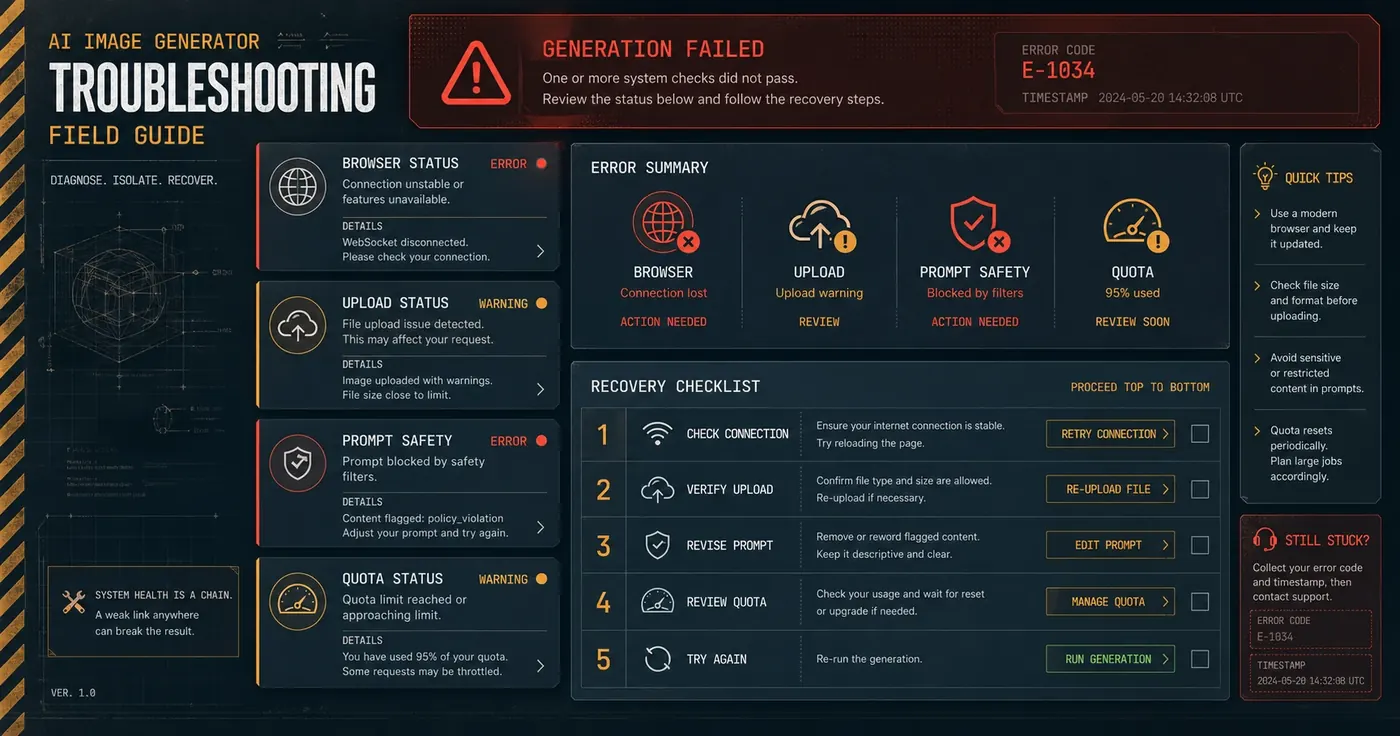
Quick answer
If the ChatGPT image generator is not working, diagnose it in this order: service status, account access, model or tool availability, browser state, network or VPN, content safety, prompt clarity, upload file health, and quota or rate limits. Do not keep retrying the same prompt in the same broken session. Change one variable at a time so you can identify the real cause.
Fastest recovery path:
- Check whether other ChatGPT features work.
- Refresh the page and start a new chat.
- Disable extensions, VPN, proxy, and strict privacy filters.
- Try another browser or the mobile app.
- Rewrite the prompt to remove policy-risk wording and vague instructions.
- Re-upload a smaller, clean image file if upload is involved.
- If generation still fails, check service status and wait before retrying.
ChatGPTImages is useful when you need a neutral fallback workspace: repair the prompt, compare before/after prompt versions, and keep a clean generator-ready brief while ChatGPT's image surface is unavailable or inconsistent.
Quick Diagnostic Table
Use this table before reading the whole guide.
| What you see | Most likely area | Try first | If it still fails |
|---|---|---|---|
| Image button or image option is missing | Account, plan, region, model selection, workspace policy | Start a new chat, switch model/tool mode, check account access | Try another signed-in browser or check admin restrictions |
| Generation says failed or something went wrong | Service load, network, prompt safety, temporary session bug | Refresh, retry once in a new chat, simplify prompt | Check service status and retry later |
| Upload does nothing | Browser permissions, file size/type, corrupted file, extension conflict | Rename file, compress image, use PNG/JPEG/WebP, disable extensions | Try mobile app or another browser |
| Image is low quality or ignores the prompt | Prompt is vague, conflicting, or under-specified | Rewrite as a finished asset brief | Add constraints and revise one failure at a time |
| Prompt is blocked or refused | Content safety or rights issue | Remove unsafe, explicit, or impersonation wording | Use an original, policy-safe alternative |
| It worked yesterday but not today | Quota, rate limit, temporary outage, changed account state | Wait, check limits, check service status | Use fallback workflow and try later |
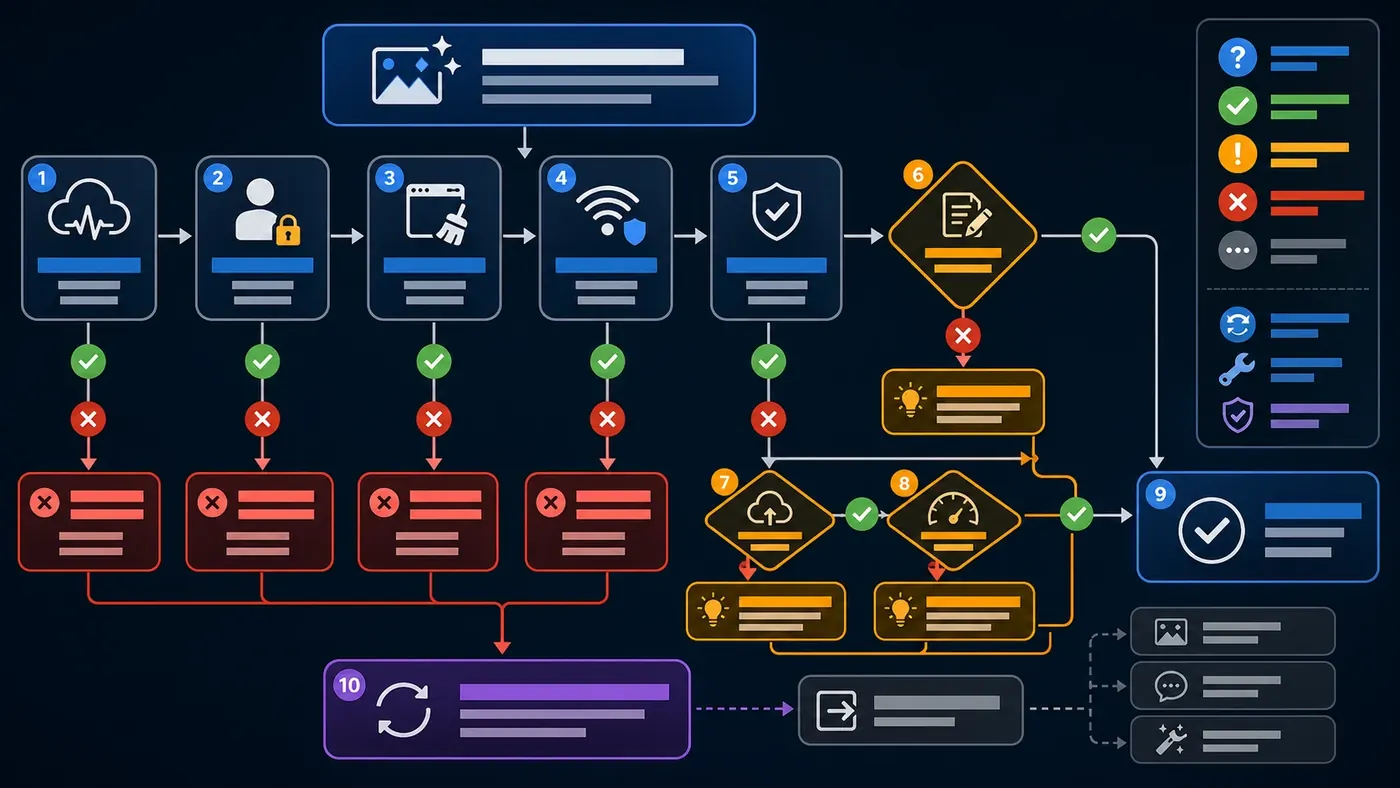
The 10-Minute Recovery Checklist
1. Confirm it is not a wider service issue
If image generation fails before the model starts working, the problem may be outside your prompt. Check whether text chat works, whether other tools load, and whether there are public service incidents. If there is an incident, repeated retries may only consume time or quota.
What to do:
- Wait a few minutes before retrying.
- Try a short harmless prompt such as
Create a simple blue circle icon on a white background. - If that fails too, treat it as a service, account, or browser problem rather than a prompt problem.
2. Start a clean session
Long chats can accumulate conflicting context. A previous instruction, uploaded image, or blocked request can contaminate the next attempt.
What to do:
- Open a new chat.
- Paste only the current image request.
- Avoid carrying over previous failed prompts unless you are comparing versions.
- If the new chat works, the old thread was likely the problem.
3. Check account and tool access
Sometimes the image option is unavailable because of account state, workspace policy, region, model selection, plan limitations, or temporary rollout behavior.
What to do:
- Confirm you are signed into the expected account.
- Check whether the selected model or mode supports image generation or image editing.
- If you are in a school, company, or managed workspace, check whether an admin disabled image generation or uploads.
- Try personal and work accounts separately if you have both.
4. Fix the browser surface
Browser problems often look like product problems: buttons disappear, uploads stall, drag-and-drop fails, or the generate button does nothing.
What to do:
- Hard refresh the page.
- Sign out and sign back in.
- Disable ad blockers, script blockers, download managers, and privacy extensions.
- Clear site data for the ChatGPT domain if the issue persists.
- Test in another browser.
- Test in the mobile app if available.
5. Remove network interference
VPNs, corporate proxies, DNS filters, firewalls, and strict content filters can interrupt image upload and generation requests.
What to do:
- Turn off VPN or proxy temporarily.
- Switch from office Wi-Fi to mobile hotspot.
- Allow image upload endpoints in firewall or security software.
- Avoid retrying large uploads on unstable networks.
6. Repair content safety issues
Some prompts fail because they ask for disallowed content, sensitive depictions, impersonation, illegal activity, explicit sexual content, or protected likeness/style requests. A refusal or generic failure can also happen when the prompt mixes safe and unsafe instructions.
What to do:
- Remove requests for real private people, explicit sexual content, graphic harm, illegal instructions, or deceptive impersonation.
- Avoid asking for exact imitation of a living artist, a named copyrighted character, or a real brand asset unless you have a legitimate edit/reference use case and the tool allows it.
- Replace "in the style of [living artist]" with observable visual traits such as color palette, medium, lighting, era, composition, or mood.
- Ask for an original character, original brand-like asset, or generic commercial scene.
7. Rewrite weak prompts into image briefs
If the system runs but the result is ugly, blurry, cluttered, or wrong, the generator may be working. The prompt is the problem.
Use this repair pattern:
Create [asset type] for [use case].
Subject: [main object, person, or scene].
Composition: [camera angle, framing, aspect ratio, negative space].
Style: [photography, illustration, 3D, editorial, diagram, etc.].
Lighting and color: [specific mood and palette].
Text: [exact words, placement, or no text].
Constraints: [what to avoid, what must stay unchanged].
8. Fix upload files
Upload failures are usually caused by file size, unsupported format, damaged metadata, permissions, long filenames, or browser extension conflicts.
What to do:
- Use PNG, JPEG, or WebP.
- Rename the file with simple ASCII characters, for example
product-reference.webp. - Compress very large images.
- Remove unusual color profiles or metadata by exporting a fresh copy.
- Avoid screenshots with sensitive personal data.
- Upload one file first before adding multiple references.
9. Respect quota and rate limits
If the tool worked and then suddenly stopped, you may have hit a usage cap, rate limit, or temporary protection system. Repeatedly clicking generate can make the cooldown feel longer.
What to do:
- Wait before retrying.
- Reduce batch size.
- Generate one image instead of multiple variations.
- Lower quality settings where the interface allows it.
- Save the repaired prompt so you can resume later.
10. Know when to stop retrying
Stop retrying the same prompt when:
- A simple harmless test prompt also fails.
- Upload fails in two browsers.
- The same account fails on desktop and mobile.
- Public service status shows an active incident.
- You have already received a clear policy refusal.
At that point, move to a fallback: repair the prompt, save the image brief, test in another allowed generator, or wait for the service to recover.
Symptom, Cause, Fix Matrix
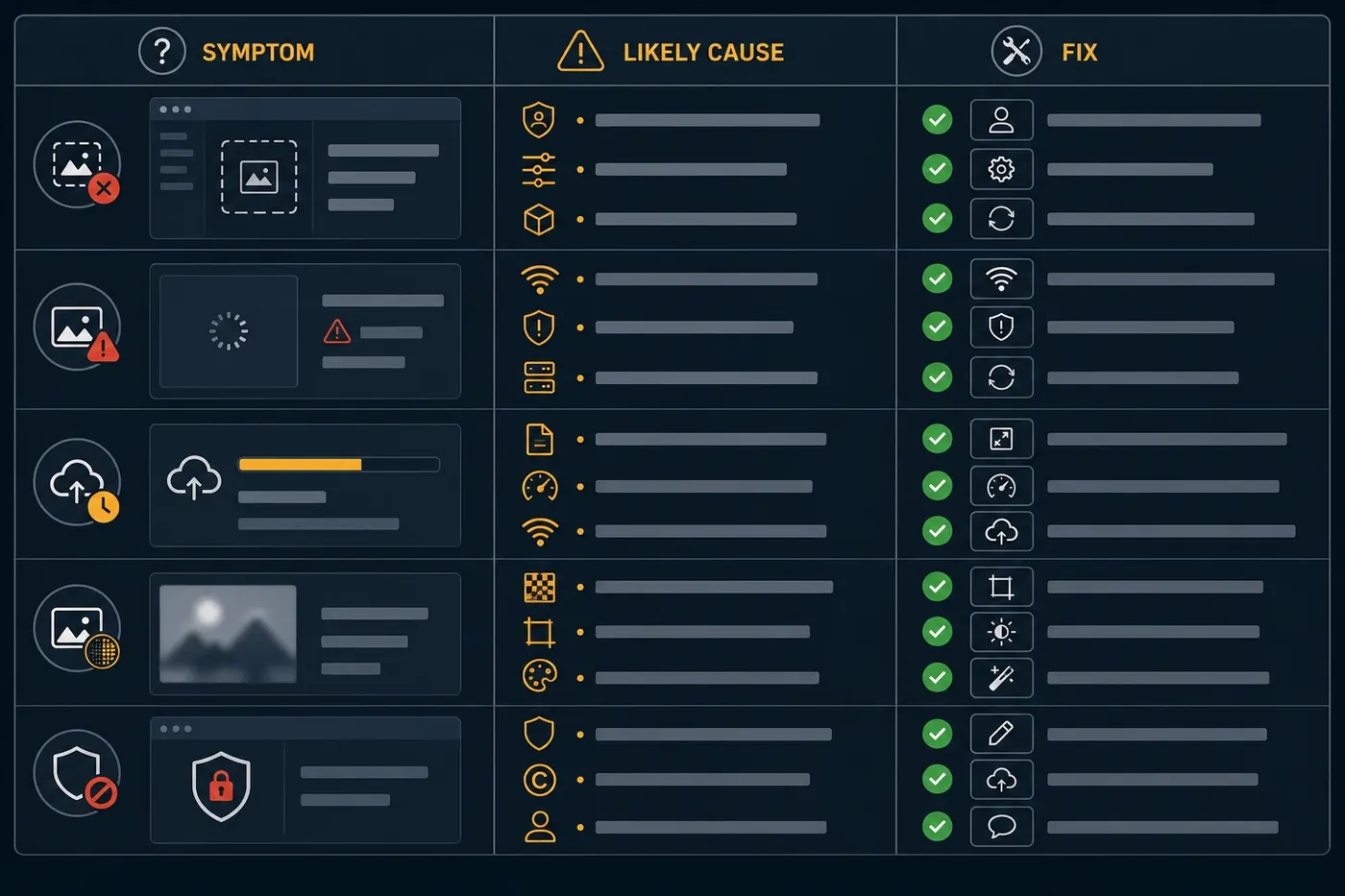
| Symptom | Likely cause | Fix |
|---|---|---|
| Image button is missing | Wrong model/mode, account not eligible, admin restriction, rollout difference | Start a new chat, check model selector, try another account, ask workspace admin |
| Generate button does nothing | Browser script blocked, stale session, extension conflict | Hard refresh, disable extensions, clear site data, try another browser |
| "Something went wrong" | Temporary service issue, overloaded session, network interruption, prompt risk | New chat, simple test prompt, disable VPN, check status |
| Upload spinner never ends | Large file, bad metadata, network filter, unsupported file type | Re-export smaller image, rename file, use PNG/JPEG/WebP, switch network |
| Image ignores instructions | Prompt conflict, vague target, too many constraints | Rewrite as an asset brief, prioritize must-have details, revise one failure |
| Faces or products drift | Reference image not used clearly, preserve/change rules missing | Add Preserve and Change sections, use a clearer reference |
| Text inside image is wrong | Too much text, small text, poor placement | Use fewer words, ask for large simple text, or add text later in design software |
| Output is blurry or cheap-looking | Style too vague, low quality setting, weak lighting/composition | Specify camera, light, material, resolution intent, and negative space |
| Prompt is refused | Safety or rights issue | Remove unsafe details, use original concepts, avoid impersonation |
Example 1: Policy Block To Safe Original Prompt
Before scenario:
Make a poster in the exact style of a living fantasy artist, showing a famous copyrighted wizard character fighting a bloody monster.Why it fails:
- It asks for exact imitation of a living artist.
- It uses a named protected character.
- It includes graphic violence.
- The tool may refuse or return a generic failure.
Fixed prompt:
Create an original fantasy adventure poster.
Subject: a young moonlit forest mage facing a shadow creature made of mist, with no blood or gore.
Style: painterly storybook fantasy with luminous edges, deep blue shadows, silver moonlight, and hand-painted texture.
Composition: vertical poster, mage in the lower third, creature silhouette in the distance, strong empty sky area for a title.
Text: no text.
Constraints: do not copy any named character, franchise, logo, or living artist style; keep the scene suitable for a general audience.
Recovered result:
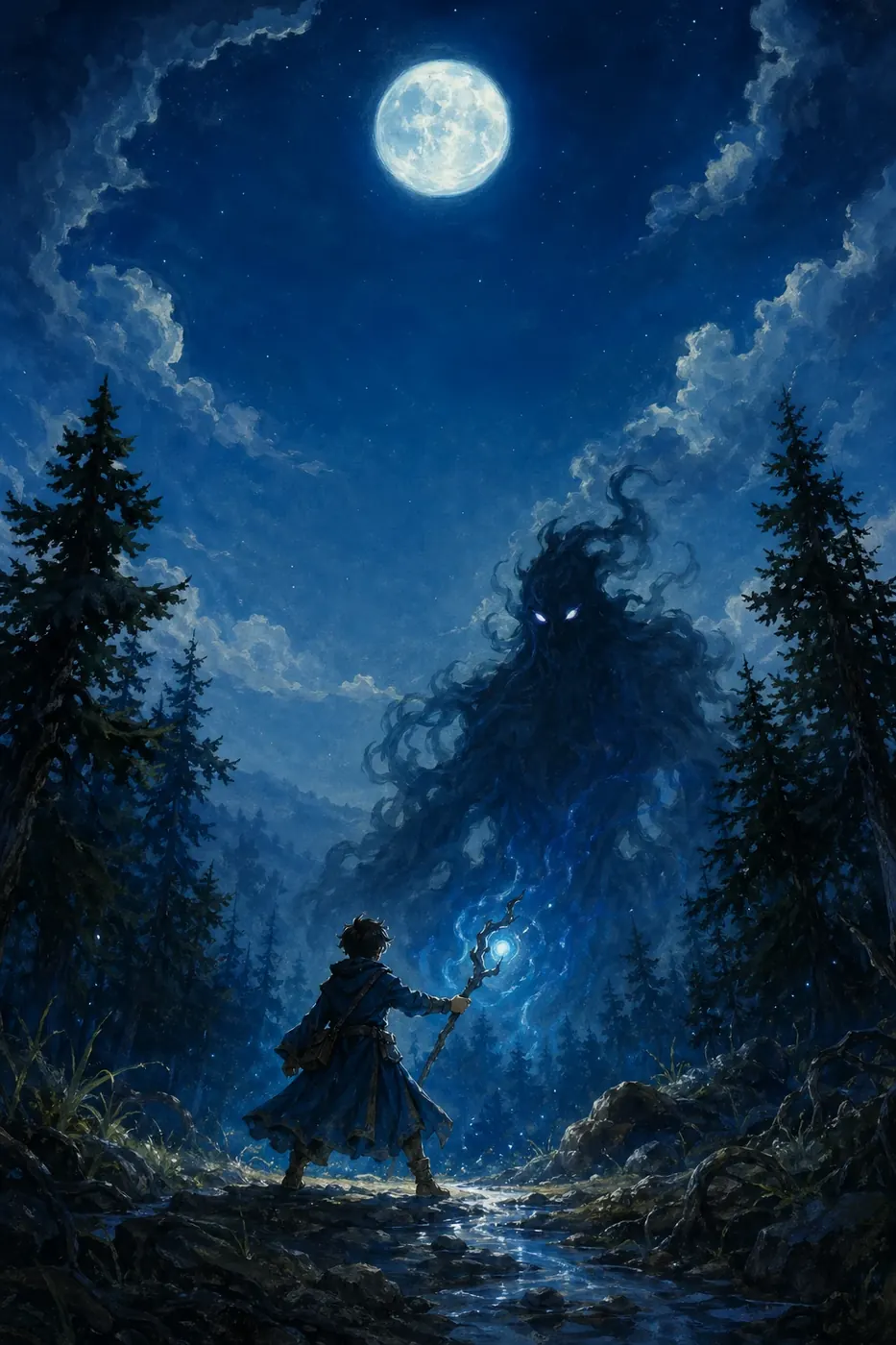
What the image should demonstrate: the concept still feels cinematic and fantasy-driven, but the fixed prompt removes the risky names and graphic details that commonly trigger refusal.
Example 2: Upload Does Nothing To Clean Reference Edit
Before scenario:
I dragged a 28 MB HEIC product photo into ChatGPT and nothing happened. I tried again three times, but the upload spinner stayed stuck.Likely cause:
- The file is too large or in an inconvenient format.
- Browser or network settings may be blocking the upload.
- Repeated retries in the same session can keep failing.
Fix:
- Export the product image as
candle-reference.webporcandle-reference.jpg. - Keep the longest edge around 1600 to 2400 px unless you need more detail.
- Start a new chat.
- Upload one reference image first.
- Use a preserve/change prompt.
Fixed prompt:
Use the uploaded candle photo as the reference.
Preserve: candle jar shape, wax color, front label placement, lid proportions, and camera angle.
Change: replace the cluttered room background with a clean warm ecommerce studio setup on a beige surface.
Composition: square product image, candle centered, soft shadow below, empty space on the right for webpage copy.
Text: do not add new text.
Constraints: do not change the label layout, do not invent a new logo, do not crop the jar.
Recovered result:
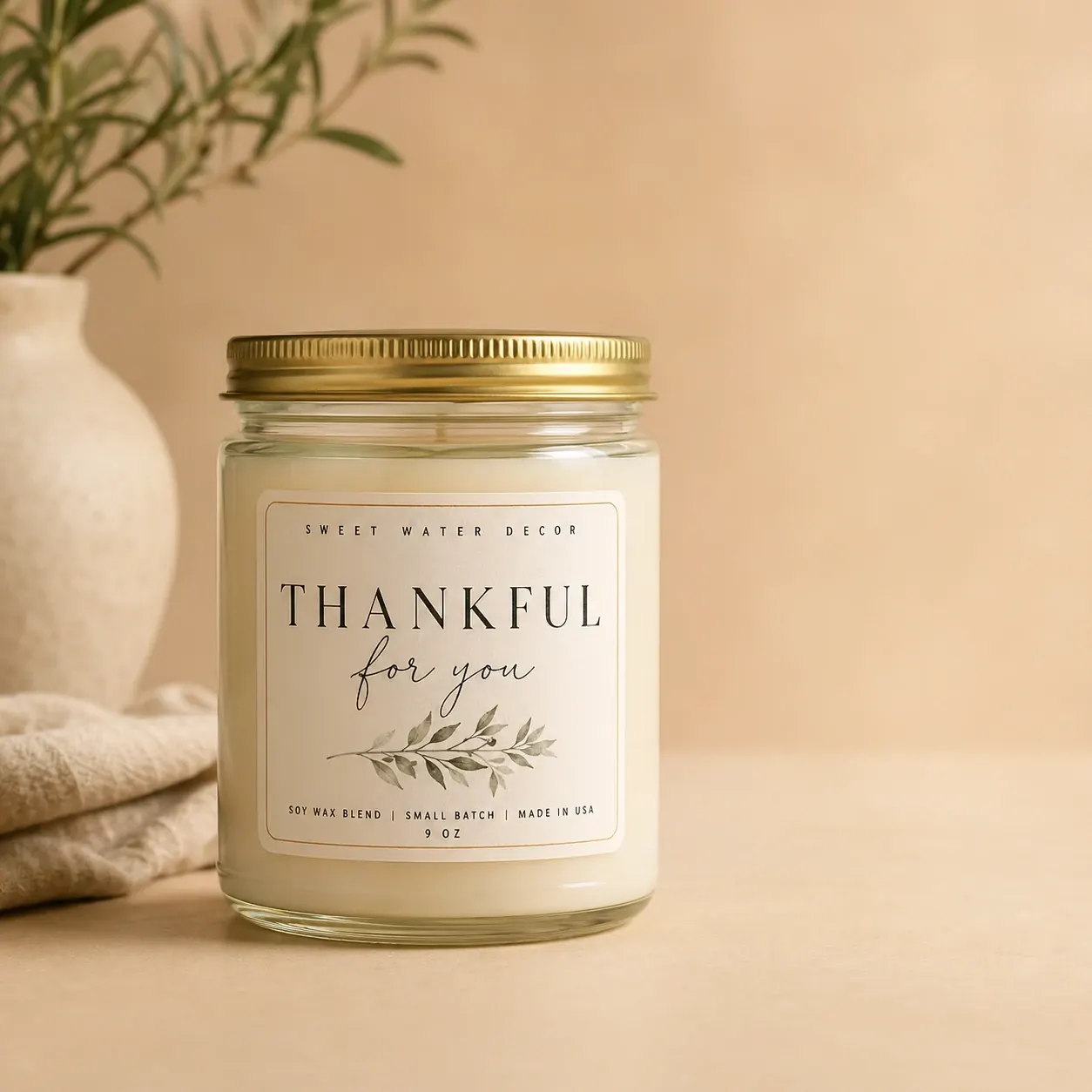
What the image should demonstrate: the problem was not the creative idea. It was the upload workflow and missing preserve/change instructions.
Example 3: Bad Quality To Clear Commercial Image
Before prompt:
Make a nice image of a cafe for my website.Typical bad result:
- Generic cafe scene.
- No clear subject.
- Crowded tables.
- No space for headline copy.
- Wrong aspect ratio for a website hero.
Fixed prompt:
Create a wide website hero image for an independent neighborhood cafe.
Subject: a cozy corner table with one ceramic cappuccino cup, a small notebook, and morning light through a window.
Composition: 16:9 horizontal image, table in the lower left, clean negative space on the upper right for a headline, shallow depth of field.
Style: warm editorial lifestyle photography, natural materials, calm and premium without looking like a stock photo.
Lighting and color: soft golden morning light, cream walls, walnut wood, muted sage accent.
Text: no text inside the image.
Constraints: avoid crowded people, avoid messy tables, avoid fake logos, avoid oversaturated colors.
Recovered result:
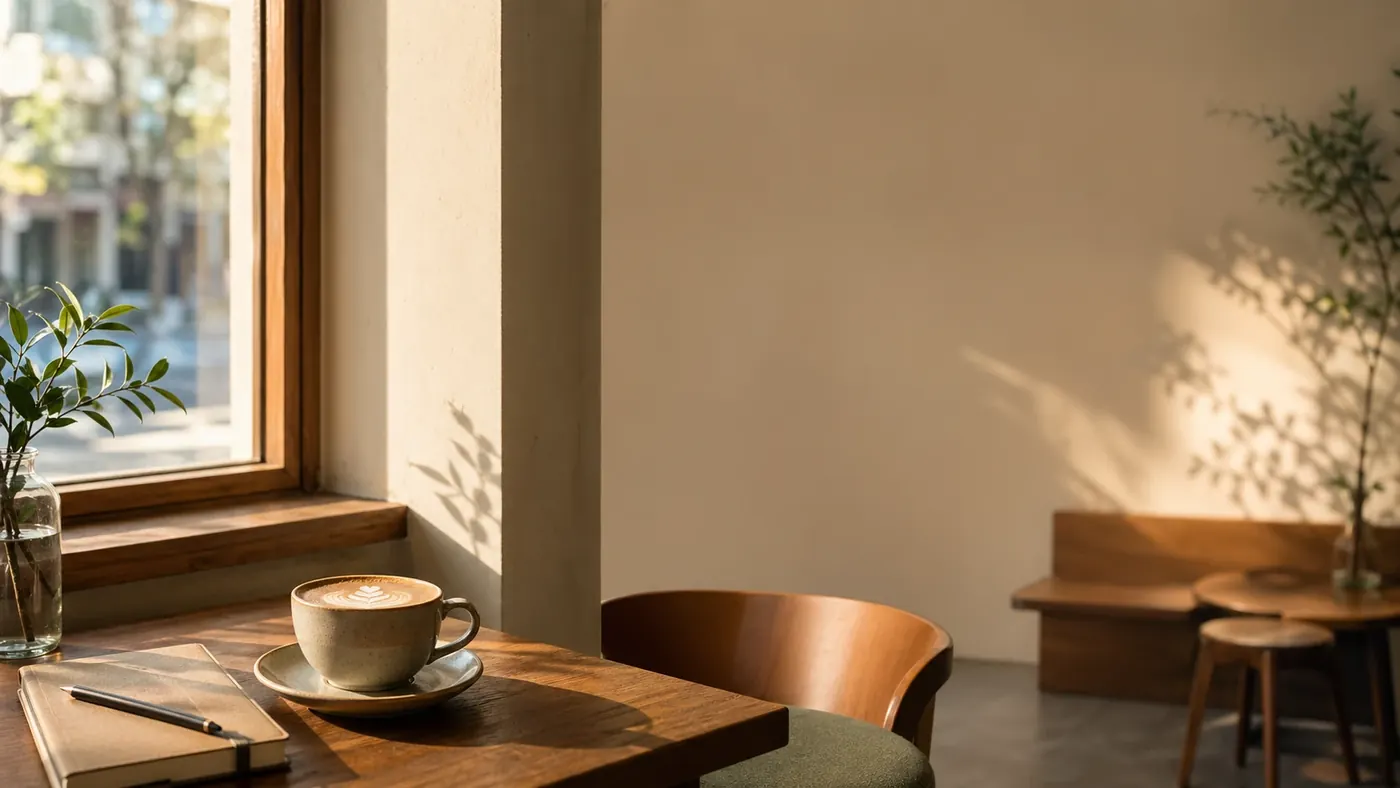
What the image should demonstrate: when the generator works but output quality is poor, define the final asset, layout, light, and constraints instead of asking for a vague "nice image."
Account and Access Problems
If the image option is missing, do not assume the generator is broken. Access can vary by account type, plan, workspace, model mode, region, or rollout state.
Checklist:
- Are you signed into the account that normally has image generation?
- Are you using the correct workspace?
- Did you switch into a model or mode that supports image generation?
- Does your organization restrict image generation or file upload?
- Does the same option appear on mobile?
- Does the option appear in a private browser window after sign-in?
Best fix: verify access in a clean session before changing prompts. A perfect prompt cannot fix a missing tool.
Browser Problems
If the UI is broken, uploads stall, or buttons do not respond, treat the browser as the suspect.
Common causes:
- Stale site data.
- Disabled JavaScript.
- Extension conflict.
- Aggressive tracking protection.
- Corrupted cached app shell.
- Outdated browser version.
Recovery order:
- Hard refresh.
- Disable extensions.
- Clear site data for the affected site.
- Update the browser.
- Try a different browser.
- Try the mobile app.
Network, VPN, and Firewall Problems
Image generation and uploads are more sensitive to network interference than plain text chat. Corporate proxies, VPNs, DNS filters, and security software can block upload endpoints or streaming responses.
Recovery order:
- Turn off VPN or proxy.
- Try a mobile hotspot.
- Use a less restricted network.
- If you are on a company network, ask IT whether AI image upload endpoints are blocked.
- Avoid uploading large files from unstable Wi-Fi.
Content Safety Problems
Content safety issues often look like confusing product errors because the system may reject, soften, or fail a request instead of returning the exact image you imagined.
High-risk prompt patterns:
- Exact imitation of a living artist.
- Named copyrighted characters or logos used as the main subject.
- Real private people or deceptive impersonation.
- Explicit sexual content.
- Graphic violence or gore.
- Instructions for illegal activity.
- Requests that combine minors with sexualized context.
- Political persuasion or misleading public figures.
Safer repair:
- Use original characters and original scenes.
- Describe visual traits instead of naming protected styles.
- Keep violence non-graphic.
- Remove sexualized or exploitative elements.
- Use generic product categories unless you have rights to the brand asset.
Prompt Problems
When the generator returns an image but it is wrong, weak, or ugly, diagnose the prompt.
| Prompt problem | Symptom | Repair |
|---|---|---|
| Too vague | Generic output | Name the asset, subject, setting, and use case |
| Too many ideas | Cluttered output | Choose one primary subject and one purpose |
| Contradictory style | Incoherent look | Use one visual style and one lighting direction |
| Missing composition | Bad framing | Specify aspect ratio, camera angle, and negative space |
| Too much text | Broken lettering | Use shorter text or add text later |
| No constraints | Fake logos, extra hands, wrong props | Add a Constraints line |
Upload File Problems
If your image upload is not working, isolate the file.
Try this safe upload version:
- Format:
.jpg,.png, or.webp - Filename:
reference-image.webp - Size: compressed enough to upload quickly
- Content: no sensitive personal data
- Color: standard RGB export
- Quantity: one file first
If the clean file works, the original file was the issue. If the clean file fails in multiple browsers and networks, the issue is probably account, service, or upload access.
Quota, Limits, and Service Status
Some failures are not fixable from your prompt:
- Daily, hourly, or temporary usage caps.
- Rate limits after repeated attempts.
- Service incidents.
- Tool maintenance.
- Workspace-level restrictions.
- Model rollout changes.
What to do:
- Save the repaired prompt.
- Stop repeated retries.
- Check service status.
- Try a simple test prompt later.
- Use ChatGPTImages to keep editing the prompt and planning the final image while you wait.
When To Switch To ChatGPTImages
Switch to ChatGPTImages when your main issue is workflow continuity, not account access.
Good reasons to switch:
- You need to rewrite a blocked or vague prompt into a safer prompt.
- You need a clean prompt brief before retrying in ChatGPT.
- You want examples of stronger image prompts by category.
- You want to continue planning while ChatGPT image generation is temporarily unavailable.
- You want to separate prompt repair from a broken browser session.
Do not switch expecting it to fix an OpenAI account restriction, workspace policy, or official service outage. Use it as a practical fallback and prompt repair environment.
Try this workflow
If ChatGPT image generation is failing because of a blocked, vague, or overloaded prompt, do not keep retrying the same request. Open ChatGPTImages, turn the request into a clean image brief, save the fixed version, and retry once the account, browser, upload, or service issue is resolved.
Related guides
Official sources
Model names, API behavior, and pricing can change. Verify factual claims against the official sources below before budgeting or publishing.